
If you are looking for an AI email writer for Gmail, you have probably already tried one of two approaches: writing everything by hand, or copy-pasting prompts into ChatGPT and jumping back to Gmail to paste the result. Neither is ideal when you have 20 or 30 messages to work through every day.
The good news is that a better approach exists. A dedicated AI email writer that works directly inside Gmail removes all the back-and-forth. You draft, rewrite, reply, and autocomplete - without ever leaving your inbox.
This guide explains how AI email writers work inside Gmail, what each feature actually does, real examples of them in action, an honest look at limitations, and how the best tools compare.
Why Writing Emails in Gmail Takes Longer Than It Should
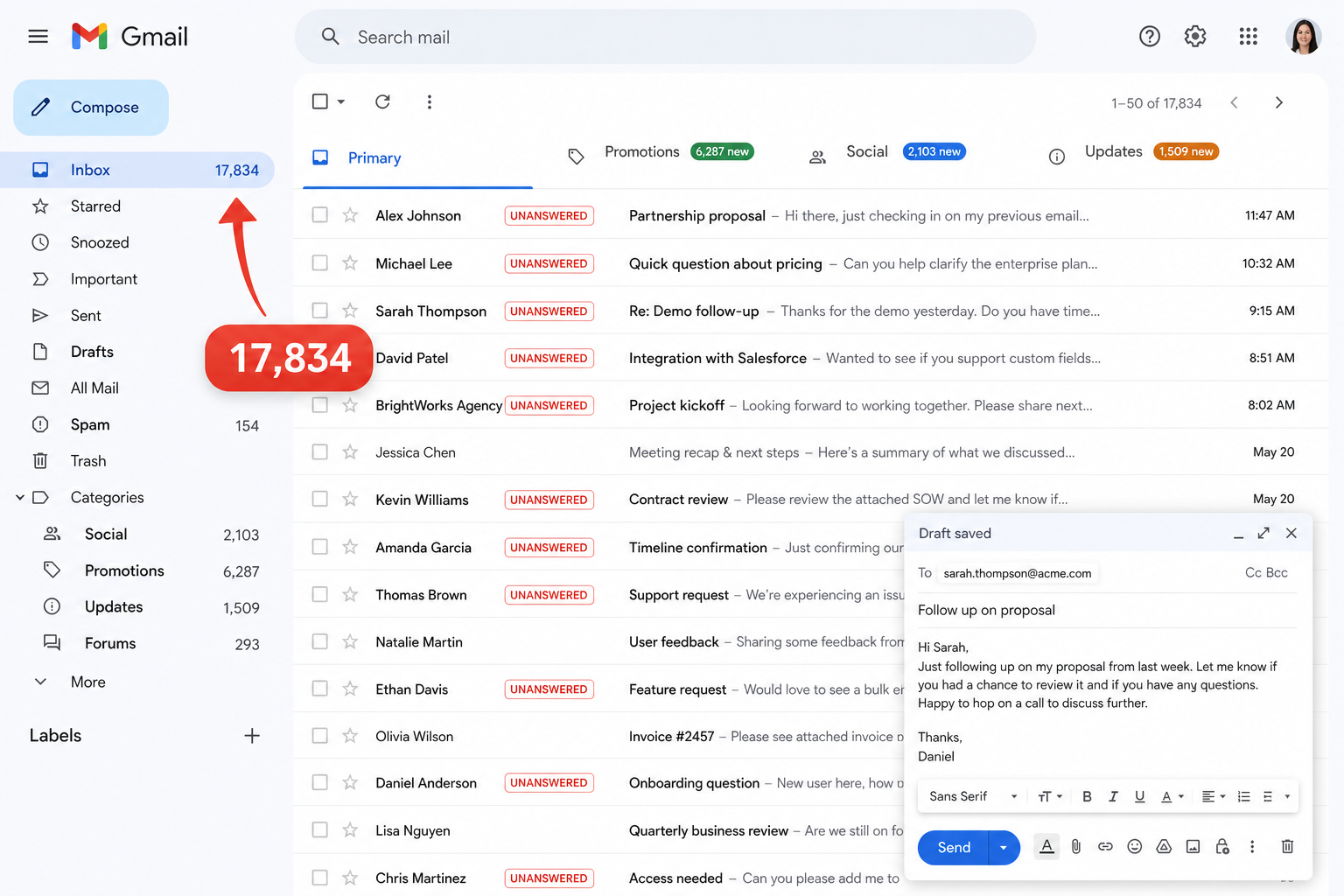
Writing emails sounds like a simple task. You know what you want to say. So why does it take so long?
Most professionals spend far more time on email than they expect. It is rarely because they have nothing to say. It is because structuring thoughts, finding the right tone, and worrying about how something reads takes genuine mental effort - and that effort accumulates across every single message throughout the day.
The Blank Page Problem - Starting From Scratch Every Time
Starting From Scratch (Slow)
Brain handles 5+ micro-decisions simultaneously: Tone? Length? Subject? How to start? Wording checks?
Editing AI Drafts (Fast)
Brain acts as an editor. Simply reviews, adjusts specific facts/personal touches, and hits send.
There is something uniquely frustrating about opening a compose window and staring at it. You know the point of the email, you know who it is going to, but translating a rough idea into a clear, professional message requires focused thought every single time.
This is especially painful for repetitive email types - follow-ups, check-ins, rejection emails, meeting requests, project status updates. You have written similar emails hundreds of times before, but there is no system that carries that knowledge forward. You start fresh each time by default.
The result is that even a two-paragraph email can quietly consume 15–20 minutes when you factor in thinking, drafting, second-guessing, and rewriting.
Why Copy-Pasting From ChatGPT Slows You Down
ChatGPT (8 Steps)
Open tab → Copy context → Switch tab → Paste context → Prompt ChatGPT → Wait & copy → Switch back → Paste & edit.
Foresty (3 Steps)
Click Reply → Review auto-draft generated inline → Click Send.
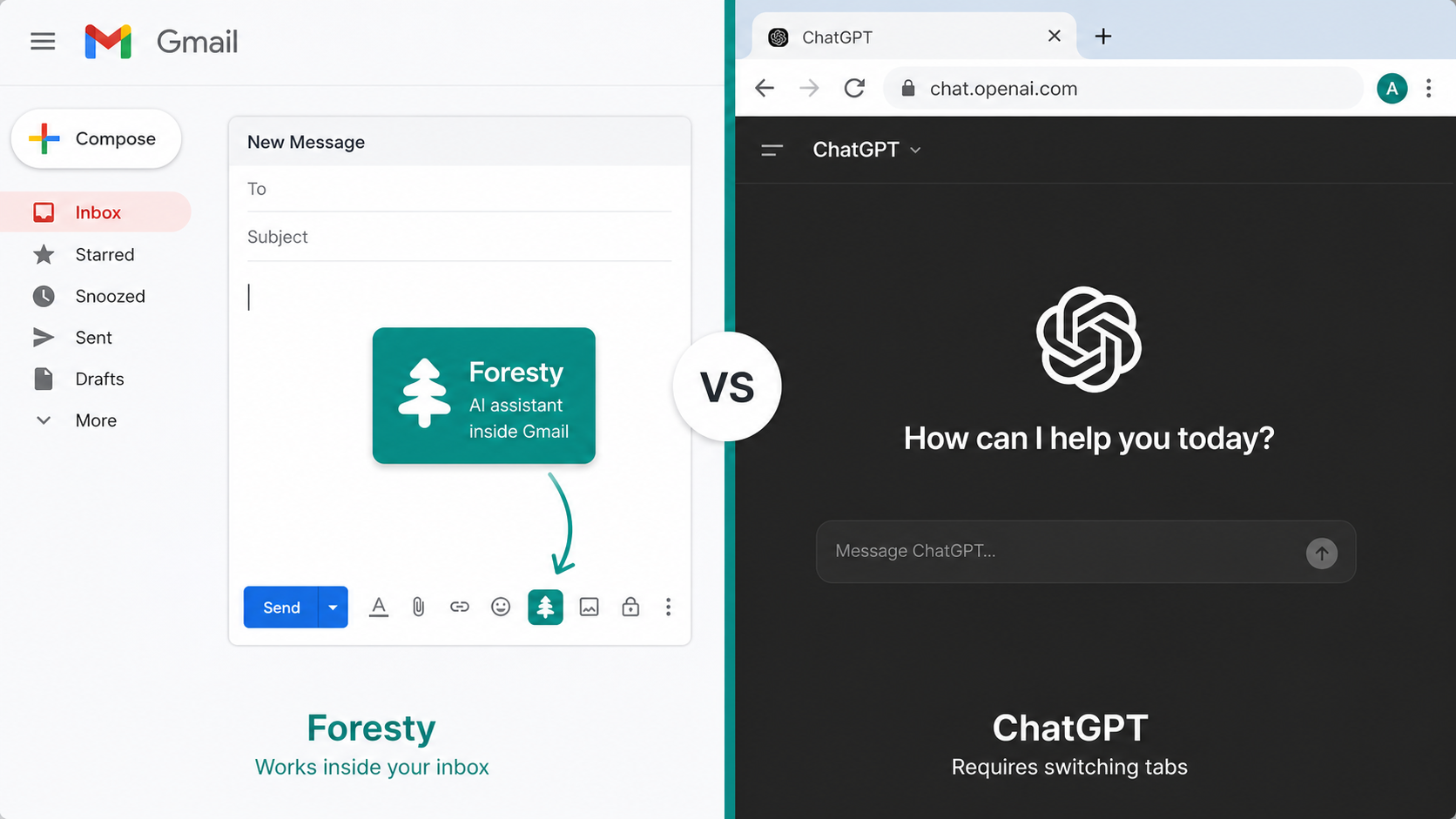
Many Gmail users discovered ChatGPT and started using it to write emails. The writing quality is good - but the workflow creates its own friction.
Here is what the typical ChatGPT email workflow actually looks like step by step:
- Open a new ChatGPT tab
- Write a prompt that explains the email context
- Wait for the response
- Read it and decide if it is right
- Copy the draft
- Switch back to Gmail
- Paste into the compose window
- Edit it to fit the actual situation
That is eight steps before you can even consider sending. For one email, it is manageable. For ten emails a day, it becomes a real bottleneck.
The Real Cost of Spending 20–30 Minutes Per Email
Most people underestimate how much email writing actually costs them in aggregate. If you write just five emails a day at an average of 15 minutes each, that is 75 minutes per day on email composition alone - before you account for reading, organizing, and following up.
Over a working week, that is over six hours. Over a year, it adds up to weeks of time spent just getting words onto a compose window.
The problem is not that people are slow writers. It is that writing from scratch, with no system and no starting point, is genuinely inefficient. And for professionals whose time has real value, that inefficiency carries a real cost.
What an AI Email Writer for Gmail Actually Does
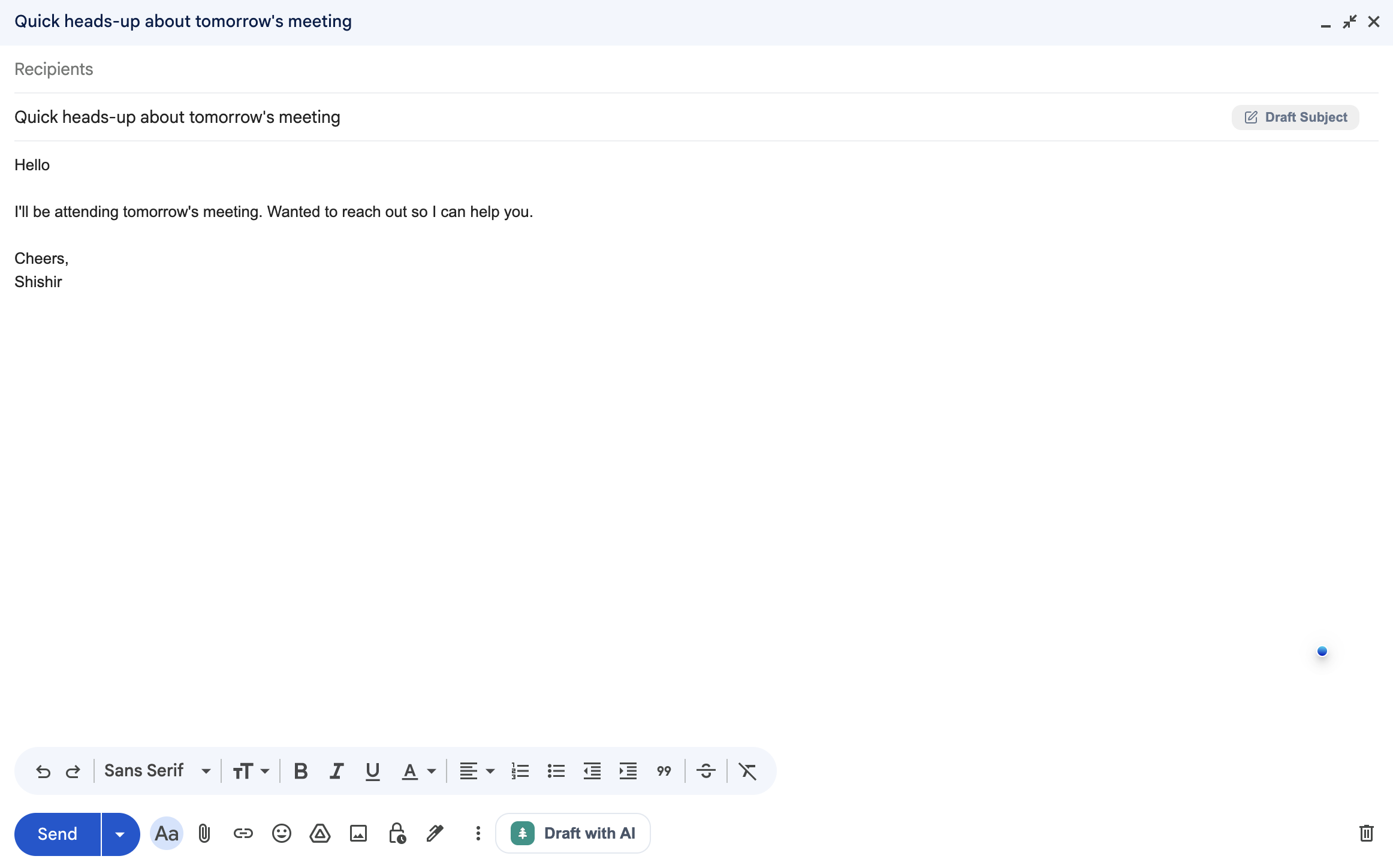
An AI email writer for Gmail is not a single button - it is a set of capabilities that address different parts of the email writing process. Understanding what each one does helps you use the right feature at the right moment.
Drafting Emails From a Short Prompt
The most common use case is draft generation. You give the tool a short description of what the email needs to say - the context, recipient, and the key point - and it generates a full, structured draft directly inside your compose window.
For example: "Write a follow-up to a client who hasn't responded in two weeks about a proposal we sent. Keep it professional but warm."
The tool takes that prompt and returns a ready-to-review draft. You read it, make any personal adjustments that matter, and send. The key difference is that you are editing from a starting point rather than building from nothing - and that is measurably faster.
Rewriting and Improving Existing Drafts
Not every email needs to be written from scratch. Sometimes you have a draft that is mostly right, but the tone feels slightly off, the wording is awkward, or the email is simply running too long. That is where inline rewriting becomes genuinely useful.
You highlight the section you want to change, tell the tool what you want - "make this more concise" or "make this sound friendlier" - and it rewrites that section in place. The rest of your email stays exactly as it was. No copy-pasting, no regenerating the whole thing.
Generating Context-Aware Replies
Replying to emails is where a significant portion of email time actually goes. You read an incoming message, understand what it is asking, and then need to compose something that addresses the actual content - not just a generic acknowledgement.
A good AI email reply generator reads the incoming email and uses that context to generate a reply that is relevant to what was actually said. You do not need to re-explain the conversation to the tool. It reads the thread and produces a draft that makes sense as a response.
Fixing Grammar and Adjusting Tone Inline
Beyond full rewrites, inline editing tools let you make targeted improvements without disrupting your whole draft. You can highlight a sentence with a grammar issue and fix it in one click. You can change the tone of a specific paragraph - making it more formal for an enterprise client or more casual for a longtime colleague - without rewriting the full email.
This kind of precision editing is where a lot of the smaller but consistent time savings come from.
Writing Subject Lines Automatically
Subject lines are almost always the last thing anyone writes - and they often get the least attention as a result. Yet the subject line is the first thing the recipient sees, and it directly affects whether they open the email.
An AI subject line generator reads the body of your email and produces several subject line options that match the content and intent. You get multiple variations to choose from and pick the one that fits best.
How the Drafting Workflow Changes With AI
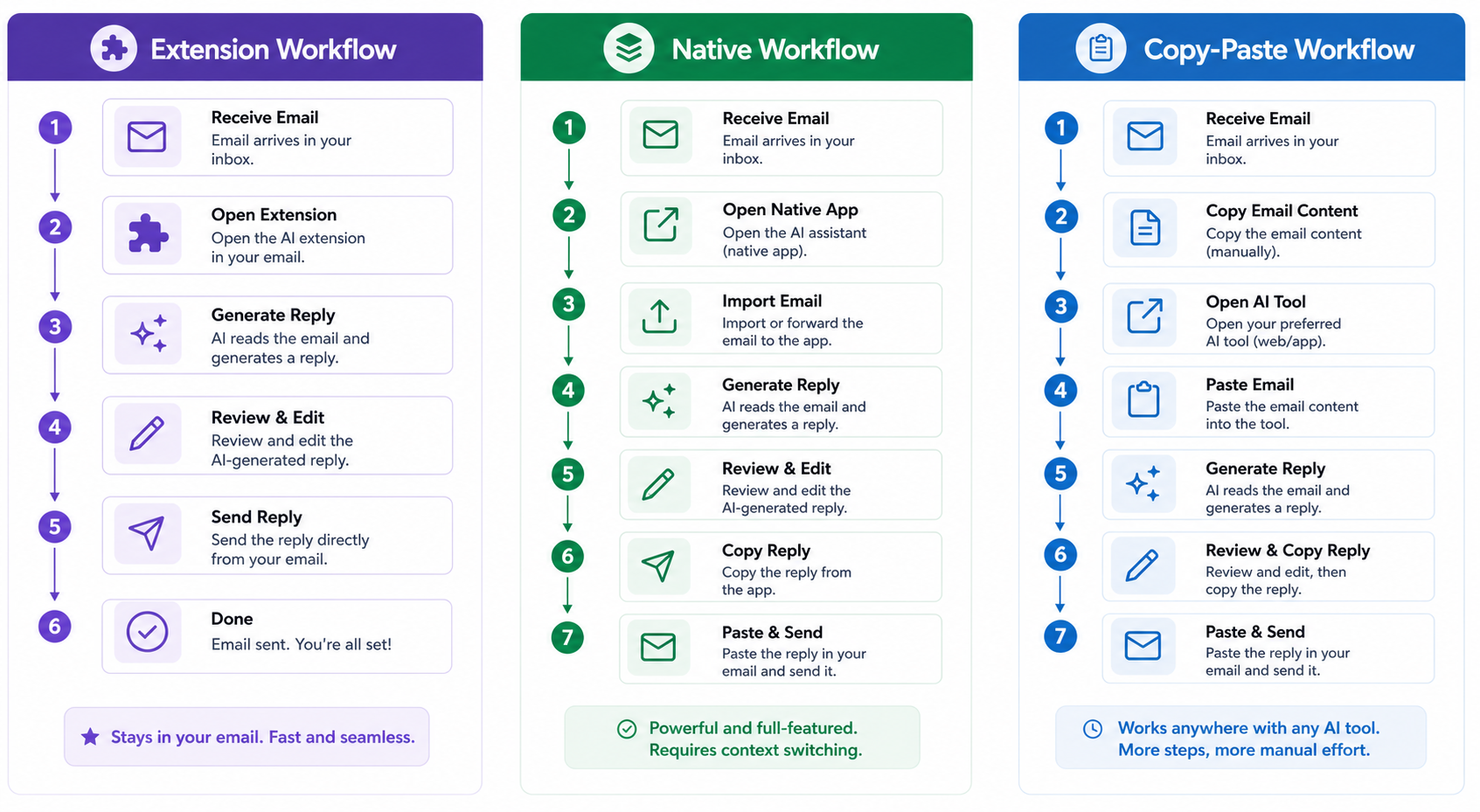
The difference between writing emails manually and using an AI writer is not just about raw speed. It is about where your mental energy actually goes.
The Manual Drafting Workflow (Before AI)
Here is what writing a professional email typically looks like without AI assistance:
- Open the Gmail compose window
- Stare at the blank page for a moment
- Start typing a rough version
- Reread it and decide something does not sound right
- Rewrite the key sections
- Check grammar manually or with a separate tool
- Reread the full email
- Think about a subject line
- Send
That process works - but it demands sustained mental effort for every single email, and it takes far longer than necessary for messages you have essentially written dozens of times before.
The AI-Assisted Drafting Workflow (After AI)
With an AI email writer working directly inside Gmail, the process looks like this:
- Open the AI assistant inside Gmail
- Type or speak a short prompt describing what the email needs to say
- Review the generated draft
- Edit anything that needs your specific voice or context
- Accept or generate a subject line
- Send
The result is the same - a professional, clear, ready-to-send email - but you spent most of your time reviewing rather than generating. That is a fundamentally different cognitive load, and it is why people who use AI email writers consistently report meaningful time savings.
Real Example - Drafting a Follow-Up Email in Under Two Minutes
Scenario: You sent a proposal to a prospect two weeks ago. No response yet. You want to follow up without coming across as pushy.
Prompt: "Follow-up email to a prospect who received a proposal two weeks ago and hasn't responded. Friendly and low-pressure. Ask if they have any questions."
Subject: Quick check-in on the proposal
Hi [Name],
I wanted to follow up on the proposal I sent a couple of weeks ago - no pressure at all, just wanted to make sure it landed okay and check if you had any questions or anything you'd like to go over.
Happy to jump on a call or answer anything over email. Whatever works best for you.
Best,
[Your name]
That draft is ready to send after a quick read-through. Total time: under two minutes. Writing that same message from scratch - thinking through the tone, the ask, the right length - typically takes far longer.
How AI Email Rewriting Works Inside Gmail
Sometimes the challenge is not that you have nothing written - it is that what you have does not quite land the way you want. Rewriting tools solve this without requiring you to start over.
When You Have a Rough Draft but the Tone Feels Off
This is one of the most common email situations. You write something quickly, reread it, and realize it sounds too abrupt, too stiff, or not quite warm enough. You know what you want to say - you just want it to land differently.
With an inline rewriting tool, you highlight the section that feels wrong and give a simple instruction: "make this sound more empathetic" or "make this less formal". The tool rewrites that specific section and you review it. If it is better, you accept it. If not, you adjust the instruction and try again.
This is considerably faster than manually reworking your own wording, particularly when you cannot quite put your finger on why something sounds off.
Shortening Long Emails Without Losing the Message
Long emails carry a real cost - they take longer to read, they are more likely to get skimmed, and they can obscure the actual ask or key point. Shortening them is one of the most consistently useful improvements you can make to your email quality.
The problem is that cutting your own writing is genuinely difficult. You wrote every sentence for a reason, and it is hard to remove content you spent time on.
An AI rewriter approaches this without the emotional attachment. Highlight the email or a specific section, click "Shorten", and the tool condenses it - removing filler phrases, combining related sentences, and keeping the core message fully intact.
Making Emails Sound More Professional, Friendly, or Direct
Tone is one of the hardest things to control deliberately when you are writing quickly. You understand the difference between professional and casual, but hitting the exact right register for a specific recipient - a senior executive, a new client, a longtime collaborator - requires deliberate thought that most people skip when they are busy.
AI rewriting lets you set tone as a direct instruction rather than trying to achieve it purely through word choice. You select your draft and ask the tool to make it sound more confident, warmer, more direct, or more formal. It adjusts the phrasing accordingly.
This is particularly useful when you are using the AI email rewriter for client-facing messages where tone genuinely matters.
Real Example - Rewriting a Cold Outreach Email
Original draft (written quickly):
Instruction given to the AI: "Rewrite this to sound more specific and professional. Add a clear value proposition."
Rewritten version:
Hi [Name], I came across [Company] while researching fast-growing sales teams - and noticed outbound email is likely a big part of how your team operates.
We help sales professionals cut email writing time significantly by replacing the copy-paste ChatGPT workflow with a tool that works directly inside Gmail. Most users go from 15 minutes per email to under three.
Worth a 15-minute call to see if it fits your workflow?
The second version is more specific, more compelling, and more likely to get a response - and you got there without rewriting the whole thing from scratch.
Using AI to Reply to Emails Faster in Gmail
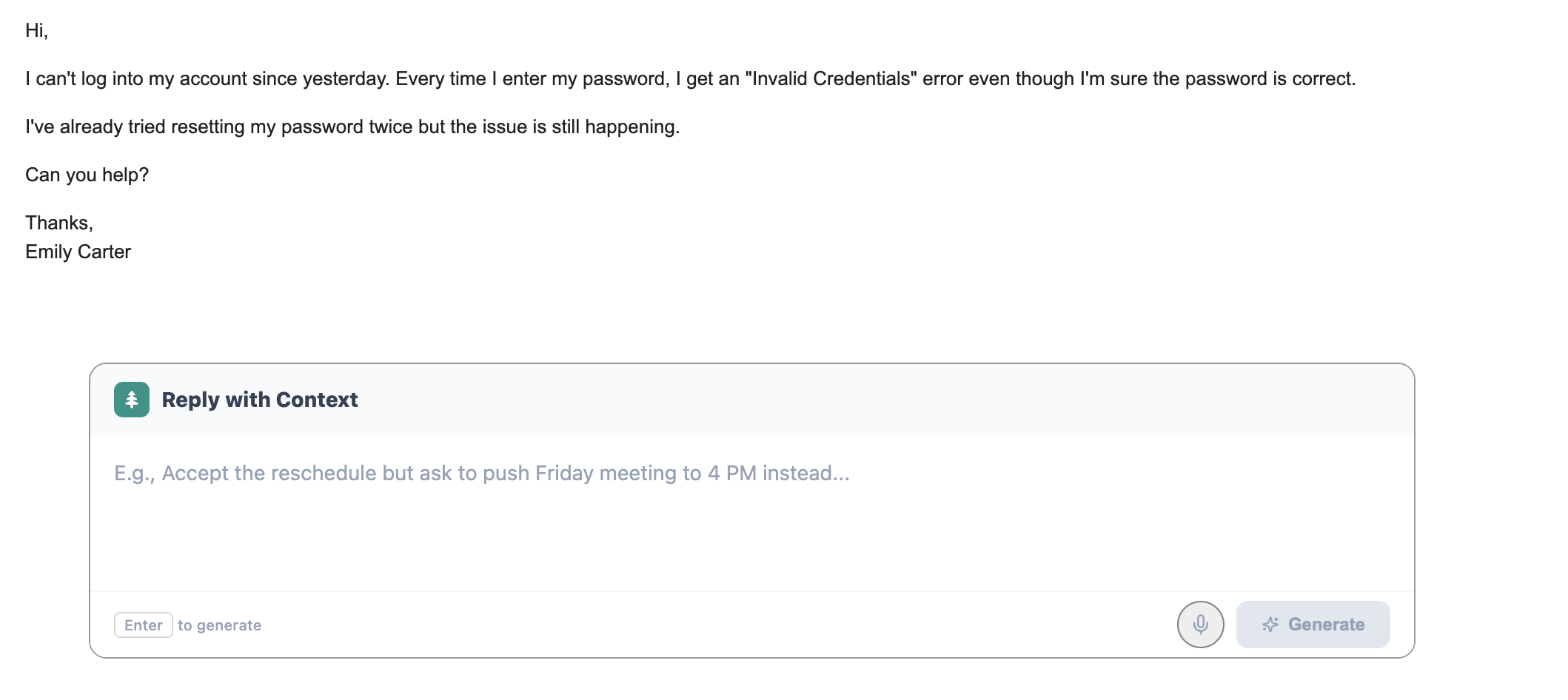
Replying to emails is where email volume really builds up. Most professionals receive significantly more email than they send, and every message that needs a response is a new writing task - even if it is small.
How Context-Aware Reply Generation Works
A capable AI email reply generator does not return a generic template. It reads the email you received, understands what it is asking or conveying, and generates a reply that addresses that specific content.
This is the meaningful difference between a tool that actually saves you time and one that just gives you more editing to do. If the reply does not reflect what the incoming email actually said, you end up rewriting it from scratch anyway - which defeats the purpose entirely.
Context-aware reply generation means the tool reads the thread, understands the ask, and produces a draft that is relevant and immediately useful rather than a vague placeholder.
Why Generated Replies Don't Sound Robotic
The concern most people have about AI-generated replies is that they will come across as generic or clearly machine-written. This is a legitimate concern with earlier tools, but current AI writing assistants generate replies that match the register of the actual conversation.
If the incoming email is casual and friendly, the generated reply will reflect that. If it is formal and structured, the reply will match. You can also adjust the tone before accepting - requesting something "warmer", "more direct", or "shorter" - so you retain full control over how it sounds before it goes out.
Real Example - Replying to a Client Complaint Email
Incoming email:
Generated reply:
Hi [Name],
Thank you for flagging this - I completely understand how frustrating it is when the output doesn't match what was agreed in the brief.
I'd like to schedule a call this week to go through the specific areas that need to be adjusted and make sure we're fully aligned before moving forward. Would Thursday or Friday work for a 30-minute conversation?
Apologies for the confusion, and I'm committed to making sure we get this right.
Best,
[Your name]
That reply is empathetic, clear, and contains a concrete next step. It took seconds to generate rather than minutes to draft from scratch.
Real Example - Replying to a Job Application Follow-Up
Incoming email:
Generated reply (for a recruiter):
Hi [Name],
Thanks for following up. We've received a strong pool of applications and are currently in the review process. We expect to reach out to shortlisted candidates by the end of next week.
We'll be in touch with an update either way - thanks for your patience.
Professional, appropriately brief, and took under a minute.
AI Subject Line Generation - The Overlooked Time Saver
Most people write the subject line last, which means it gets the least thought of anything in the email. Yet it is the first thing the recipient reads - and it directly determines whether they open the message at all.
Why the Subject Line Is Always the Last Thing You Write
After spending time getting the body of an email right, the subject line feels like a formality. You type something generic - "Following up" or "Quick question" - and move on. These vague subject lines work fine for internal emails but are genuinely weak for outreach, sales, or anything where the open rate matters.
The problem is that writing a good subject line requires a slightly different kind of thinking than writing the email body. It needs to be specific, relevant, and concise - which takes deliberate effort that most people skip when pressed for time.
How AI Generates Subject Lines From Your Email Body
An AI subject line generator solves this cleanly by reading the email you already wrote and generating several subject line options based on the actual content. You do not have to think about what to put in the subject - the tool derives it from what you already said.
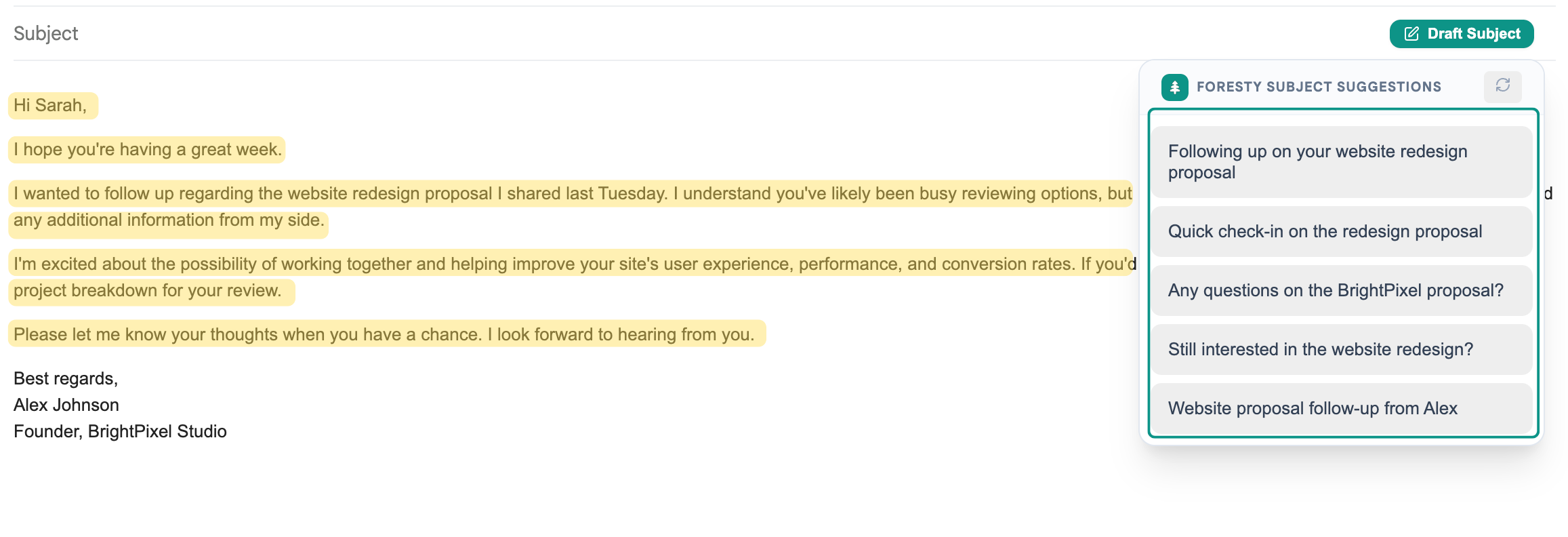
You typically get three to five variations to choose from. Some are direct and professional, others are slightly more conversational. You pick the one that fits the recipient and the situation best.
Real Example - Subject Lines for a Sales Follow-Up
Email body: A follow-up to a prospect who attended a product demo a week ago and has not responded yet.
Generated subject line options:
- "Following up after your demo last week"
- "Quick question about [Company]'s email workflow"
- "Did the demo answer everything you needed?"
- "Still happy to answer any questions from the walkthrough"
- "Checking in - any thoughts after the demo?"
Every one of those is more specific and more likely to get opened than a generic "Following up". And it took one click to generate all five.
Smart Autocomplete - Write Faster Without Full AI Drafts
Not every email needs a fully generated draft. Sometimes you just keep pausing - you know most of what you want to say, but you keep searching for the right phrase. That is exactly where smart autocomplete earns its value.
How Inline Autocomplete Works While You Type
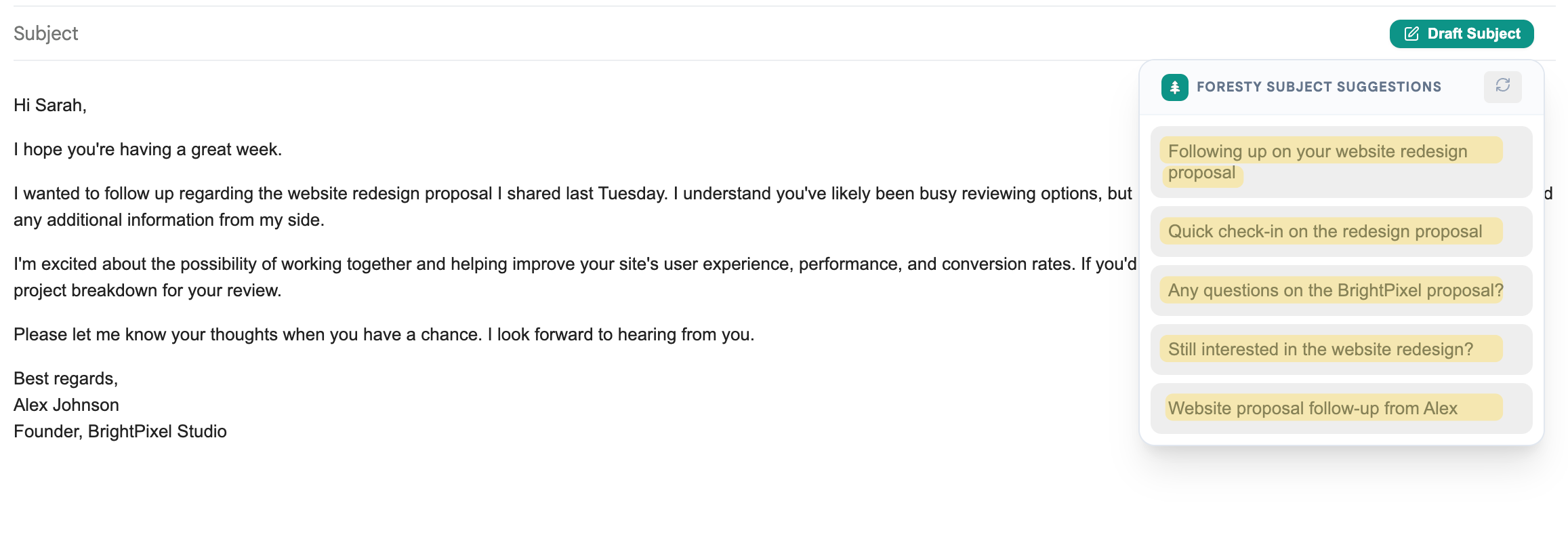
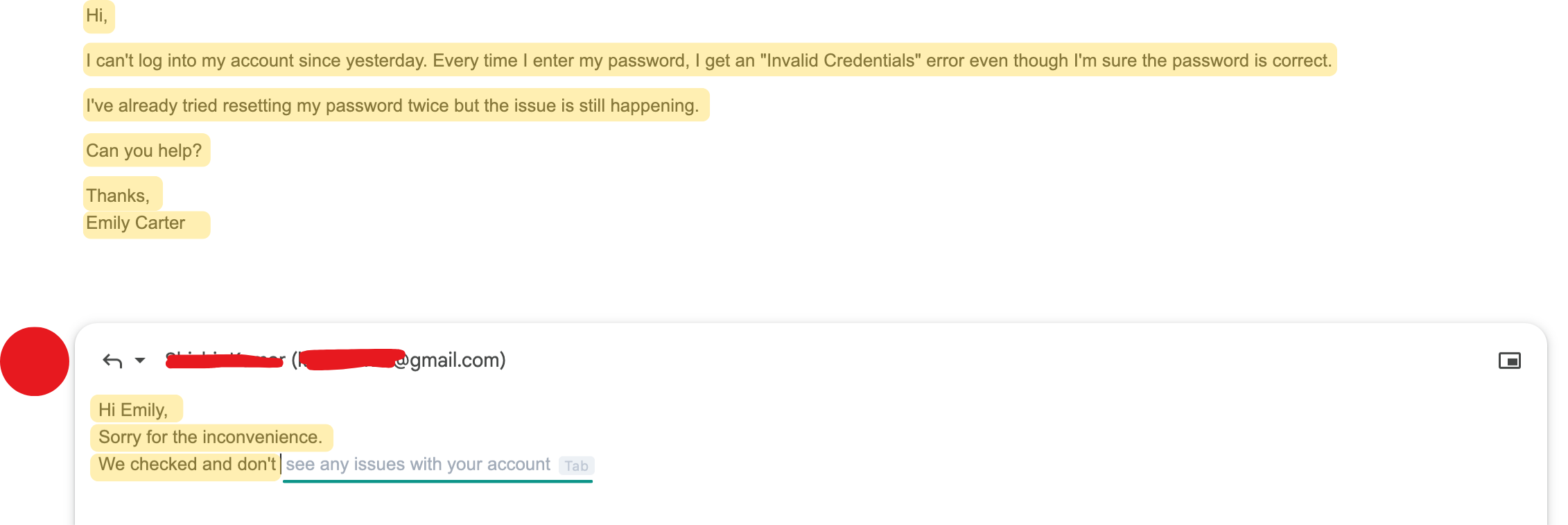
Autocomplete runs in the background as you write. When you pause for a moment, a gray-text suggestion appears completing your current sentence. If the suggestion is right, you press Tab to accept it. If it is not what you intended, you simply keep typing and the suggestion disappears.
This is a much lighter form of AI assistance than draft generation. You are still writing the email yourself - the tool is finishing your sentences when you pause, like a writing partner who can predict what you were about to say.
Context-Aware Suggestions Based on the Email Thread
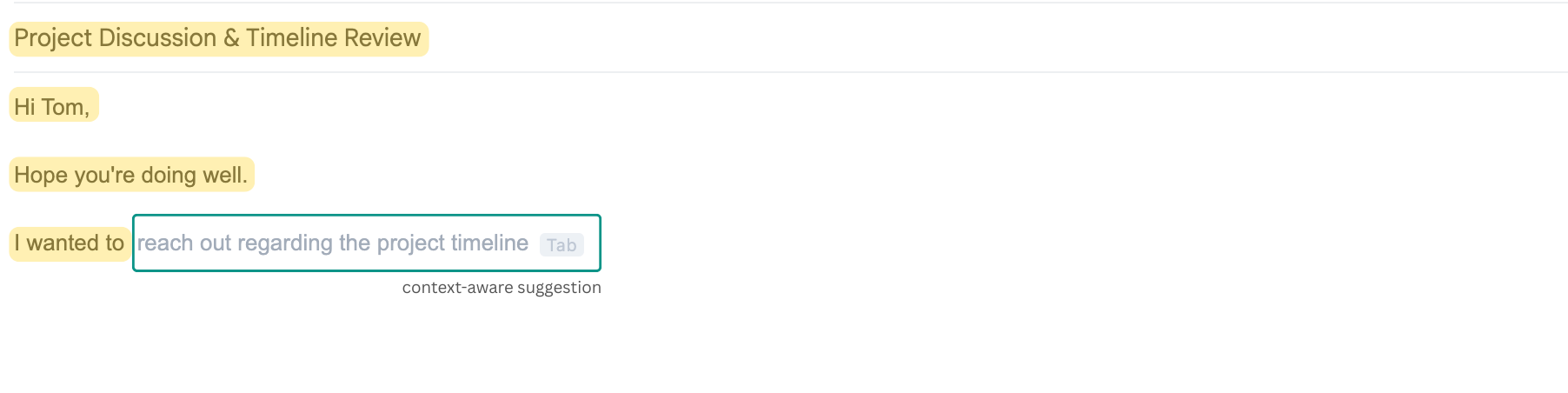
Good AI email autocomplete does not produce generic completions. It reads the context of the email - including any thread history above - and generates completions that are relevant to what is actually being discussed.
If you are replying to a message about a delayed deliverable and you type "I wanted to let you know that...", the autocomplete might suggest "...the revised timeline is now confirmed and we expect to deliver by Friday." That is grounded in the actual conversation, not generic filler.
When Autocomplete Is More Useful Than a Full Draft
Autocomplete shines in situations where a full draft generator feels like overkill:
- Emails where you have a strong voice and want to write most of it yourself
- Quick internal replies that do not justify loading a full draft panel
- Any email where you keep pausing to find the right way to phrase something
- Longer drafts where you want AI help on specific sentences, not the whole message
The advantage is that it adds almost zero friction to your normal writing workflow. You write as usual, and suggestions appear when they are relevant.
ChatGPT vs a Dedicated AI Email Writer for Gmail
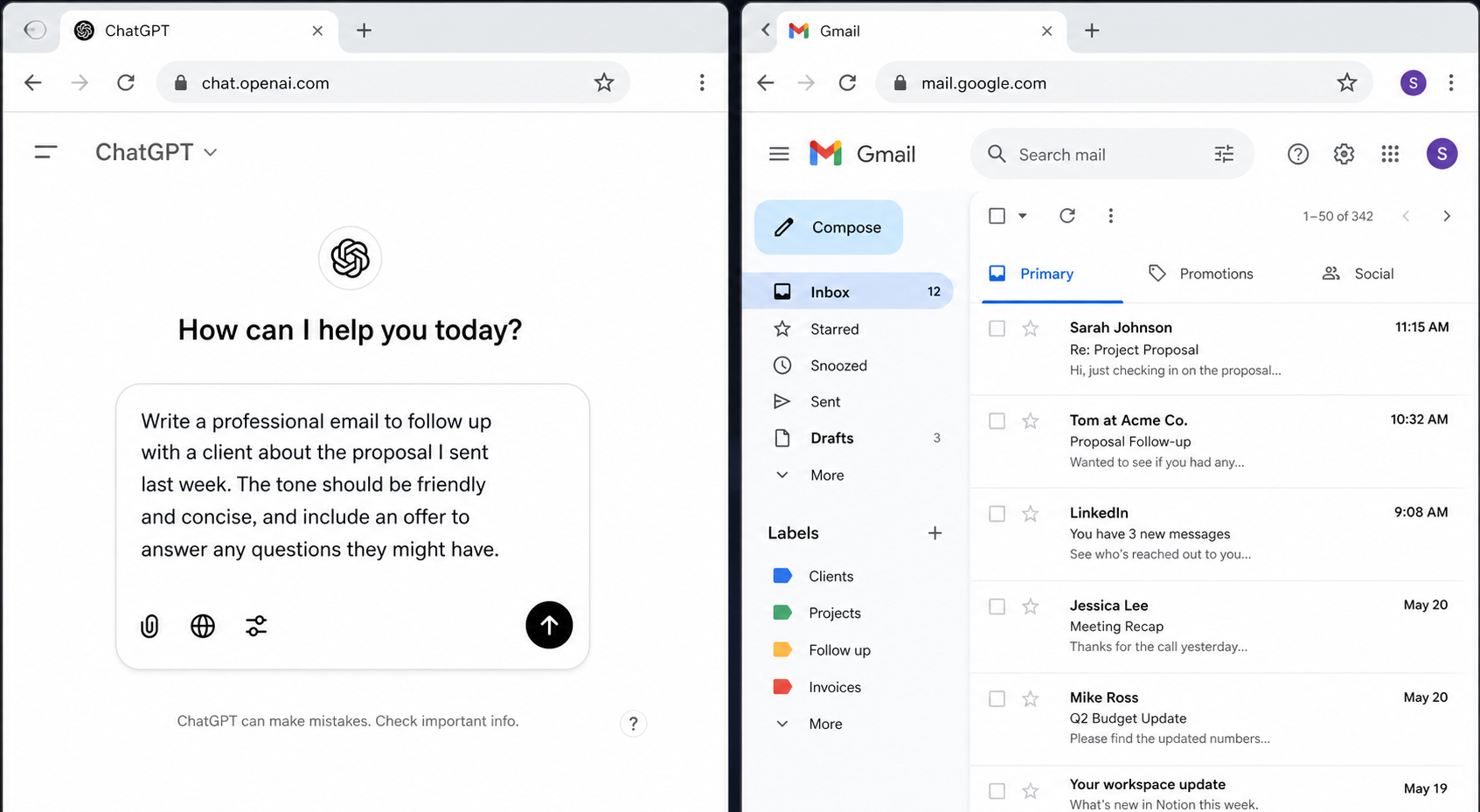
ChatGPT is probably the most widely used tool for AI-assisted email writing. It is capable, widely accessible, and produces good writing quality. But using it specifically for Gmail introduces friction that a purpose-built tool avoids.
What ChatGPT Does Well for Email Writing
ChatGPT is genuinely strong at generating email drafts from natural language instructions. Give it enough context - recipient, purpose, tone - and it produces well-structured, polished emails. It is also useful for rewriting existing text if you paste it in, and it handles a wide variety of email types without needing much guidance.
For people who write a handful of emails a day and are comfortable with the tab-switching workflow, ChatGPT is a capable free option.
Where ChatGPT Creates Friction in a Gmail Workflow
The friction is in how you have to use it. ChatGPT lives in a separate browser tab. To use it for a Gmail email, you need to switch over, write a prompt explaining the full context, copy the result, switch back to Gmail, paste it in, and then edit. That process works - but it creates a constant workflow interrupt.
You also lose thread context every time. ChatGPT does not read your inbox. You have to re-explain the situation manually for every email, which means writing a detailed prompt before you can even get a draft. For high-volume email situations, that adds up quickly.
You can read a more detailed breakdown in our Foresty vs ChatGPT comparison.
Why Native Gmail Integration Changes the Experience
A Gmail-native AI email writer removes all of that. The tool is already inside your compose window. It reads the thread context automatically. You give it a short prompt or click a button, and the draft appears directly in the email you are writing.
This sounds like a small convenience. In practice, it changes the entire experience of using AI to write emails - because it removes the interruption that makes the tab-switching approach feel so tedious over time.
Comparison: ChatGPT vs Dedicated Gmail AI Writer
| Feature | ChatGPT | Dedicated Gmail AI Writer |
|---|---|---|
| Works inside Gmail | Separate tab | Native |
| Reads email thread context automatically | No | Yes |
| Tab switching required | Always | Never |
| Full draft generation | Yes | Yes |
| Inline rewriting | Paste required | Yes |
| Subject line generation | Manual prompt | One click |
| Smart autocomplete while typing | No | Yes |
| Context-aware reply generation | No | Yes |
| Free plan available | Yes | Yes |
| Starting price (paid) | $20/month | $8.08/month |
Who Gets the Most Out of an AI Email Writer for Gmail
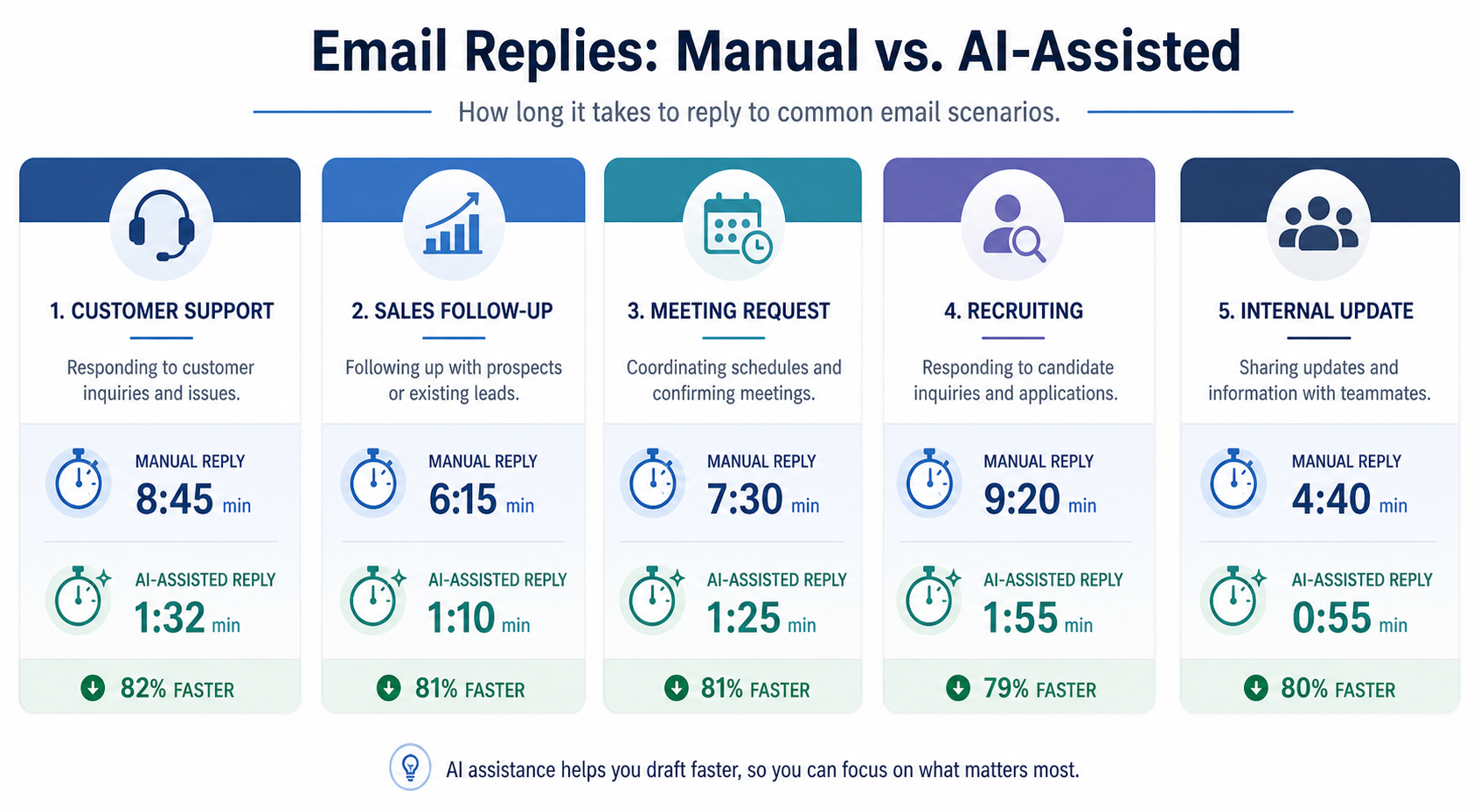
An AI email writer is useful for anyone who writes emails regularly. But certain roles see disproportionately larger gains because of the volume and variety of messages they handle every day.
Sales Professionals Managing Follow-Up Sequences
Sales outreach involves writing and sending a high volume of personalized emails. Follow-ups, cold outreach, post-demo check-ins, proposal responses - each one needs to be professional, specific, and on-tone. Using rigid templates feels impersonal; writing each one fresh is too slow.
An AI email writer makes it realistic to personalize at scale. You generate a relevant draft for each situation and make small adjustments - which is usually faster than customizing a template anyway, and produces better results.
Recruiters Sending High Volumes of Candidate Emails
Recruiters write similar emails constantly - application acknowledgements, interview invitations, scheduling updates, rejection notices - these messages follow similar patterns but need to feel human and thoughtful rather than obviously templated.
An AI email writer lets you generate each one quickly with the right context and tone. The time savings here are particularly noticeable because the volume is high and the email types are predictable.
Customer Support Teams Handling Repetitive Inquiries
Support teams often respond to the same categories of questions day after day. While templates handle the most basic cases, they fail on nuanced situations - an unhappy customer, an unusual request, a complaint that needs empathy alongside a resolution.
An AI email writer can generate a reply that is both fast and specific to the customer's actual situation, which produces noticeably better outcomes than a generic template and takes less time than writing from scratch.
Founders and Consultants Managing Client Communication
Founders and consultants often handle most of their own email without a dedicated team. Client updates, investor communications, partnership inquiries, project status messages - all of these require care, but they all consume time.
An AI email writer means you can handle these without each one becoming a significant time investment. Generate a solid draft, review it, add the specific personal details that only you know, and send.
Anyone Who Finds Themselves Rewriting the Same Types of Emails Repeatedly
If you have ever written the same type of email more than a handful of times - the polite decline, the project status update, the request for a meeting, the chasing-invoice follow-up - an AI email writer will save you time. The category does not matter. What matters is that you are rebuilding the same structure from scratch each time, and that is unnecessary.
How Foresty Works as an AI Email Writer Inside Gmail
Foresty is a Chrome extension that works directly inside Gmail and Outlook. It adds a full AI writing layer to your existing email workflow - no new apps, no external tools, no switching tabs.
Here is how each feature works specifically for Gmail users.
Installing and Getting Started in Gmail
Foresty installs as a Chrome extension from the Chrome Web Store. Once installed, it integrates directly into your Gmail interface. You install the extension, create a free account, and the tools are ready inside every compose window and reply panel.
The free plan includes 500 words per month with access to all features - enough to test every capability before deciding whether it fits your workflow. No credit card is required to get started.
You can see everything available for Gmail users on the Gmail Writing Assistant page.
Drafting a New Email With a Voice or Text Prompt
When you open a new compose window in Gmail, the Foresty sidebar appears inside the interface. You can type a prompt describing what the email needs to say, or use the built-in voice assistant to dictate the prompt - useful when you are thinking faster than you can type, or when you are multitasking.
Foresty generates multiple draft options for you to choose from. You pick the one that fits best, click to insert it into the compose window, and edit from there.
Rewriting and Editing With the Bubble Menu
Once you have text in your compose window - whether AI-generated or written manually - you can highlight any part of it to trigger the Bubble Menu. This is a small inline toolbar that appears over your selected text with four core options:
- Simplify - make the language easier to read
- Shorten - reduce word count while keeping the message intact
- Improve - general writing quality improvement
- Custom prompt - give the AI a specific instruction in your own words
For example, highlight a long paragraph and click "Shorten" - it condenses immediately. Highlight an awkward sentence and type "make this sound less defensive" - it rewrites that sentence specifically.
This is the fastest way to use the AI email rewriter without generating a brand new draft from scratch.
Generating Replies Without Leaving the Inbox
When you open an email and click Reply, Foresty detects the thread and activates the reply panel automatically. You can generate a reply based on the email context directly, or give it a prompt directing the tone or specific content of the response.
The generated reply appears inside the Gmail reply window, ready for you to review and send.
Generating Subject Lines From the Compose Window
While composing an email, clicking the "Draft Subject" button causes Foresty to analyze your email body and generate a set of contextually relevant subject lines. You select the one that fits and it populates the subject field automatically.
The process takes about ten seconds and consistently produces better subject lines than most people write quickly on their own - because the tool reads the full email content rather than guessing.
Smart Autocomplete While Typing
As you type in any Gmail compose window or reply field, Foresty's autocomplete runs passively in the background. When it detects a natural completion point, a gray-text suggestion appears. Press Tab to accept it, or keep typing to ignore it - the suggestion vanishes instantly.
This works for both new emails and replies, and the suggestions reflect the context of the current thread - not just generic sentence completions.
What Foresty Does Not Do - Honest Limitations
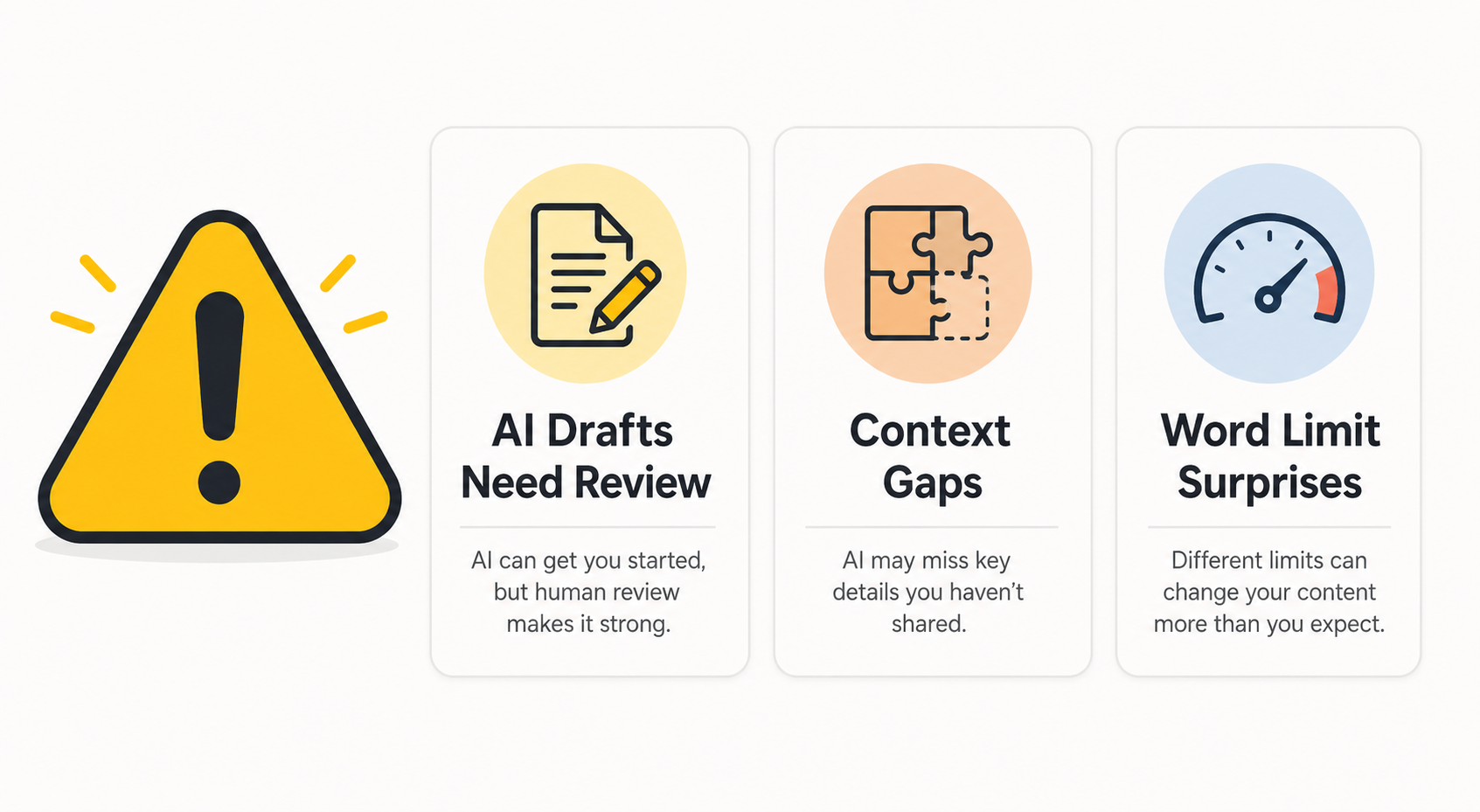
No AI tool performs flawlessly in every situation, and it helps to have accurate expectations before building any tool into your workflow.
AI Drafts Still Need a Human Review Before Sending
Every draft Foresty generates should be reviewed before you send it. The AI does not know your specific history with a recipient, the internal politics behind a particular message, or the nuances of a sensitive situation. It produces a strong starting point - but you are responsible for what goes out.
This is not unique to Foresty - it applies to every AI writing tool. Treat generated drafts as a first draft that needs your eyes, not a final product. The time savings come from editing rather than generating, but the editing step is not optional.
Company-Specific Context Needs to Be Provided in the Prompt
Context Bridge Diagram
AI Knows
Active email thread history, grammar structure, polite syntax patterns.
You Add (Context)
Internal company policies, current active deal terms, custom exceptions.
Foresty does not have access to your company's internal data, your CRM, your product documentation, or your email history beyond the current thread. If your reply needs to reference a specific deliverable, project detail, pricing term, or internal decision, you need to include that in your prompt.
The more specific context you include in your prompt, the more accurate and usable the generated draft will be. Vague prompts produce vague drafts.
Autocomplete Suggestions Are Not Always Right
Autocomplete is useful but not infallible. Sometimes the suggestion completes your sentence in a direction that does not match what you intended. This is entirely normal - the tool is making a prediction, not reading your mind.
Ignoring a bad suggestion is instant - you simply keep typing. You only accept suggestions when they are right, which means the misses cost you nothing and the hits save you time.
Foresty vs Other AI Email Writers for Gmail
There are several tools in this space worth understanding before choosing one. Here is how Foresty stacks up against the most commonly used alternatives.
| Tool | Works Inside Gmail | Context-Aware Replies | Inline Rewriting | Subject Lines | Autocomplete | Free Plan | Starting Price |
|---|---|---|---|---|---|---|---|
| Foresty | Native extension | Yes | Bubble Menu | Yes | Yes | Yes | $8.08/mo |
| Gemini | Built-in (Workspace) | Partial | Partial | Yes | Yes | Yes | $19.99/mo |
| Grammarly | Extension | No | Grammar/tone | No | Partial | Yes | $12/mo |
| MailMaestro | Extension | Yes | Yes | Yes | No | Yes | $15/mo |
| ChatGPT | Tab switch | No | Manual | Manual | No | Yes | $20/mo |
Gemini is built into Gmail for Google Workspace users and works well within that ecosystem. It is a reasonable option if you are already paying for a Workspace subscription, but the feature set for standalone email writing - particularly inline rewriting and autocomplete - is more limited than a dedicated tool. It also requires a paid Workspace add-on to access the full AI features.
Grammarly is the strongest option for grammar correction and tone polish, but it is a writing improvement tool rather than a drafting tool. It does not generate full drafts from prompts or produce context-aware replies.
MailMaestro covers drafting and replies well and has strong enterprise features, but it starts at a higher price point and is oriented more toward team and organization use than individual users.
ChatGPT is the most versatile general writing assistant available, but the tab-switching workflow remains the core friction point for anyone using it regularly inside Gmail. A full workflow comparison is available in the Foresty vs ChatGPT article.
Frequently Asked Questions
Is there a free AI email writer for Gmail?
Does an AI email writer work directly inside Gmail or do I need to switch tabs?
Can AI write emails that sound like me?
Is it safe to use an AI email writer with my Gmail account?
Can I use an AI email writer to reply to emails, not just compose new ones?
Does Foresty work with Google Workspace and business Gmail accounts?
How is Foresty different from Gmail's built-in Gemini AI?
Can I use an AI email writer to shorten or fix existing drafts?
The Practical Case for Using an AI Email Writer in Gmail
If you are writing multiple emails a day, the manual workflow carries real costs - in time, in mental energy, and in the quality of messages that get rushed. An AI email writer for Gmail addresses all three by giving you a solid starting draft to work from rather than a blank page to fill.
The tools available today are genuinely capable. The best ones work natively inside Gmail, understand the context of your conversations, and produce drafts that need light editing rather than complete rewrites. That is a meaningful improvement over both writing from scratch and the tab-switching ChatGPT workflow.
ChatGPT is reasonable for occasional use. If you write a few emails a week and do not mind switching tabs, it gets the job done. But if email is a consistent part of your workday, a native Gmail integration like Foresty will save you more time more consistently - because the tool is already where you work.
Foresty covers the full email writing workflow in one place: draft generation, inline rewriting via the Bubble Menu, context-aware replies, subject line generation, and smart autocomplete. The free plan requires no credit card and lets you try everything before committing.
If you want to see it in action, start with the Gmail Writing Assistant feature page, or install the extension and try it in your inbox directly.
Related reading:
- AI Email Reply Generator - Generate context-aware replies directly inside Gmail
- AI Email Rewriter - Fix tone, shorten, and improve drafts without leaving your inbox
- AI Email Autocomplete - Finish sentences faster with smart inline predictions while you type
- AI Subject Line Generator - Generate better subject lines from your email body in seconds
- Foresty vs ChatGPT - Full workflow comparison for Gmail users