
If you are looking for ways to reply to emails faster in Gmail, you have probably already noticed the obvious bottleneck: writing replies takes longer than it should. You read the email, figure out what to say, type a draft, rewrite half of it, check the tone, and finally hit send - all for a message that might be two paragraphs long.
Multiply that by the number of emails you get each day, and it becomes a significant chunk of your working hours. This guide covers the full picture. You will learn why Gmail replies take so long, what Gmail's built-in tools can (and cannot) do, how AI changes the process, and which workflow actually helps you reply faster without cutting corners on quality.
Why Replying to Emails Takes So Long in Gmail
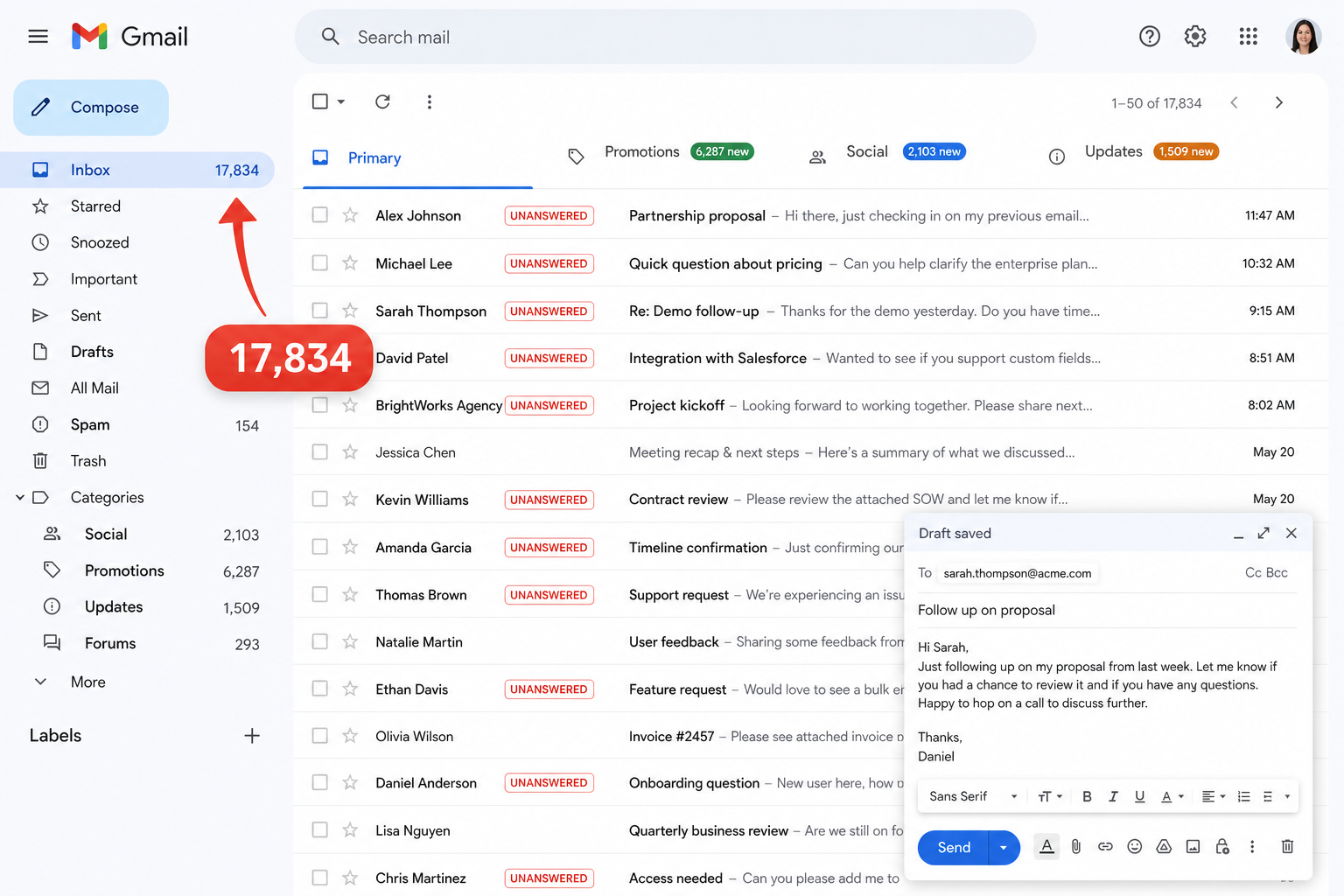
Replying to emails feels simple in theory. In practice, most people spend far more time on it than they expect.
The Mental Load of Writing Every Reply From Scratch
Starting From Scratch (Slow)
Brain handles 5+ micro-decisions simultaneously: Tone? Length? Subject? How to start? Wording checks?
Editing AI Drafts (Fast)
Brain acts as an editor. Simply reviews, adjusts specific facts/personal touches, and hits send.
Every reply starts with a blank box. You have to decide what to say, how to structure it, what tone to use, and how long to make it - before you type a single word. That decision-making process is the real time cost. It is not the typing. It is the thinking. Even a short reply to a meeting request can take five minutes once you factor in re-reading the original email, drafting your response, and second-guessing the wording.
For people handling customer questions, recruiter outreach, sales follow-ups, or client updates, this happens dozens of times a day.
How Context-Switching Makes It Worse
Copy-Paste ChatGPT (Friction)
Open ChatGPT tab → copy email → paste email → write prompt → copy reply → switch tabs → paste in Gmail → reformat.
In-Inbox AI (Seamless)
Open email in Gmail → click Foresty Reply → draft generates inline instantly → review and click send.
Many people have started using ChatGPT or similar tools to help write emails. The idea is sound, but the workflow creates a new problem. You are in Gmail, you open a new tab, navigate to ChatGPT, copy the incoming email, paste it into ChatGPT, write a prompt, copy the output, switch back to Gmail, paste it in, and then edit it. That process can take longer than just writing the reply yourself.
Context-switching - jumping between apps and tabs - breaks your focus and adds friction that quietly slows you down. A tool that lives inside Gmail removes that entirely.
The Types of Emails That Eat the Most Time
Not all emails are created equal. Some replies take 30 seconds. Others take 20 minutes. The ones that take the most time tend to share a few traits:
- They require careful tone (client complaints, sensitive HR situations, investor updates)
- They need specific information pulled from earlier in the thread
- They are repetitive but not quite identical (follow-ups, check-ins, status updates)
- They feel high-stakes (job applications, partnership proposals, introductions)
These are exactly the types of emails where AI assistance makes the biggest difference.
What a Faster Gmail Reply Workflow Actually Looks Like
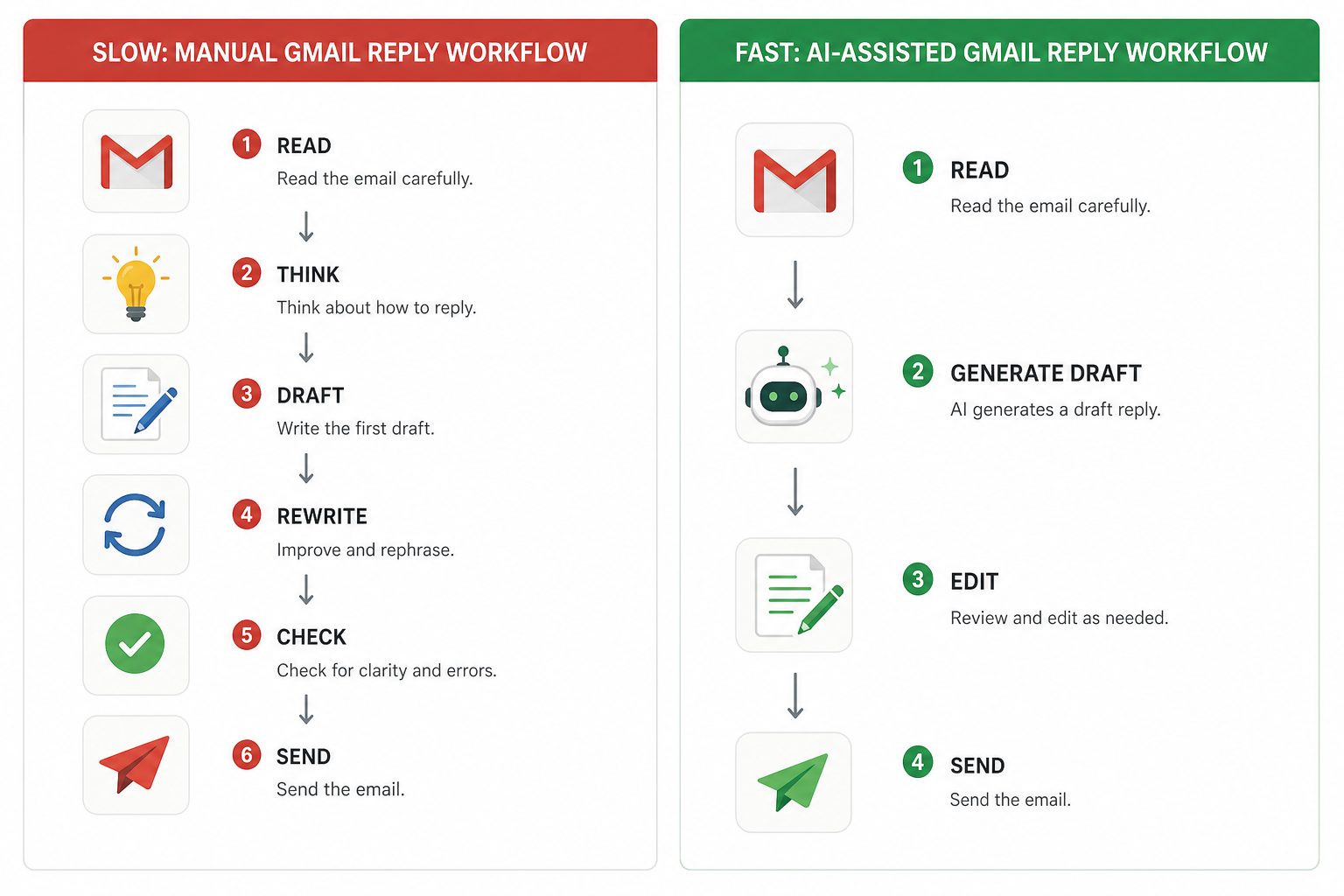
The Typical Manual Reply Process (And Where It Breaks Down)
Here is what most people's email reply process looks like right now:
- Open the email
- Re-read it to understand what's being asked
- Think about what to say
- Open the compose window
- Write a draft
- Re-read the draft, decide it sounds off
- Rewrite parts of it
- Check the grammar and tone
- Hit send
Steps 3 through 8 are where time disappears. And when you have 20 emails to reply to before lunch, those steps compound quickly.
What an Optimized Workflow Looks Like Step by Step
An AI-assisted workflow does not remove you from the process. It removes the blank-page problem.
- Open the email
- Trigger an AI reply generator - it reads the thread and produces a draft
- Read the draft (takes 10 seconds)
- Make minor edits for personal context or tone
- Hit send
The difference is that you are editing instead of creating from scratch. Editing is significantly faster than writing blind. Most people can review and adjust a decent draft in under a minute.
How Much Time You Can Realistically Save
Manually replying to a moderately complex email takes most people 10–20 minutes from reading to sending. Using ChatGPT in a separate tab cuts that to around 5–10 minutes because of the copy-paste overhead.
A Gmail-native AI tool that reads the thread and generates a reply without any tab switching brings that down to under 60 seconds for most emails. Across a full workday, that is a meaningful difference - especially for anyone handling more than 10–15 emails per day.
Gmail's Built-In Features That Already Help You Reply Faster
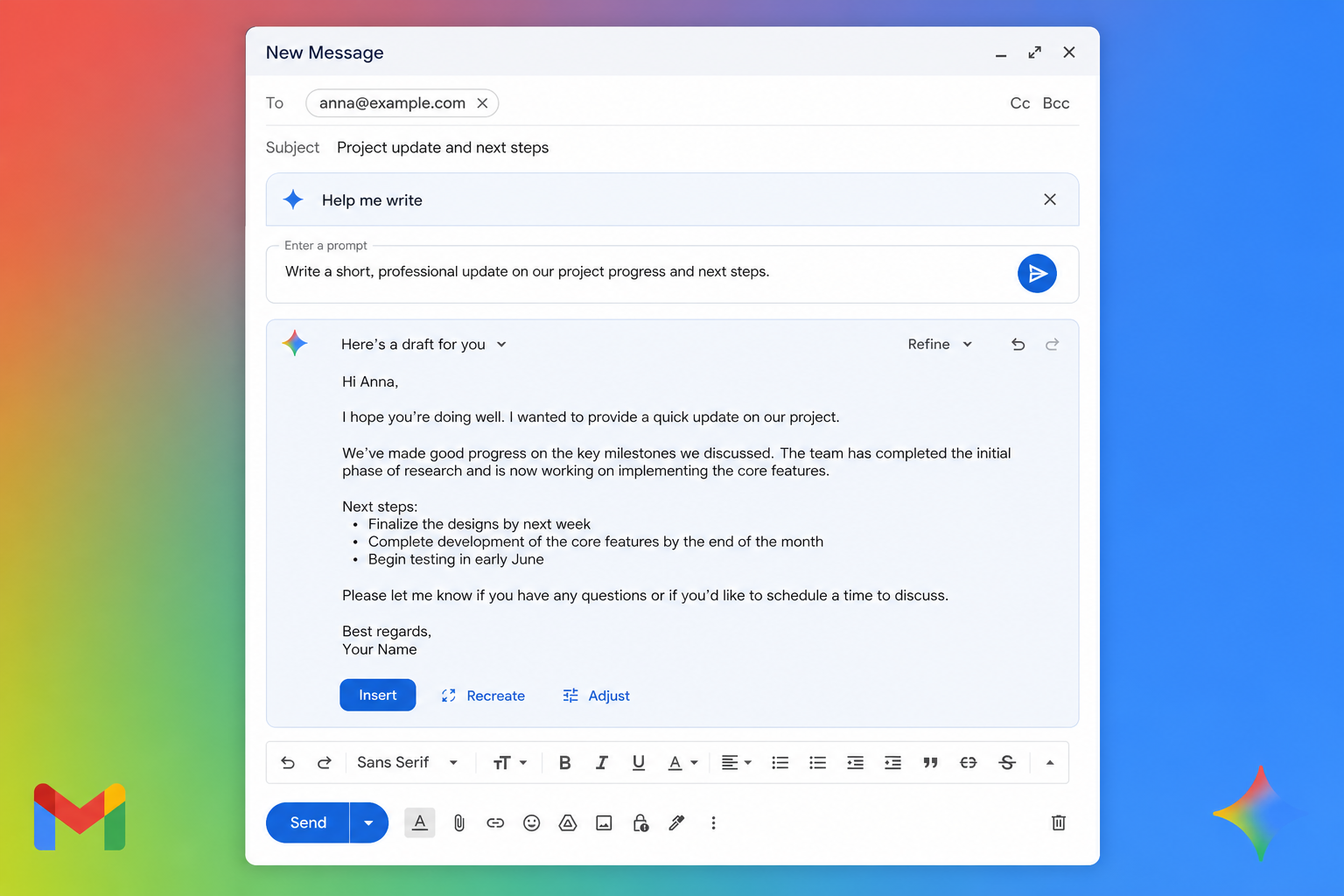
Gmail has several native tools designed to speed up email replies. They are worth understanding before deciding whether you need anything else.
Smart Reply - What It Does and Where It Falls Short
Smart Reply shows three short suggested responses at the bottom of an email - things like "Sounds good!", "Happy to help!", or "Let me check and get back to you." For very casual, short emails, Smart Reply is genuinely useful. You tap one suggestion and you are done.
The problem is that Smart Reply only works for the simplest responses. It cannot handle anything that requires a real explanation, specific context, or more than two sentences. And the suggestions often feel generic enough that you would still want to personalize them before sending.
Smart Compose - Useful for Short Replies, Limited for Long Ones
Smart Compose predicts what you are about to type and shows grey autocomplete suggestions as you write. You press Tab to accept the suggestion and keep typing. It works reasonably well for short, predictable phrases - things like "Please let me know if you have any questions" or "Looking forward to hearing from you."
The downside: Smart Compose does not understand the full context of the email thread. It predicts based on common patterns, not on what the specific email is actually asking. For longer, more nuanced replies, it does not save much time.
Keyboard Shortcuts That Speed Up Your Gmail Workflow
Gmail has a solid set of keyboard shortcuts that are worth activating if you have not already. Go to Settings → See all settings → General → Keyboard shortcuts and turn them on. The most useful ones for faster replies:
| Shortcut | Action |
|---|---|
| R | Reply to an email |
| A | Reply all |
| F | Forward |
| Tab + Enter | Send the email |
| E | Archive after replying |
| Ctrl + Enter | Send (in compose window) |
Canned Responses (Templates) - Best For Repetitive Emails
Static Template
Thanks for reaching out about [Project]. I'm available next [Day] at [Time].
Best,
[My Name]"
Requires manual replacement of all brackets.
Dynamic AI Reply
Thanks for reaching out about the website redesign. I'm available next Tuesday at 2:00 PM.
Best,
Alex"
AI reads the thread and autofills context instantly.
Gmail's Templates feature (formerly called Canned Responses) lets you save full email drafts and insert them with a few clicks. Go to Settings → See all settings → Advanced → Templates and enable it. Templates are genuinely useful for emails you send repeatedly - things like a standard reply to a pricing inquiry, an acknowledgment email for support tickets, or a follow-up sequence for recruiting.
The limitation is that templates are static. They do not adjust to the context of a specific email, so you almost always need to edit them before sending. And setting them up takes time upfront.
Where Gmail's Native Tools Stop Being Enough
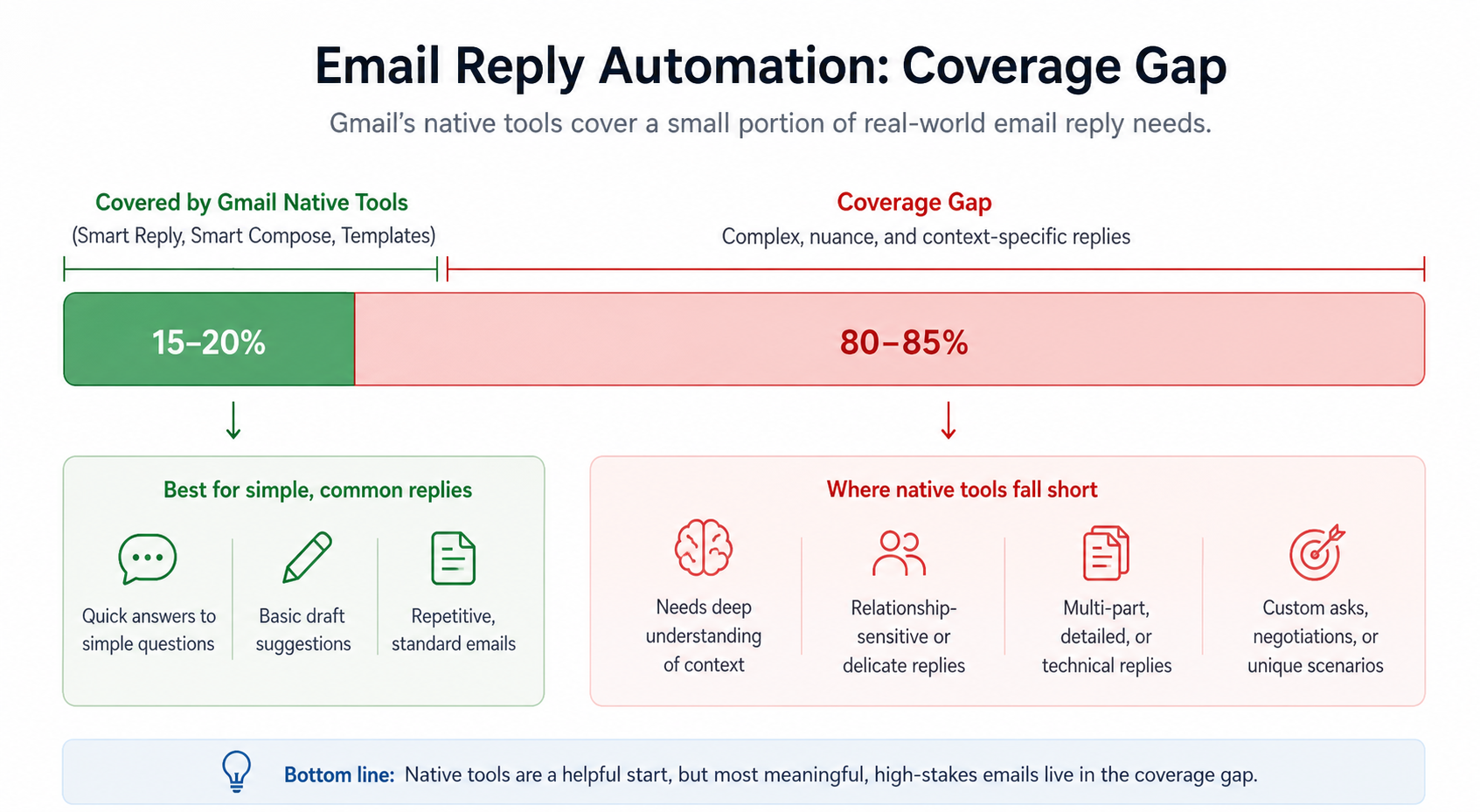
Gmail's built-in features are a good starting point. But they hit a ceiling quickly.
Smart Reply Feels Generic and Hard to Personalize
Smart Reply gives you three options. None of them sound like you, and none of them address what was specifically asked. You end up using them as a starting point at best, which means you are still writing most of the reply yourself. For anyone who cares about how their emails sound - and most professionals do - Smart Reply is a shortcut that often creates more work than it saves.
Templates Require Manual Setup and Don't Adapt to Context
Building a useful template library takes real effort. You need to write them, organize them, and remember which one applies to which situation. And since templates are fixed text, a client email that is similar to your template but not identical still requires you to rewrite chunks of it.
This is one of the reasons people turn to AI tools - context-awareness changes everything. An AI that reads the specific email being replied to will always produce something more relevant than a static template.
You Still Have to Write Most Emails Yourself
After using Smart Reply, Smart Compose, and Templates, a large portion of your inbox still requires manual writing. Complex requests, multi-part questions, emotional or sensitive emails, nuanced negotiations - none of Gmail's native tools help meaningfully with these. That is the gap that AI email reply tools are designed to fill.
How AI Tools Help You Reply to Emails Faster in Gmail
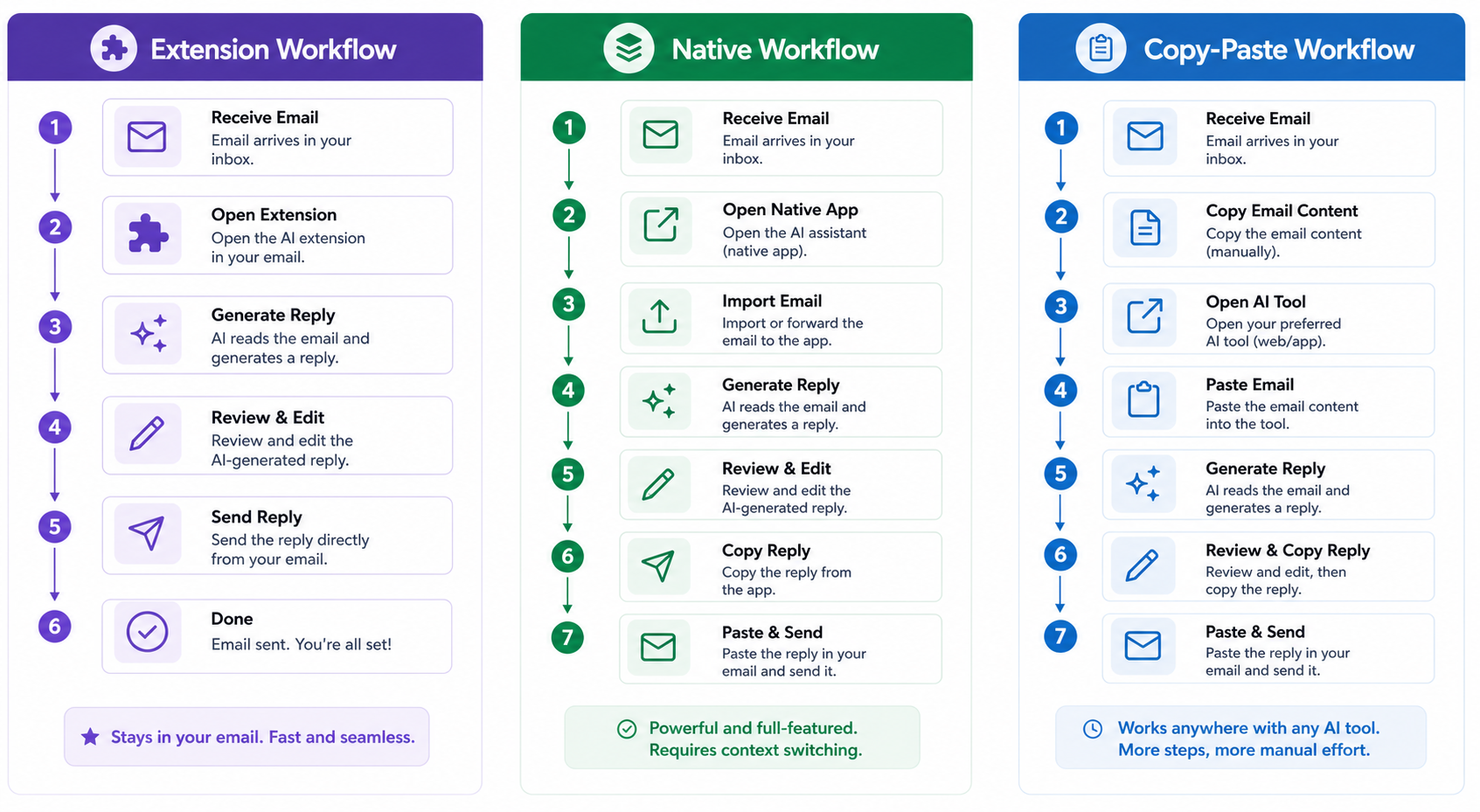
An AI email tool reads the email you received, understands what it is asking, and writes a relevant reply for you. You can then edit that reply, adjust the tone, add specific details, and send it. That is the core function. No technical complexity required.
The practical benefit is that you go from a blank compose window to a draft reply in under a minute, without switching tabs or manually describing the context to an AI. Some tools also help you rewrite replies that feel off, fix grammar, complete sentences as you type, or dictate replies using your voice. Each of these chips away at the time cost of email replies.
AI Reply Generation - Reading the Thread and Writing Back For You
Context Scanning Visualizer
INCOMING EMAIL:
"Hi, can you send over the updated pricing brochure? Also, do you have time for a 15-minute call next week?"
GENERATED REPLY:
"Hi, absolutely! I've attached our latest pricing brochure. I'd also love to schedule a 15-minute call - does next Tuesday work?"
The most impactful feature for faster replies is AI reply generation. You open an email, click a button, and the AI produces a full draft based on what the email says. Unlike Smart Reply, this is not a generic one-liner. A good AI reply generator reads the actual content of the thread and produces a contextually relevant, full-length response.
If someone asked you three specific questions in an email, the AI draft will address all three. If the email was formal, the draft will match that tone. You still review and edit, but you are starting from something useful rather than nothing. You can explore how this works in detail on the AI Email Reply Generator page.
AI Rewriting - Fixing a Bad Draft in Seconds
Sometimes you have a rough draft but it does not read well. Maybe the tone is too stiff, or the sentences are too long, or the opening feels weak. An AI email rewriter can take that draft and fix it in seconds. You highlight the text, choose what you want to change - shorten it, make it more professional, make it warmer - and the tool produces a revised version.
This is also useful when you are not happy with an AI-generated draft. Instead of rewriting from scratch, you can ask the tool to adjust a specific part.
Smart Autocomplete - Finishing Your Sentences as You Type
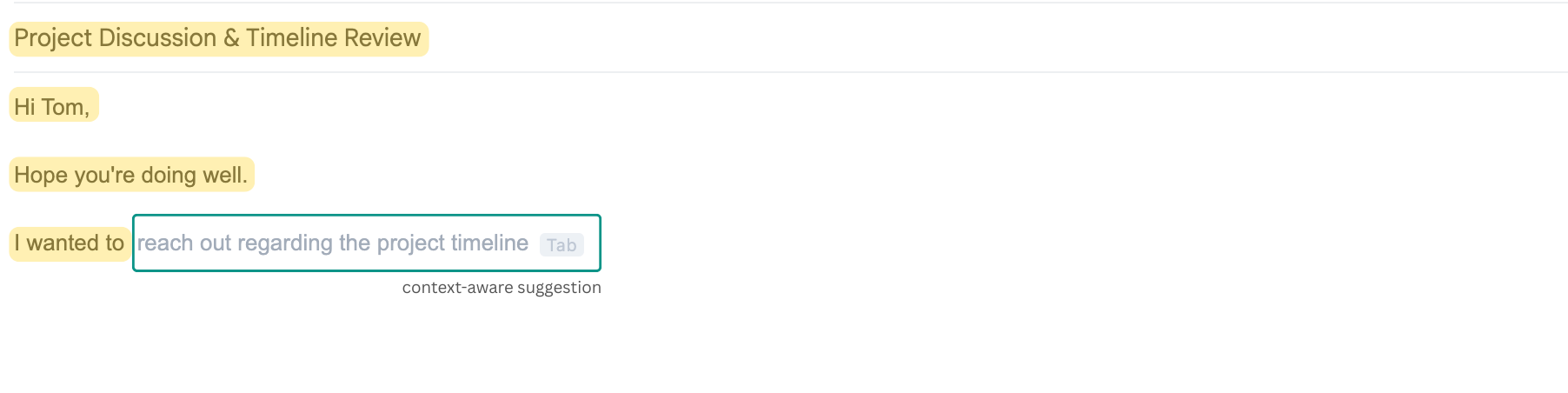
AI-powered autocomplete predicts what you are about to type and suggests full phrases or sentences in real time. You press Tab to accept the suggestion and keep going.
Unlike Gmail's Smart Compose, an AI autocomplete that understands the email thread context produces suggestions that are actually relevant to the specific email you are writing - not just common sentence-endings. For people who type quickly and just need momentum, this feature can quietly cut reply time in half without feeling like a fundamentally different workflow.
Voice to Email - Dictating Instead of Typing
Some emails are easier to speak than to type. If you are replying to a complex client question and you already know what you want to say, talking through it is often faster than typing it.
Foresty's voice assistant lets you dictate your reply intent, and it converts that into a polished written draft inside Gmail. You speak naturally, and the tool handles the formatting and writing. This is especially useful for longer replies where the main bottleneck is not finding the words - it is the time cost of turning those words into properly structured text.
Real-World Examples of Faster Gmail Replies Using AI
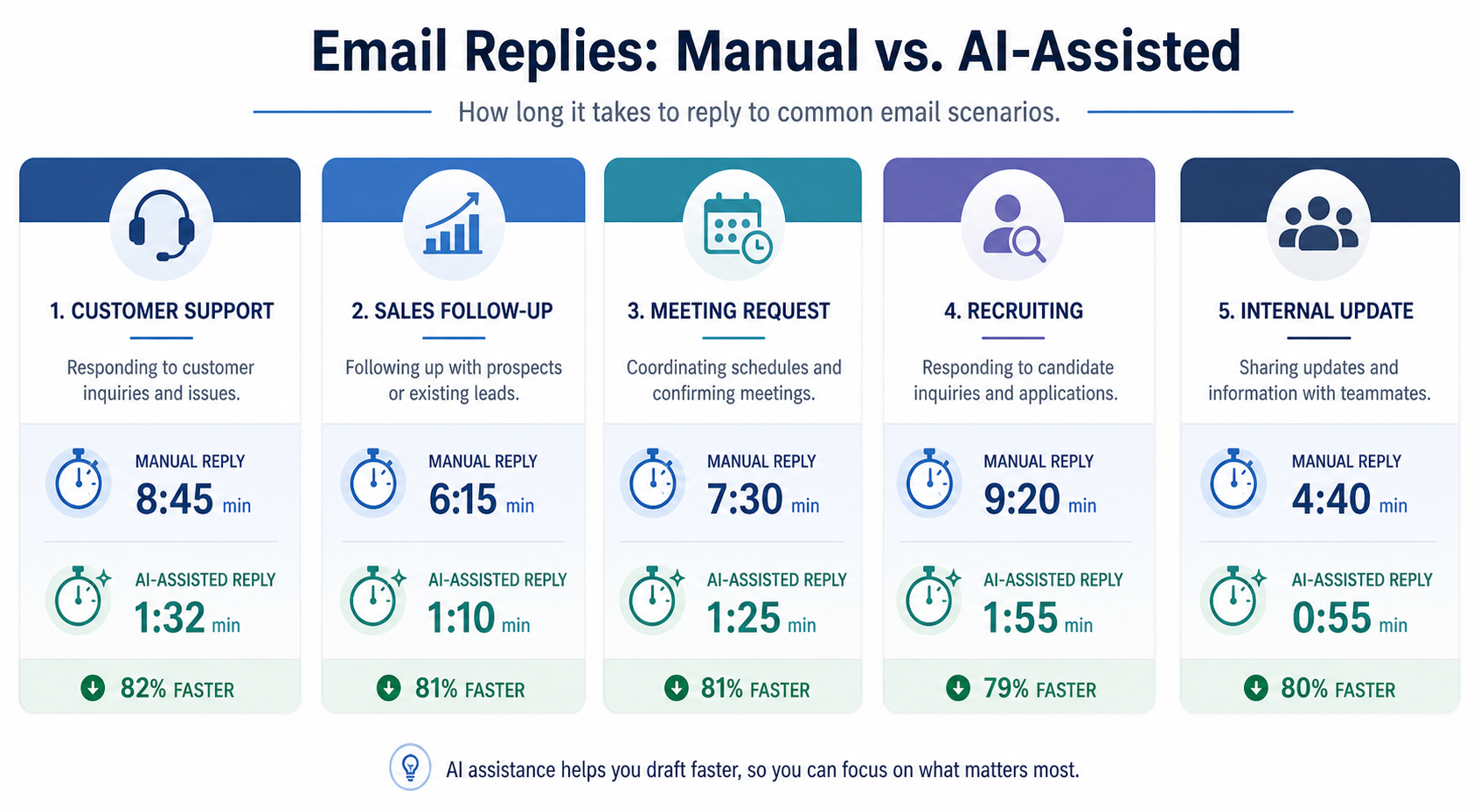
Replying to a Customer Support Request
Scenario: A customer emails to say their order has not arrived and asks for an update.
Manual reply: You re-read the email, pull up their order, think through what to write, draft a response, reread it, and send. That is 8–12 minutes.
AI-assisted reply: The tool reads the email, generates a draft acknowledging the issue, confirming you will check on it, and providing a next step. You add the order number, adjust one sentence, and send. That is under 90 seconds. The quality of the reply is the same - or better, since the AI draft is unlikely to have grammatical errors or an inconsistent tone.
Following Up on a Sales Email
Scenario: You sent a proposal three days ago and have not heard back. You need to follow up without sounding pushy.
Manual reply: Getting the tone right on a follow-up takes time. Too eager, and you look desperate. Too casual, and it seems like you do not care. Most people write, delete, and rewrite these several times.
AI-assisted reply: You prompt the tool with "follow up on proposal sent three days ago, friendly tone, offer to answer questions." You get a well-structured draft in seconds and make minor edits to personalize it.
Responding to a Meeting Request
Scenario: A colleague emails asking if you are free for a 30-minute call next week to discuss a project update.
This is one of the simplest replies imaginable - but most people still spend 2–3 minutes on it because they are checking their calendar, figuring out the right dates to offer, and making sure the email sounds natural. AI autocomplete or Smart Reply handles these well. The moment you start typing "Happy to connect - " the tool predicts the rest of the sentence based on the context.
Handling a Recruiting Email
Scenario: You are a recruiter and you have just sent a candidate to a client. The client replies with feedback and asks you to schedule an interview.
These emails are repetitive but require a personal touch. Sending a robotic, clearly templated reply can damage the relationship. An AI reply generator reads the feedback in the email and produces a warm, specific reply that references the candidate by name and confirms next steps. You review and send. The email sounds human because you edited it - but you did not write it from scratch.
Sending a Quick Internal Update
Scenario: Your manager emails asking for a status update on a project.
Internal emails often take longer than they should because people overthink the tone or structure. An AI draft gives you a clear, concise starting point that you can customize in 30 seconds.
Comparing Your Options - ChatGPT vs Gmail Native vs AI Email Extensions
| Factor | Manual (Gmail Only) | ChatGPT (Separate Tab) | AI Extension (Foresty) |
|---|---|---|---|
| Reply time | 10–20 min | 5–10 min | Under 60 seconds |
| Tab switching | No | Yes | No |
| Context awareness | Full (you read it) | Partial (must copy/paste) | Automatic |
| Works inside Gmail | Yes | No | Yes |
Why Copy-Pasting Into ChatGPT Slows You Down
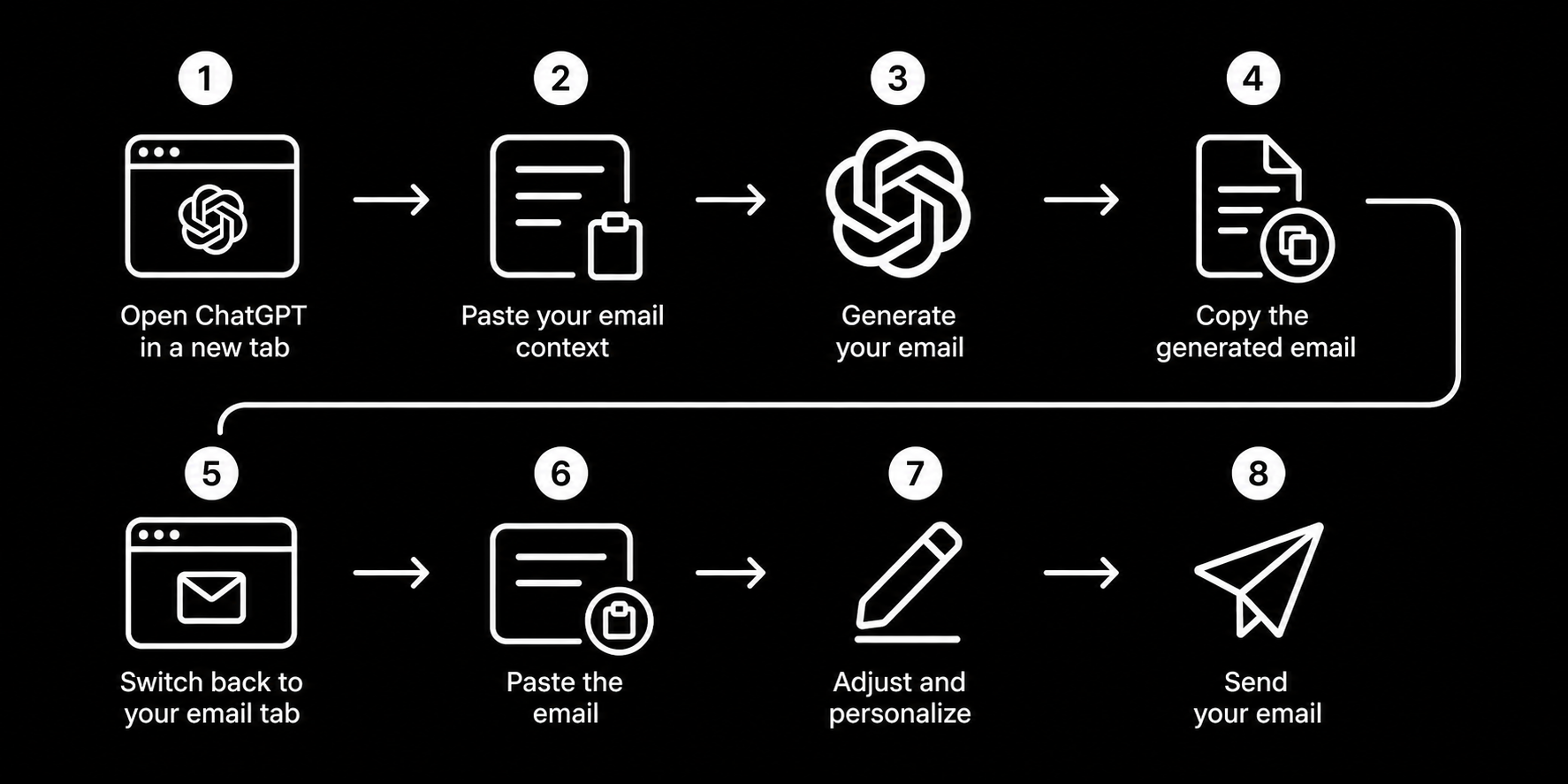
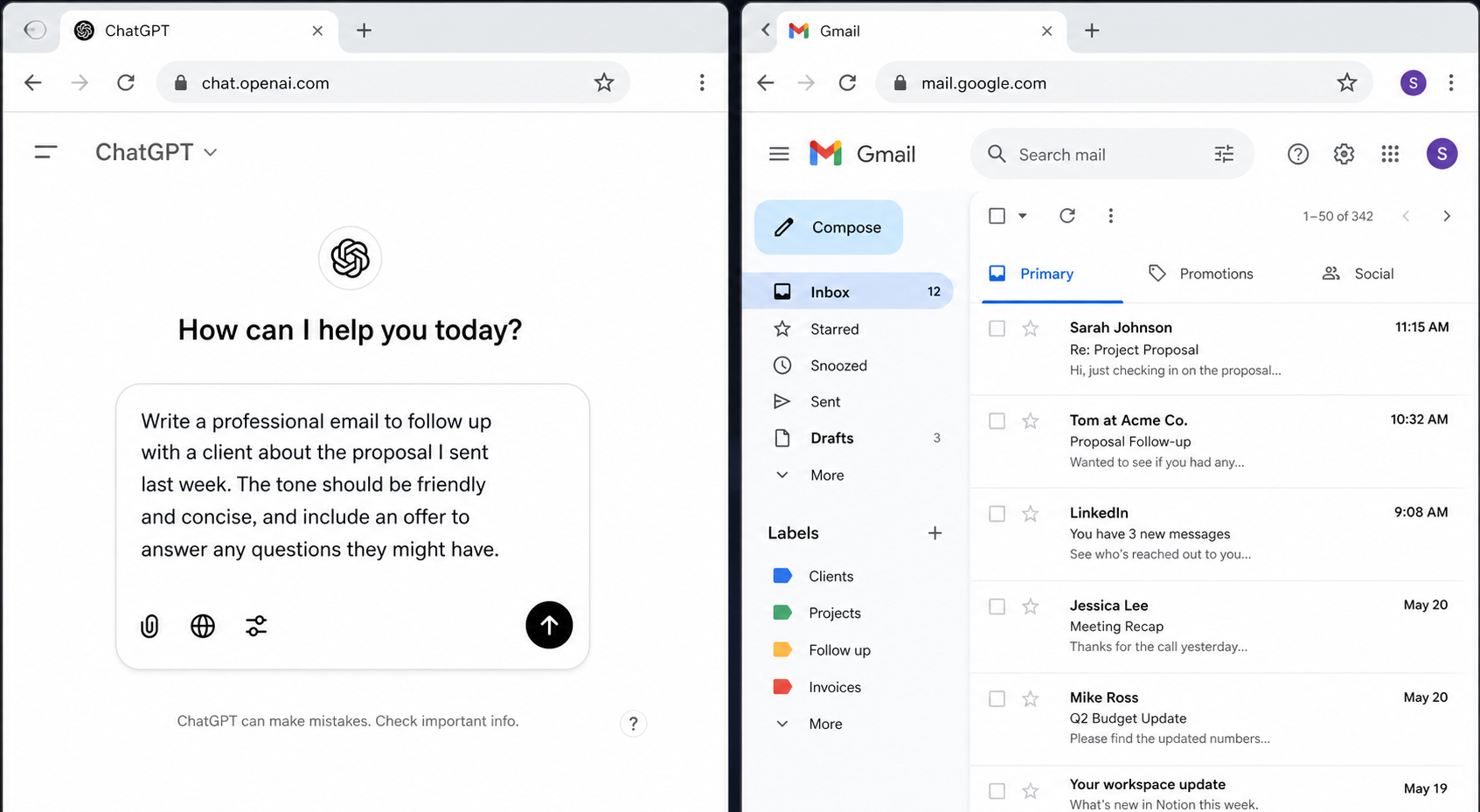
ChatGPT is a genuinely useful tool for many things. But the workflow for email replies has real problems. You have to manually copy the incoming email, paste it into ChatGPT, write a prompt explaining what you want, generate the response, copy the output, switch back to Gmail, paste it in, and then edit it. That is seven steps before you even start personalizing.
For an occasional, complex email where you need to think carefully about the response, this workflow is fine. For day-to-day email replies, it adds friction every single time. You can also read a deeper breakdown of this in our Foresty vs ChatGPT comparison.
Why a Gmail-Native AI Extension Is Faster
A Gmail extension that works directly inside the compose window removes every step in between. The tool already has access to the email thread. You click one button, review the draft, edit if needed, and send.
There is no tab switching, no copy-pasting, no prompt engineering, and no context loss. The entire process happens inside the email you are already looking at. For people who reply to more than 10 emails per day, this difference in workflow design translates into a meaningful time saving over the course of a week.
How Foresty Helps You Reply to Emails Faster Directly Inside Gmail
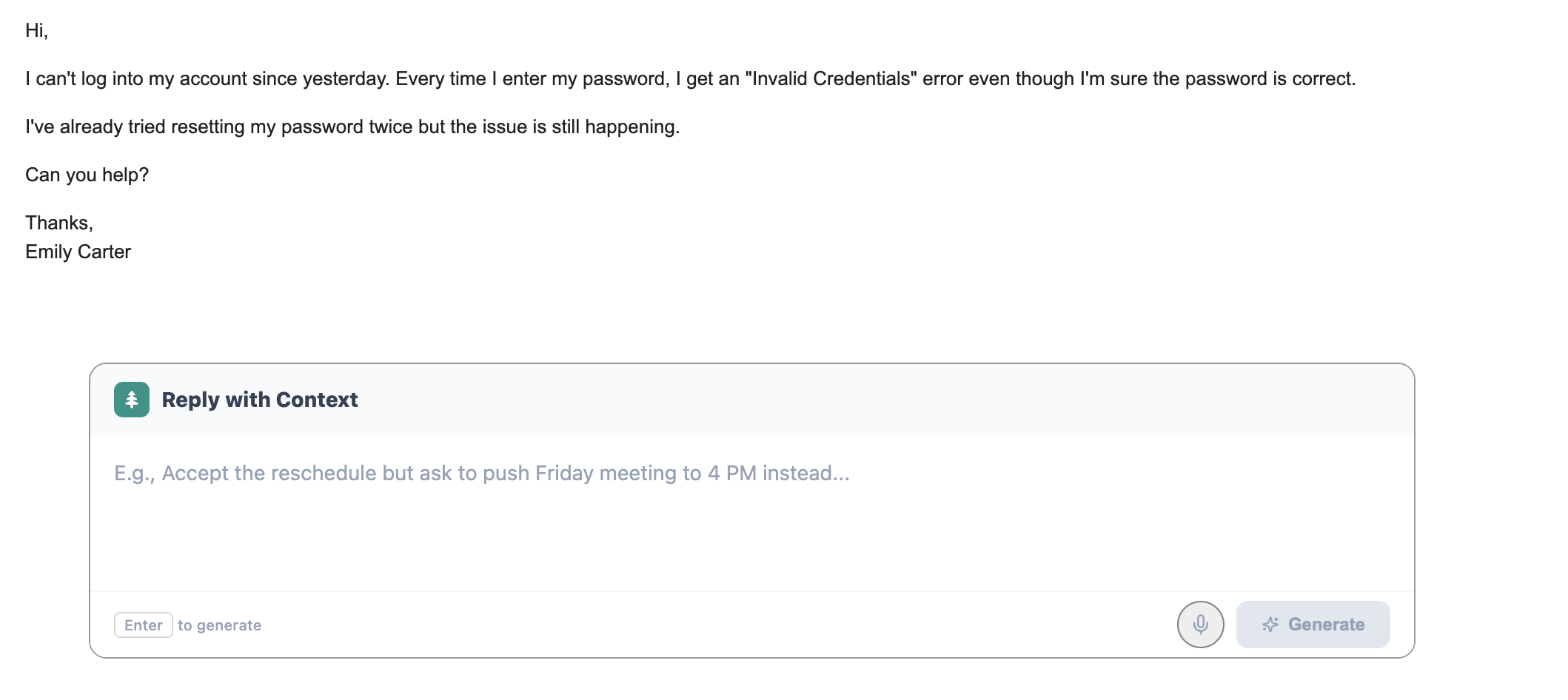
Foresty is a Chrome extension that works directly inside Gmail. It adds AI-powered tools to the Gmail compose window so you never have to leave your inbox to get writing help.
Generate a Full Reply in Under 60 Seconds
When you are reading an email in Gmail, Foresty can read the thread and generate a full reply draft based on the context. You do not need to paste anything or write a detailed prompt. The draft is contextually relevant - if the email asks two specific questions, the draft addresses both. If the email was written formally, the draft matches that tone.
You review, make any edits you want, and send. Most replies are done in under a minute. This is particularly useful for the AI email reply use case - getting a usable draft without doing any of the initial writing yourself.
Autocomplete Sentences Without Leaving the Compose Window
As you type in the Gmail compose window, Foresty predicts what you are about to say and shows suggestions inline. Press Tab to accept and keep writing.
Because Foresty reads the email thread, these suggestions are not generic filler phrases. They are relevant to what the email is actually about. If you are writing a follow-up after a product demo, the autocomplete will predict follow-up specific language rather than boilerplate phrases.
Rewrite and Improve Replies Before You Hit Send
Sometimes a draft looks mostly right but one paragraph feels awkward. Instead of rewriting the whole thing, you can highlight that section and ask Foresty to improve it, shorten it, or adjust the tone.
This works directly in the compose window. You highlight the text, choose an action, and see the revised version appear in place. No switching tabs, no copying back and forth. The AI email rewriter feature is especially useful for polishing drafts quickly before they go out.
Use Voice to Dictate Replies Hands-Free
If you know what you want to say but do not want to type it, Foresty's voice assistant lets you speak your reply intent and converts it into a written draft. This is faster than typing for many people, especially for longer replies. You speak naturally, and the tool handles the structure and phrasing. The result lands in your Gmail compose window ready to review and send.
How to Set Up a Faster Gmail Reply Workflow (Step-by-Step)
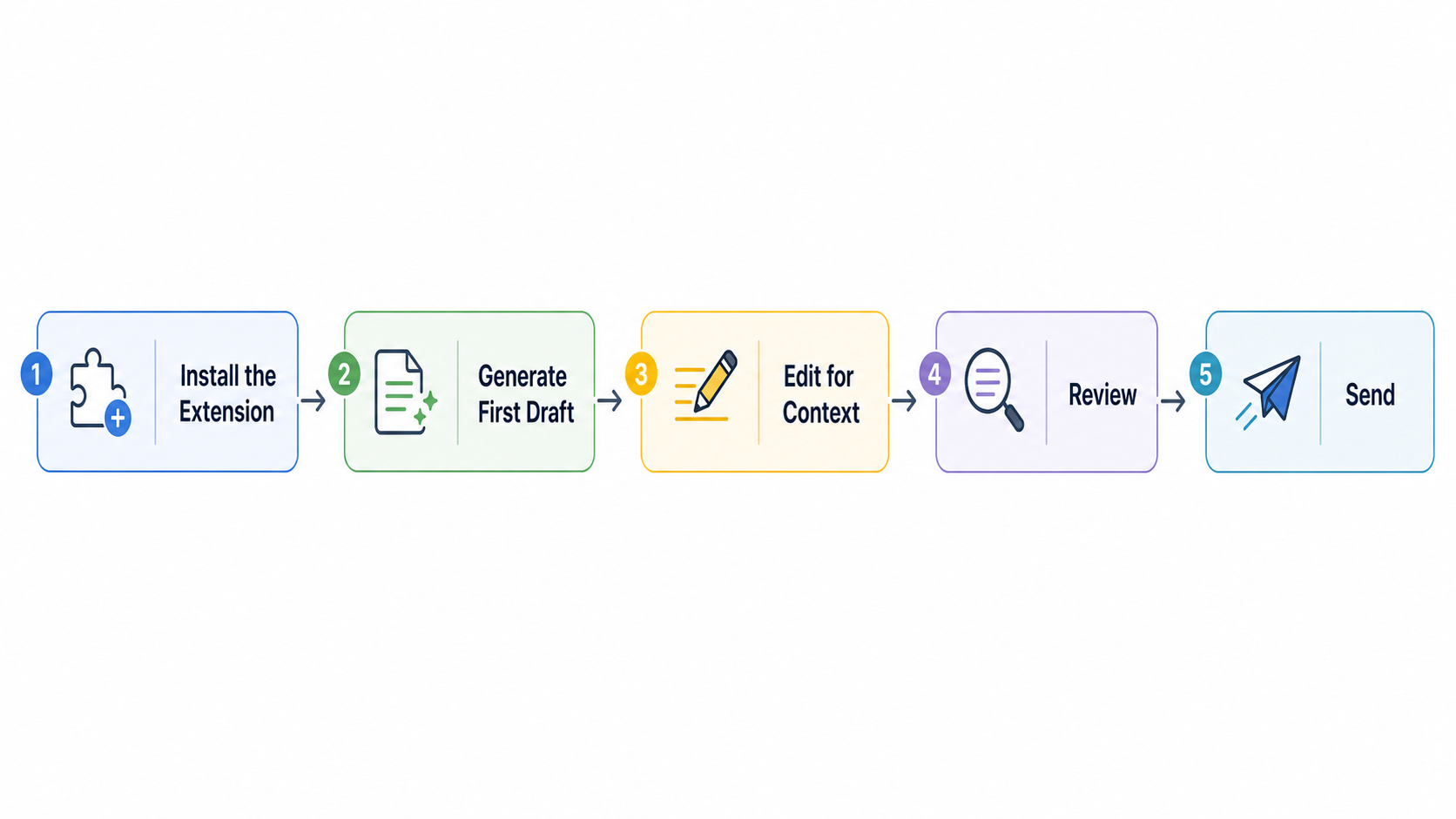
Step 1 - Install the Right Tool for Gmail
Go to the Chrome Web Store and search for Foresty, or navigate directly to the Foresty website. Install the Chrome extension. No additional software is needed. Once installed, open Gmail. The extension will be active inside your compose windows and reply threads.
There is a free plan available with no credit card required, so you can test the workflow before committing to anything.
Step 2 - Use AI to Generate Your First Draft
Open an email you need to reply to. Use Foresty's reply generator to produce a draft. The tool reads the email thread and writes a contextually relevant response. Resist the urge to immediately start rewriting. Read the draft first. You will often find it is closer to what you want than you expected.
Step 3 - Edit for Tone and Personal Context
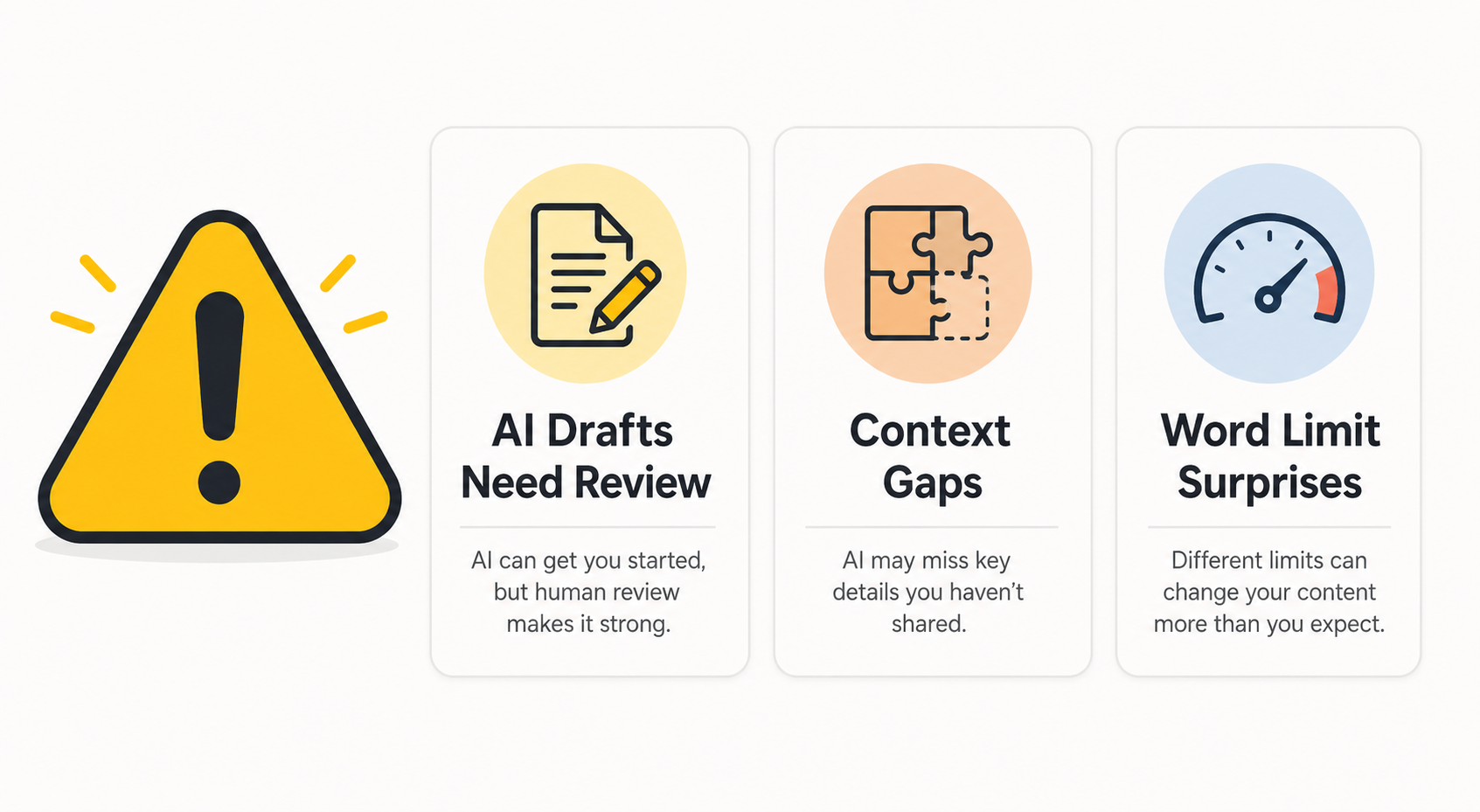
AI tools do not know your specific relationship with the person you are emailing, your company's internal context, or details that are not in the email thread. This is where your edit matters. Add the personal detail, adjust the opening if it does not sound like you, and make sure any specific claims or commitments are accurate. Most edits take under 30 seconds.
Step 4 - Review and Send
Do a quick final read before sending. AI-generated drafts are good, but they are not perfect. Watch for:
- Factual claims that need to be verified
- Tone mismatches for sensitive emails
- Missing context you need to add
Once it reads correctly, send it. The whole process from draft to send should take under two minutes for most emails.
Step 5 - Build Habits That Keep the Workflow Fast
The biggest gains come from consistency. A few habits that make a real difference:
- Process emails in batches rather than replying instantly to each one as it arrives
- Use AI for the first draft on every email, not just the hard ones
- Keep edits brief - trust the draft more than you initially will
- Use autocomplete even when you are writing from scratch, not just when using the reply generator
The faster this workflow becomes habitual, the more time it saves.
Common Mistakes That Keep People Slow at Replying to Emails
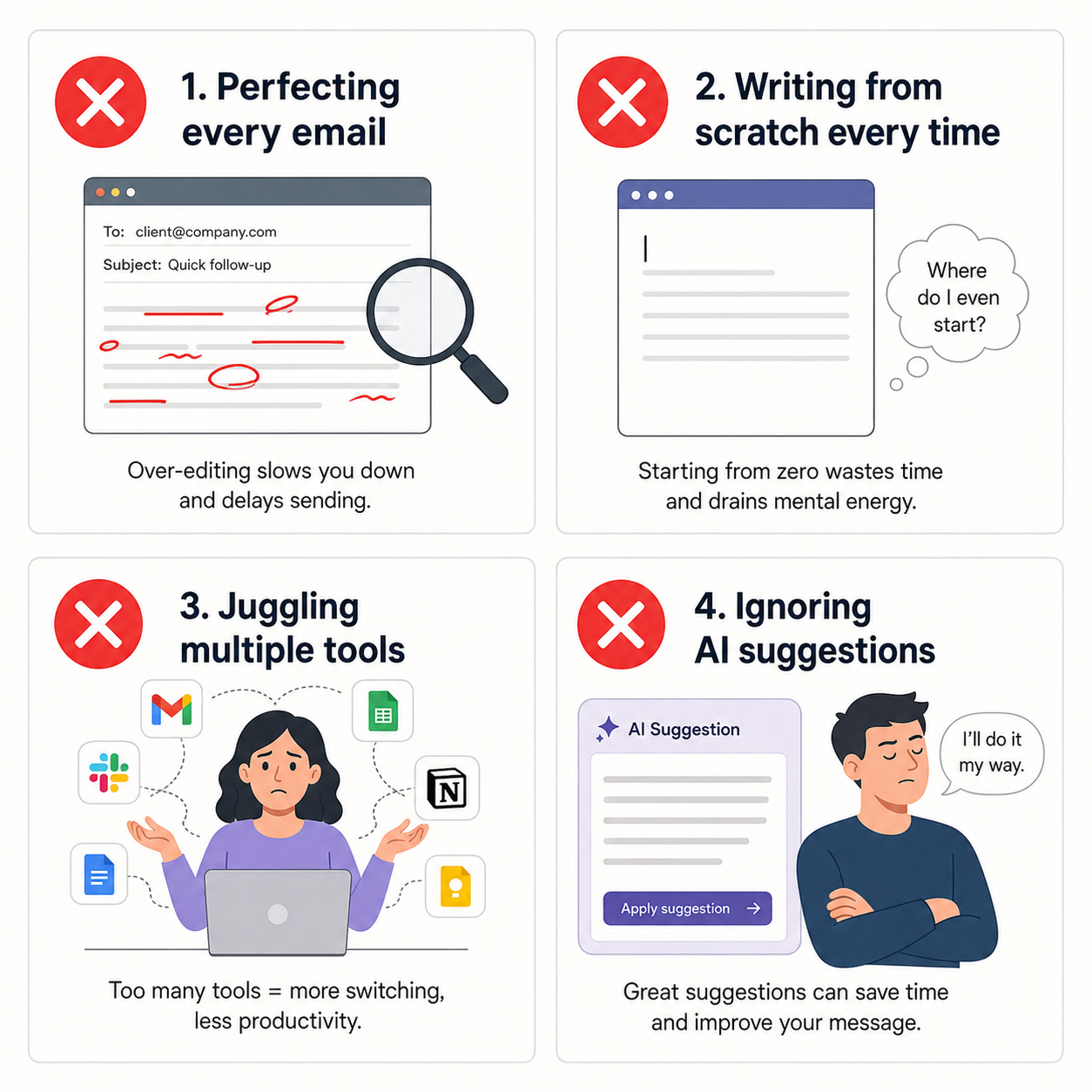
Trying to Perfect Every Email Before Sending
The most common time sink in email is over-editing. You write a reply, read it, rewrite it, read it again, and spend ten minutes on an email that was fine after the first draft. Most email replies do not need to be perfect. They need to be clear, accurate, and professional. Those are different standards, and once you internalize the difference, you will spend far less time agonizing over wording.
If you are using an AI tool and the draft is clear and professional, send it with minor edits. Do not rewrite it from scratch because it does not perfectly match your personal style on the first draft.
Writing Replies From Scratch When a Template Would Do
Some emails are genuinely repetitive. If you write the same type of reply multiple times a week - acknowledging a receipt, confirming a meeting, declining a request politely - you should not be writing those from scratch every time. Set up Gmail Templates for your most frequent reply types. Use AI to generate the template if you do not want to write it yourself. Then you are editing a solid starting point instead of a blank page.
Switching Between Too Many Tools
Some people end up with Gmail open, ChatGPT in another tab, Grammarly running, a calendar tool open, and a notes app on the side - all for the purpose of writing one email. Each switch costs you attention and time. The goal is to have as few tools as possible in your email workflow, and ideally to have them all work from inside Gmail so you are never leaving the page.
Ignoring AI Suggestions Because They Feel Impersonal
A common hesitation when using AI email tools is that the drafts "do not sound like me." That is true - the first draft will not be perfectly calibrated to your voice. But this gets better over time, and more importantly, the solution is a quick edit, not a full rewrite. Changing three words to match your usual phrasing is much faster than writing the whole email yourself.
The people who get the most out of AI email tools are the ones who accept that imperfect-but-useful drafts are the starting point, not the finished product.
Limitations of AI-Assisted Email Replies (Be Honest With Yourself)
AI Doesn't Know Your Internal Company Context
Context Bridge Diagram
AI Knows
Active email thread history, grammar structure, polite syntax patterns.
You Add (Context)
Internal company policies, current active deal terms, custom exceptions.
The AI only knows what is in the email thread. It does not know that your company has a specific policy on refunds, that you are currently in a tricky negotiation with a client, or that a particular colleague prefers a more casual tone.
This is not a dealbreaker - it just means you need to add that context during the editing step. Think of the AI as a writing assistant who is very good at phrasing and structure, but does not have access to your internal knowledge.
You Still Need to Review Before Sending
AI-generated drafts can occasionally get the tone wrong, misinterpret a nuanced question, or include a factual claim you cannot verify. Review every reply before it goes out. This is not optional. The good news is that reviewing a draft is much faster than writing one. A 30-second read before sending is a reasonable safeguard that does not meaningfully affect your overall speed.
Tone Can Miss the Mark on Sensitive Emails
For emails involving conflict, bad news, personal sensitivity, or complex interpersonal situations - think customer complaints, difficult feedback, or HR-related communication - AI drafts may produce something technically accurate but tonally off.
"On high-stakes or sensitive threads, use AI to eliminate blank-page paralysis, but invest a bit more time editing to ensure the tone lands with proper human empathy."
Frequently Asked Questions
Can AI reply to emails for me automatically in Gmail?
Is it safe to use an AI tool that reads my Gmail emails?
What is the fastest way to reply to emails in Gmail?
How is using an AI Gmail extension different from using ChatGPT?
Does Foresty work with both personal Gmail and Google Workspace?
Can I use AI to reply to emails on mobile Gmail?
How many emails can I reply to with Foresty's free plan?
Do AI-generated email replies sound robotic?
The Fastest Path to a Cleared Inbox
If you want to reply to emails faster in Gmail, the path is straightforward.
Gmail's native tools - Smart Reply, Smart Compose, Templates - are a useful starting point for simple emails. They are free, built-in, and easy to use. But they stop being enough once you are dealing with anything that requires actual context or more than two sentences.
The next step is using an AI tool that works inside Gmail rather than alongside it. The tab-switching, copy-paste workflow of ChatGPT adds friction that makes it slower than it needs to be for everyday email use.
A Gmail-native extension like Foresty removes that friction. You get AI reply generation, inline editing, smart autocomplete, and voice dictation - all without leaving the email you are already reading.
The workflow itself is simple: generate a draft, make your edits, send. Most replies that previously took 10–15 minutes will be done in under 90 seconds.
If you reply to a meaningful number of emails each week, it is worth trying. Foresty has a free plan with no credit card required - install the extension, try it on a few emails, and see whether the workflow fits how you work.