
If you are searching for the best AI email assistant for Outlook, you are likely dealing with one of two problems: you write too many emails and it takes too long, or you are spending mental energy on every single message when you would rather spend it elsewhere.
Outlook is the primary email client for most enterprise professionals - which means the emails people write inside it tend to carry more weight. Client updates, internal escalations, HR communications, recruiter outreach, executive briefings. These are not messages where you can afford to be sloppy, and they are not the kind you can write in two minutes without thinking.
The good news is that AI email assistants for Outlook have matured significantly. The best ones now work directly inside your Outlook interface, draft from a short prompt, rewrite inline, and generate context-aware replies - all without requiring you to switch tabs or copy-paste anything.
This guide covers what to look for when evaluating these tools, a full comparison of the best options available in 2026, real workflow examples, and a clear breakdown of which tool suits which type of Outlook user.
Why Outlook Users Have a Different Email Writing Problem
Outlook and Gmail serve different audiences with different expectations. Most Gmail users write a mix of personal and professional messages. Most Outlook users are operating in a corporate environment where every email has an implied professional standard - and where the volume of messages is often significantly higher.
The Enterprise Email Volume Problem - Outlook Is a High-Stakes Environment
The average corporate professional on Outlook is managing a much higher volume of structured communication than a typical Gmail user. Sales teams running outbound sequences. Recruiters sending candidate updates. Account managers writing weekly client status reports. Operations directors coordinating across departments.
Each email in these workflows has a clear purpose and needs to be accurate, professional, and clear. The stakes of a poorly worded message are higher than in personal email - a badly phrased client update can create confusion, and an awkward rejection email can damage a relationship.
Writing each one from scratch, at speed, while managing everything else in your day, is genuinely difficult.
Why Internal Communication in Outlook Demands More Precision
Internal emails inside enterprise Outlook environments carry their own challenges. You are often writing to senior stakeholders, cross-functional colleagues, or teams where the relationship dynamics are nuanced. A message to your CEO needs a different register than an update to your direct report. An email to HR about a sensitive staffing issue requires care that a generic template cannot provide.
The result is that even short internal emails require deliberate thought about tone, structure, and word choice - which takes time even when the content itself is simple.
The Copy-Paste ChatGPT Trap - Why It Does Not Work for Outlook Users
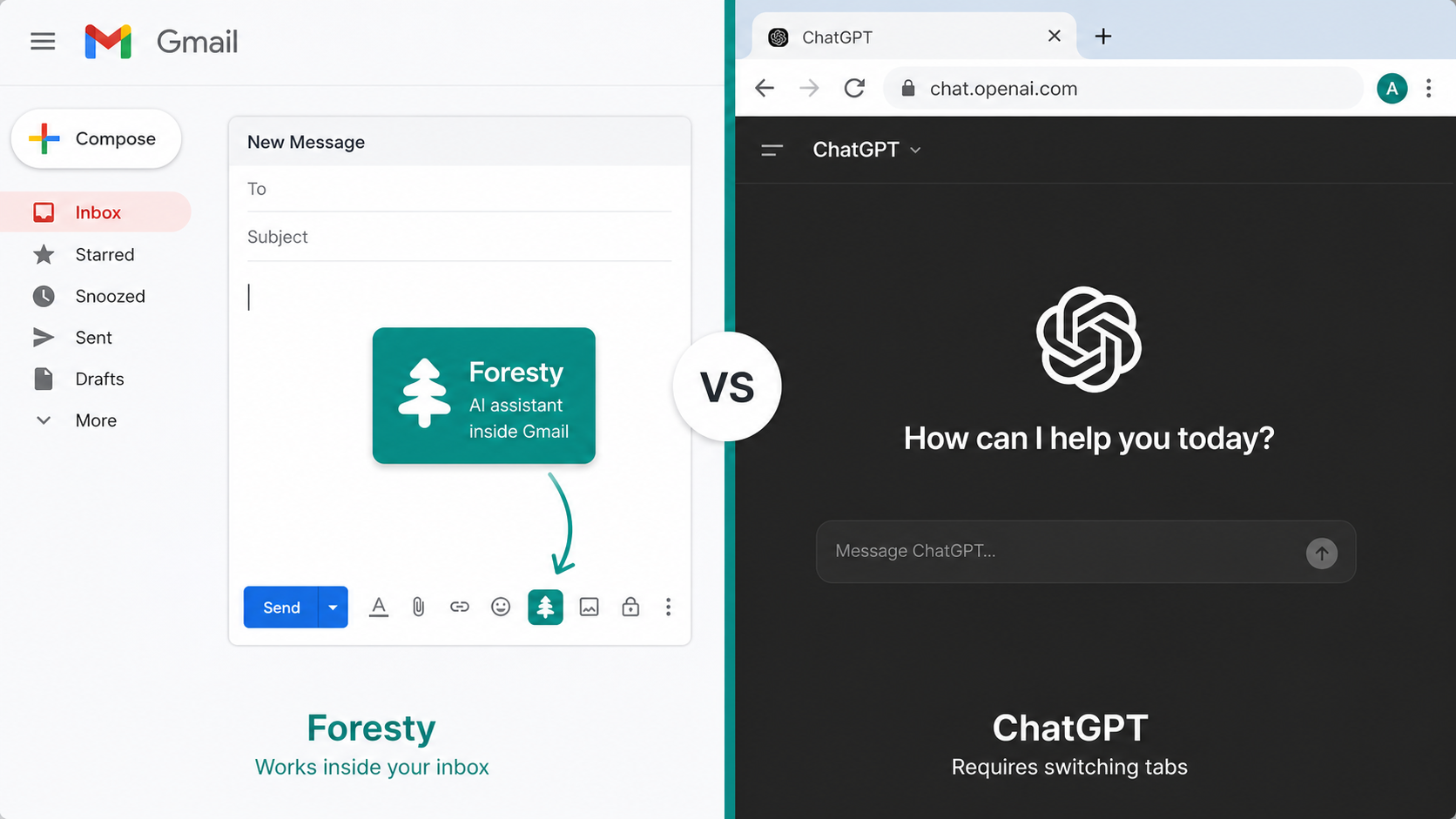
ChatGPT (8 Steps)
Open separate tab → copy email context → paste into ChatGPT → explain tone → generate → copy draft → switch back → paste & reformat.
Foresty Outlook Extension (3 Steps)
Open Outlook compose → generate draft inline → edit and hit send instantly.
Many professionals who discovered ChatGPT quickly adopted it for email drafting. And it works - up to a point. The issue is the workflow it requires.
You open ChatGPT, explain the full context of the email, wait for a response, copy it, switch back to Outlook, paste it, edit it to fit. That process works for one email. For someone writing fifteen or twenty emails a day in Outlook, it becomes a significant additional workload on top of the email itself.
There is also no thread context. ChatGPT does not see the email you received, which means you have to re-explain the conversation in your prompt every single time. For a dedicated email environment like Outlook, that limitation matters.
What to Look For in an AI Email Assistant for Outlook
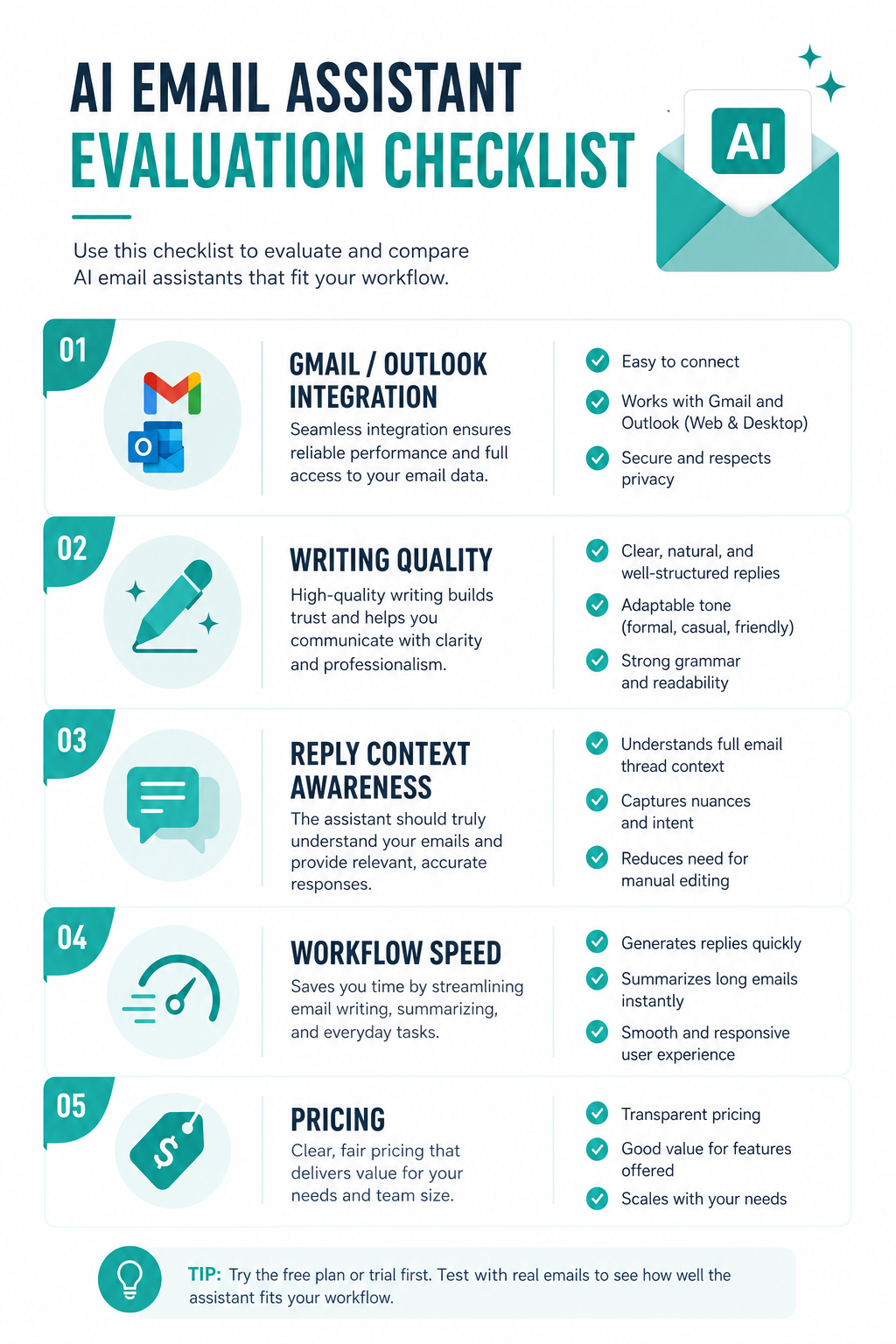
Not every AI writing tool is actually useful inside Outlook. Here is what separates tools that genuinely improve your Outlook workflow from ones that just add steps.
It Must Work Natively Inside Outlook - Not in a Separate Tab
This is the most important criterion. A tool that requires you to leave Outlook defeats much of the purpose. The value of an AI email assistant for Outlook comes from its location - inside the compose window, next to the email thread, accessible in one click.
Native integration means you stay in Outlook. You see the incoming email, you click a button or type a prompt, and the draft appears in your reply window. That is a fundamentally different experience from switching to an external tool.
Draft Generation That Understands Business Context
The quality of draft generation matters - but so does how you trigger it. A good tool lets you describe what you want in plain language: "Write a project status update to my client. Tone should be professional and reassuring. Delivery is on track."
It should produce a draft that matches that intent without needing three rounds of refinement before it is usable.
Context-Aware Reply Generation - Not Just Generic Responses
When you receive an email and need to reply, the best tools read the incoming message and generate a reply that directly addresses what was said. This is the difference between a tool that helps you start faster and one that still requires you to write the whole thing.
Context-aware reply generation means the AI read the thread - not just your prompt. For Outlook users who reply to dozens of messages a day, this single feature can save more time than any other.
Inline Rewriting Without Disrupting Your Workflow
You should be able to highlight any sentence or paragraph in your draft and improve it in place - shorten it, adjust the tone, fix the grammar - without copying anything out of Outlook. This keeps your flow intact and makes editing faster.
Subject Line Generation That Saves the Last-Minute Scramble
The subject line gets written last and receives the least thought. A good AI assistant reads your email body and generates several options to choose from. This is a small feature that produces consistently better results than writing a subject line quickly on your own.
You can explore more about this in the AI subject line generator feature breakdown.
Smart Autocomplete for Faster Everyday Typing
For emails where you are writing most of the content yourself, smart autocomplete completes your sentences as you type. It runs passively in the background - when you pause, a gray-text suggestion appears, and you press Tab to accept it or keep typing to ignore it.
This is the lowest-friction form of AI assistance available, and it is particularly useful in Outlook where you write many short internal messages that do not need a full AI draft.
Data Privacy - What Happens to Your Email Content
This matters especially for enterprise Outlook users. If you are writing client emails, HR communications, or internal sensitive updates, you need to know whether the tool stores, logs, or uses that content.
Look for tools that process email content in memory only, do not store it permanently, do not use it for model training, and do not share it with third parties for advertising. For business users, reviewing the tool's privacy policy before deploying is worth the five minutes.
Quick Comparison - Best AI Email Assistants for Outlook
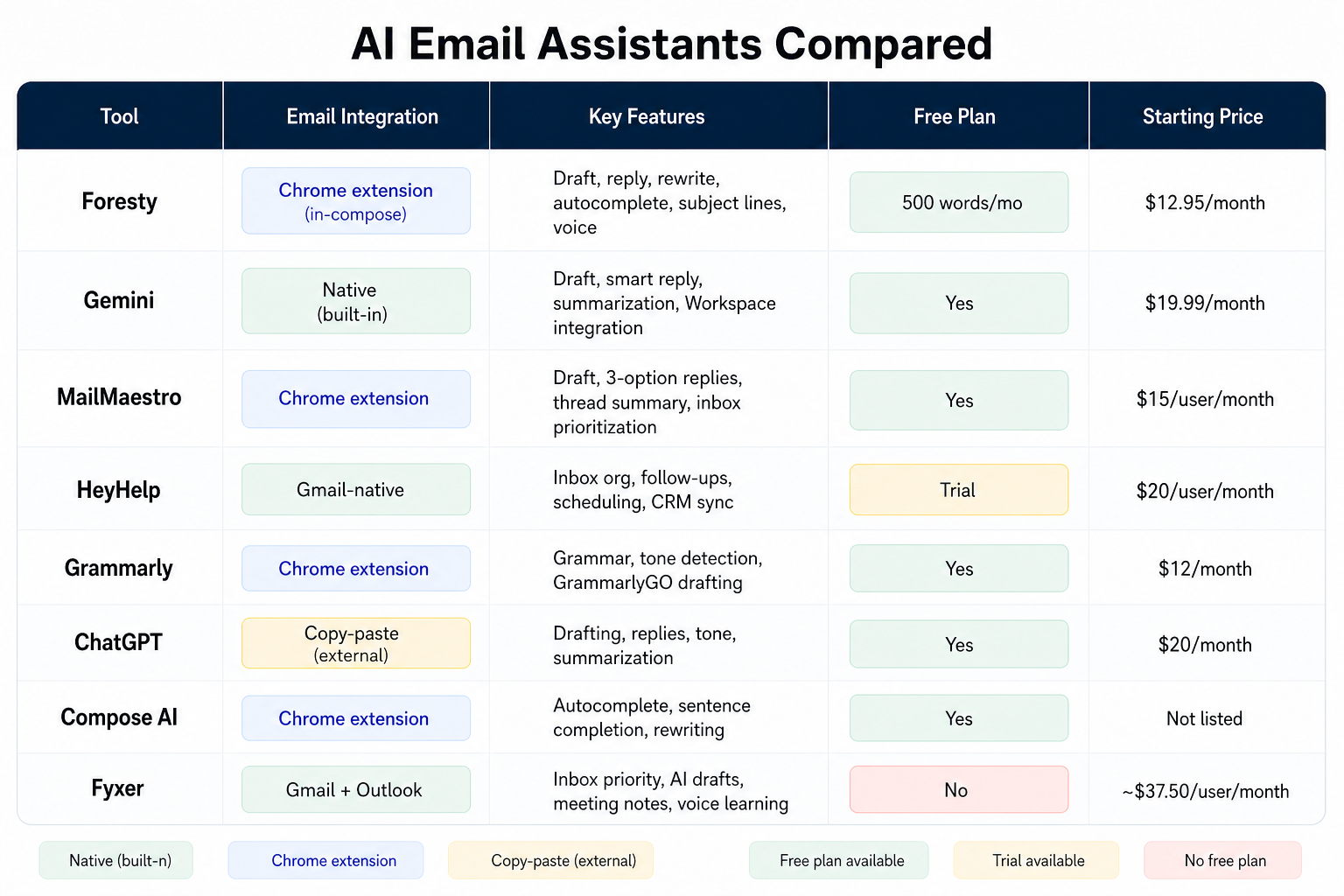
| Tool | Outlook Integration | Draft Generation | Inline Rewriting | Reply Generation | Autocomplete | Subject Lines | Free Plan | Starting Price |
|---|---|---|---|---|---|---|---|---|
| Foresty | Native extension | Voice + text | Bubble Menu | Context-aware | Yes | Yes | Yes | $8.08/mo |
| MailMaestro | Native extension | Three drafts | Yes | Thread summary | No | Yes | Yes | $12/mo |
| Grammarly | Extension + add-in | Limited | Grammar/tone | No | Partial | No | Yes | $12/mo |
| Jetwriter AI | Sidebar | Yes | Yes | Yes | Voice input | No | Yes | Not listed |
| Fyxer | Native | Yes | No | Yes | No | No | No | ~$37.50/mo |
| ChatGPT | Tab switch | Manual | Manual | Manual | No | Manual | Yes | $20/mo |
The Best AI Email Assistants for Outlook - Full Reviews
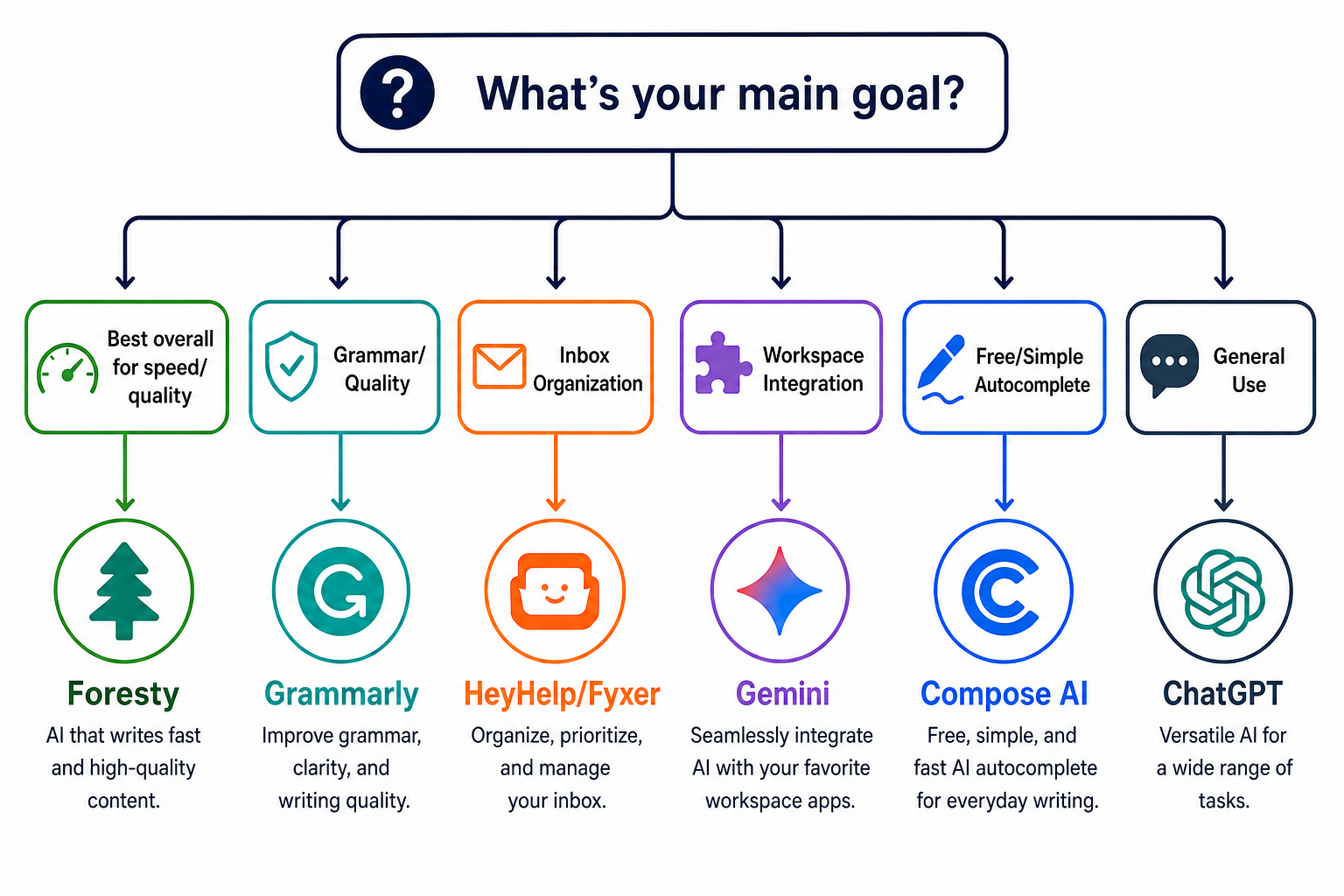
Foresty - Best for Individual Outlook Users Who Want a Full Writing Workflow
What it does: Foresty is a Chrome extension that integrates directly into Outlook Web and Outlook 365. It adds a complete AI writing layer inside the Outlook interface - covering draft generation, inline rewriting via the Bubble Menu, context-aware reply generation, subject line suggestions, and smart autocomplete. Everything works inside Outlook without any tab switching.
How it works inside Outlook: When you open a new compose window, the Foresty sidebar appears. You type a short prompt or dictate using the voice assistant, and Foresty generates multiple draft options to choose from. You select the best one, insert it into the compose window, and edit from there. For replies, Foresty reads the incoming thread and generates a contextually relevant response automatically.
For rewriting, you highlight any section of your draft and the Bubble Menu appears - giving you instant options to shorten, simplify, improve, or rewrite with a custom instruction. For subject lines, one click analyses the email body and returns several options.
Best for: Individual professionals, sales executives, recruiters, consultants, and anyone who writes a high volume of varied emails in Outlook daily and wants a complete writing workflow in one tool.
Pricing:
- Free: 500 words/month - no credit card required
- Basic: $12.95/month or $8.08/month billed annually
- Pro: $29.95/month or $21.41/month billed annually
Full pricing details are on the Foresty pricing page.
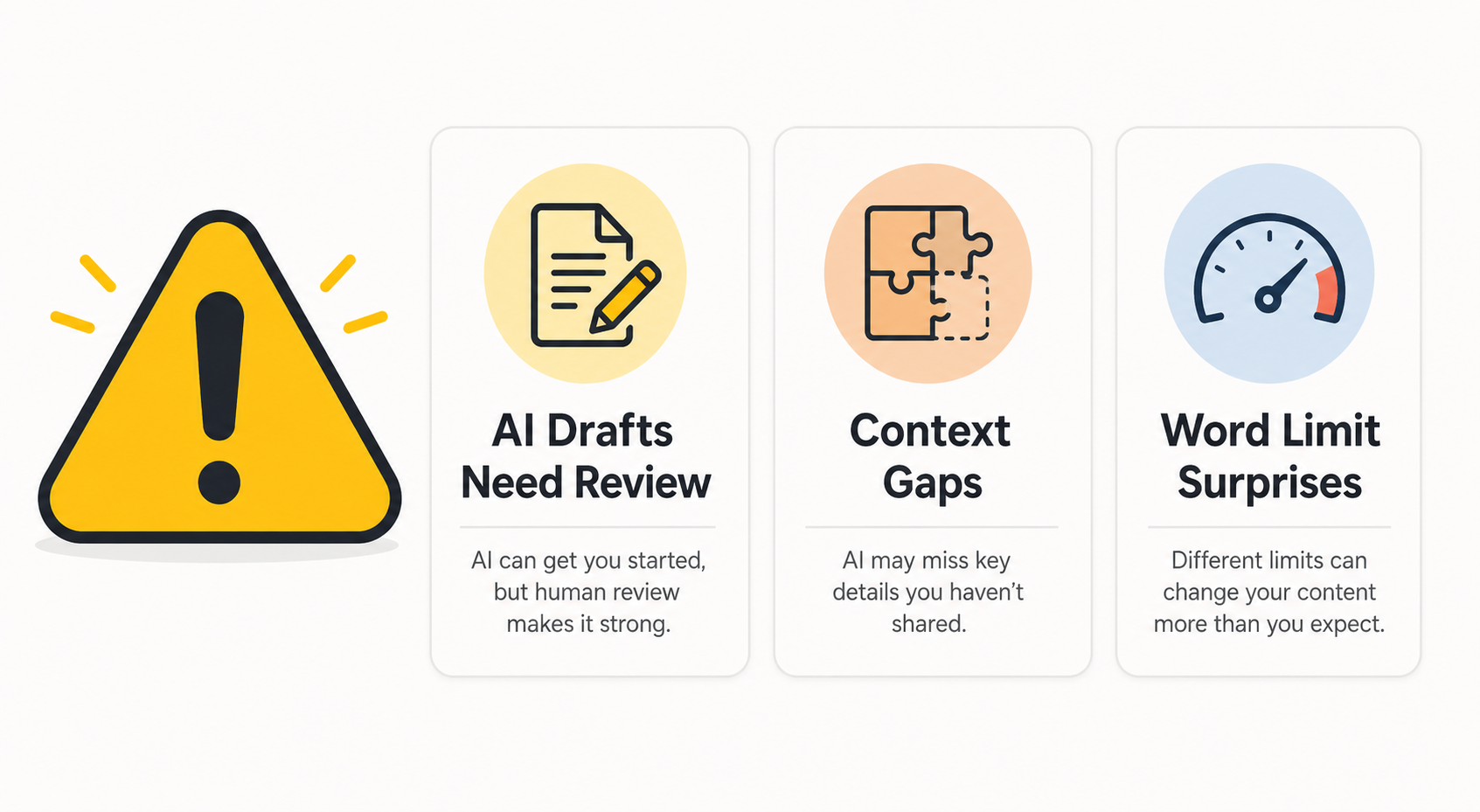
Limitations: Foresty works in Chrome-based browsers - it requires Outlook Web or Outlook 365 accessed in Chrome. It does not install as a native desktop Outlook add-in. AI drafts should always be reviewed before sending; the tool does not have access to your company's internal systems or CRM data.
MailMaestro - Best for Enterprise Teams on Outlook
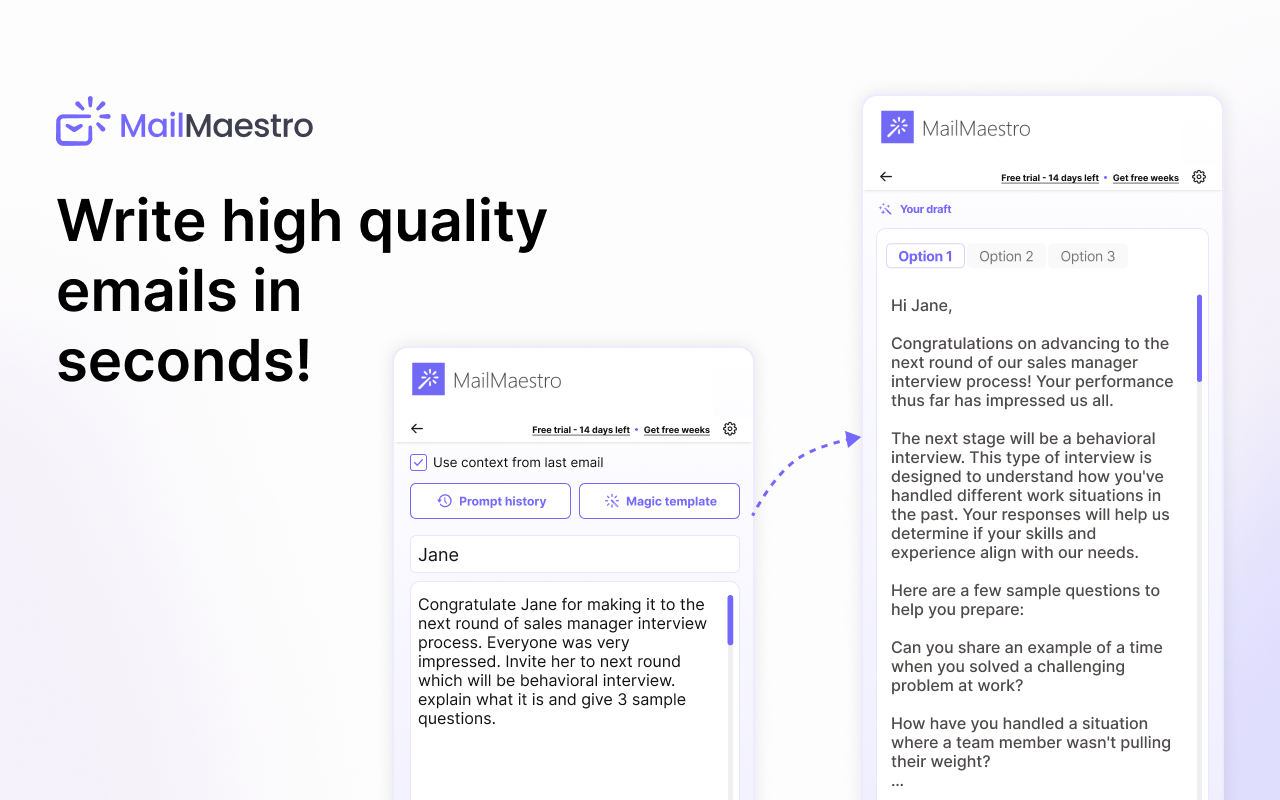
What it does: MailMaestro is a dedicated AI email assistant built specifically for Outlook and Gmail, targeting enterprise teams. It integrates as an Outlook add-in and offers AI email drafting, thread summarization, inbox prioritization, reply generation, and grammar improvement. For teams using Microsoft Teams, the companion TeamsMaestro product adds AI meeting notes and action item extraction.
How it works inside Outlook: MailMaestro installs as a native Outlook add-in, which means it works inside the desktop Outlook application - not just the web version. The sidebar activates within Outlook and lets you generate up to three draft variations per email, summarize long threads before replying, and improve tone and grammar inline.
Best for: Enterprise teams, corporate communications, and organizations that need SOC 2 Type II and GDPR compliance alongside their AI writing tools. Also strong for teams who use Microsoft Teams and want meeting intelligence alongside email.
Pricing: Free plan available. Professional plans start at $15/user/month (or $12/user/month billed annually). Custom enterprise pricing is available.
Limitations: MailMaestro is priced per user, which makes it expensive for larger teams. It is oriented toward enterprise use cases rather than individual professionals. Autocomplete is not a feature, and the inbox prioritization tools may be more than most individual users need.
Grammarly - Best for Grammar and Tone Polish in Outlook
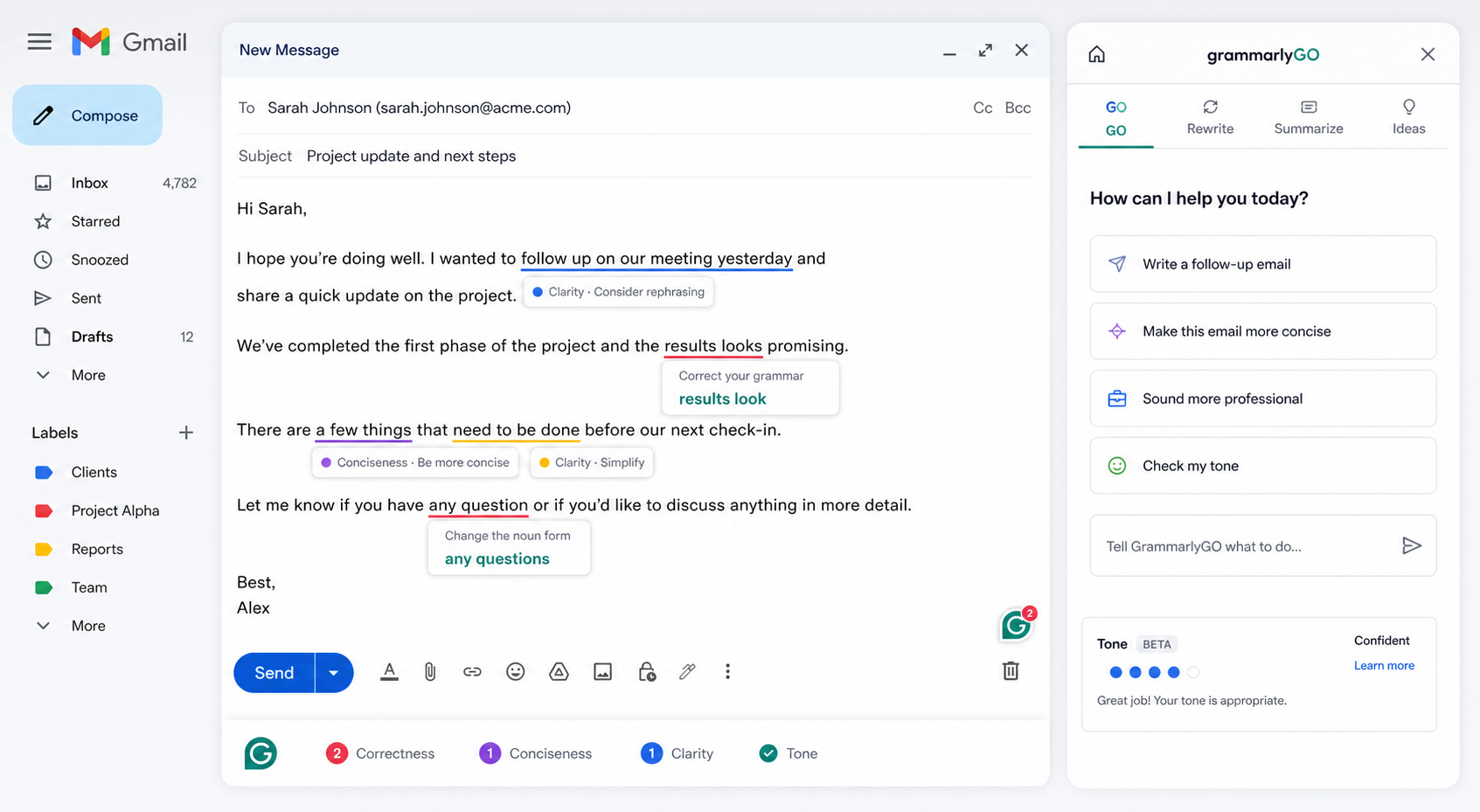
What it does: Grammarly is the most widely used writing improvement tool available. It integrates with Outlook via a browser extension and an MS Office add-in, providing real-time grammar corrections, tone suggestions, clarity improvements, and full-sentence rewrites. GrammarlyGO (the generative AI layer) can assist with drafting and replying, though this is not its primary strength.
How it works inside Outlook: Grammarly installs as a browser extension for Outlook Web or as a dedicated MS Office add-in for desktop Outlook. As you type, suggestions appear inline - grammar corrections, tone adjustments, and clarity improvements surface automatically. GrammarlyGO can generate or improve text on demand using the sidebar.
Best for: Professionals who write their own emails but want real-time feedback on grammar, tone, and clarity. Ideal as a polishing layer rather than a drafting tool. Particularly useful for non-native English speakers writing in a professional context.
Pricing: Free plan available with basic grammar checks. Premium plans start at $12/month billed annually (or $30/month monthly). Business plans start at $15/user/month.
Limitations: Grammarly is a writing improvement tool, not a drafting tool. It does not generate full emails from a prompt, does not produce context-aware replies, and does not offer subject line generation. If you need to write emails faster from scratch, Grammarly alone is not the answer.
Jetwriter AI - Best for Multi-Platform Writers Who Use Outlook
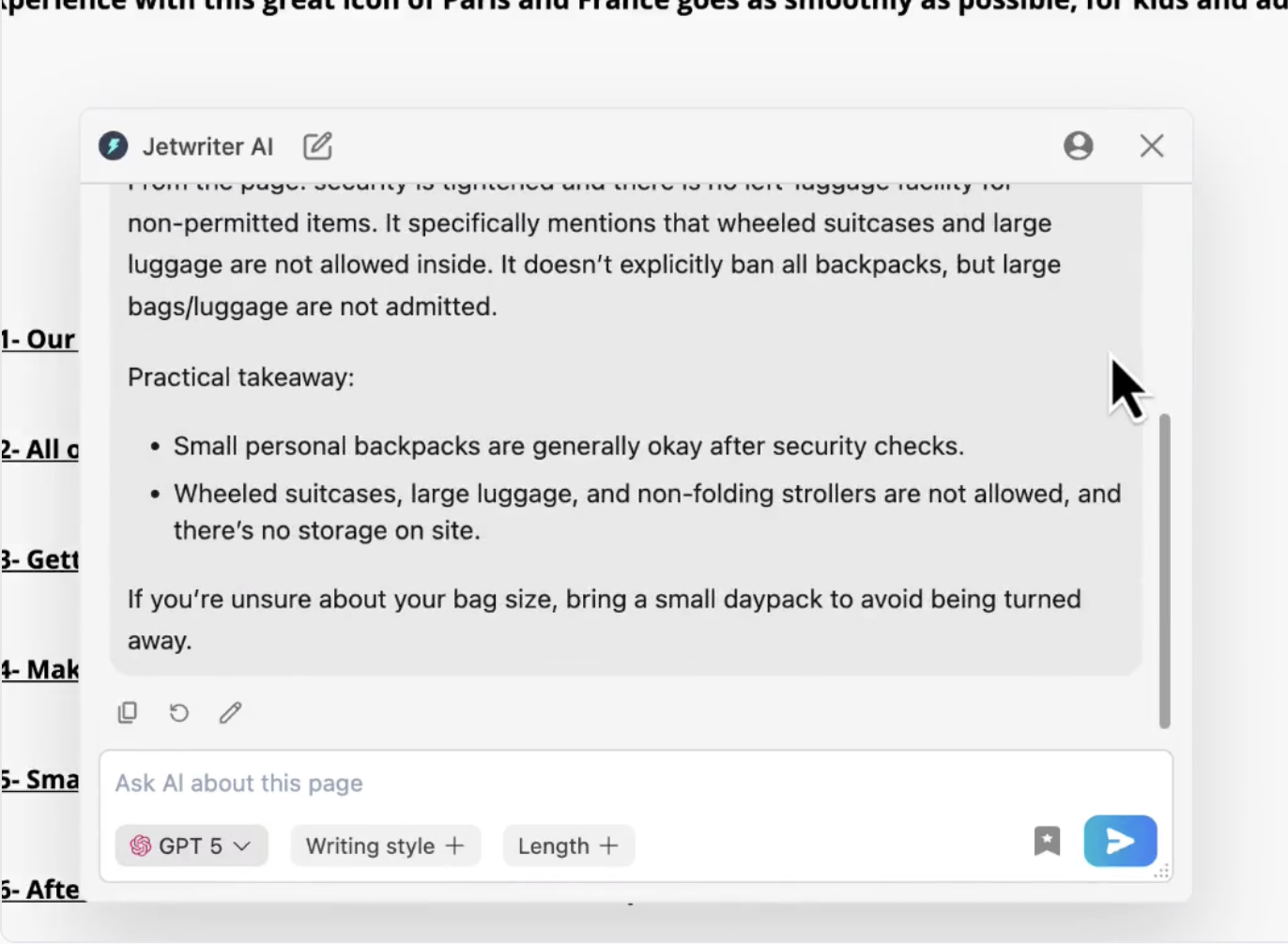
What it does: Jetwriter AI is a browser extension that works across multiple platforms - Gmail, Outlook, LinkedIn, Slack, Zendesk, and more. It offers email reply generation, grammar correction, writing improvement, translation, summarization, and voice input. It works as a sidebar within Outlook Web.
How it works inside Outlook: Jetwriter AI activates as a sidebar panel inside your browser when you are on Outlook Web. You can generate replies, improve writing, and run various writing actions from the sidebar. It also supports voice input for dictating prompts.
Best for: Professionals who work across multiple platforms and want one AI writing tool that follows them everywhere - from Outlook to LinkedIn to Slack. Good for teams with diverse communication channels.
Pricing: Free plan available. Paid plans exist but details are not publicly listed on their pricing page.
Limitations: Jetwriter AI is a broad multi-platform tool rather than a dedicated email assistant. Its Outlook integration works as a sidebar rather than native compose panel integration, which means it does not provide the same level of in-compose workflow as Foresty or MailMaestro. Subject line generation is not a core feature.
Fyxer - Best for Team Inbox Management in Outlook
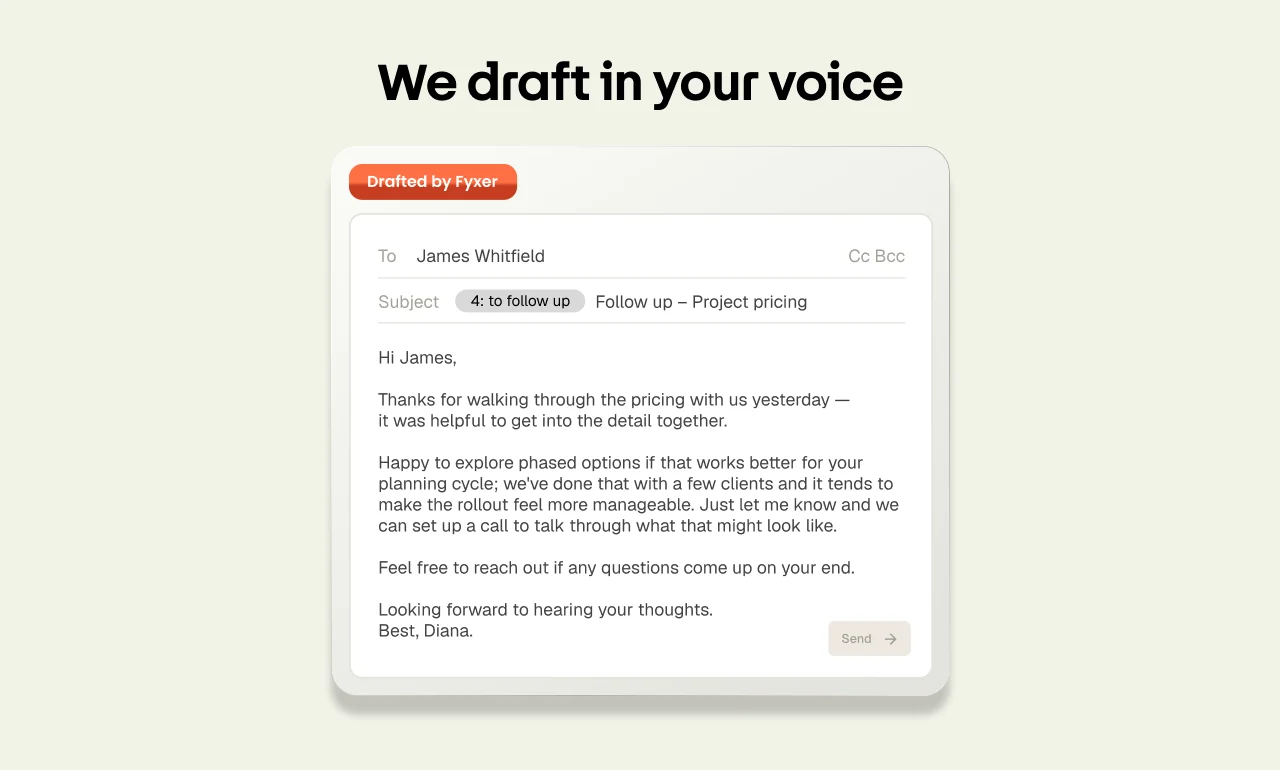
What it does: Fyxer is an AI inbox assistant that learns your business context and writing style from historical email conversations. It focuses on organizing inboxes, prioritizing emails, and generating highly personalized draft responses. It connects with both Gmail and Outlook and reports average time savings of over three hours per user per week.
How it works inside Outlook: Fyxer connects to your Outlook account and learns your communication patterns over time. It categorizes incoming emails, highlights priority messages, and generates draft responses informed by your historical writing style and business context.
Best for: Executives, agency leaders, and high-volume teams who need inbox organization as much as writing assistance. Particularly strong for users who receive hundreds of emails a week and need help triaging before writing.
Pricing: Professional plans start around $37.50/user/month. Custom team and enterprise pricing is available. No free plan.
Limitations: Fyxer is the most expensive option on this list and requires onboarding time for the system to learn your writing style. It is a team and executive tool rather than an individual writing assistant. The lack of a free plan makes it harder to evaluate before committing.
ChatGPT - Best for Occasional Use With Manual Copy-Paste
What it does: ChatGPT is a general-purpose AI assistant that produces high-quality email drafts, rewrites, and replies when given clear prompts. It is not purpose-built for Outlook but is widely used by professionals for email drafting.
The friction with Outlook: ChatGPT requires you to leave Outlook entirely. You open a separate tab, explain the full context of the email (since ChatGPT cannot see your inbox), generate a draft, copy it, switch back to Outlook, paste it, and edit. That is a manageable process for occasional emails - but a significant time tax for anyone writing many emails per day.
Best for: Occasional email drafting where you have time to write detailed prompts. Also useful for complex, one-off emails where you want to explore multiple versions before committing.
Pricing: Free plan available. Plus plan is $20/month. Team plans start at $25-30/user/month.
Limitations: No native Outlook integration. No thread context awareness - you must explain the conversation in your prompt every time. No inline rewriting, no subject line generation, no autocomplete inside Outlook. The tab-switching workflow adds friction that compounds at scale.
How AI Actually Changes the Email Writing Workflow in Outlook
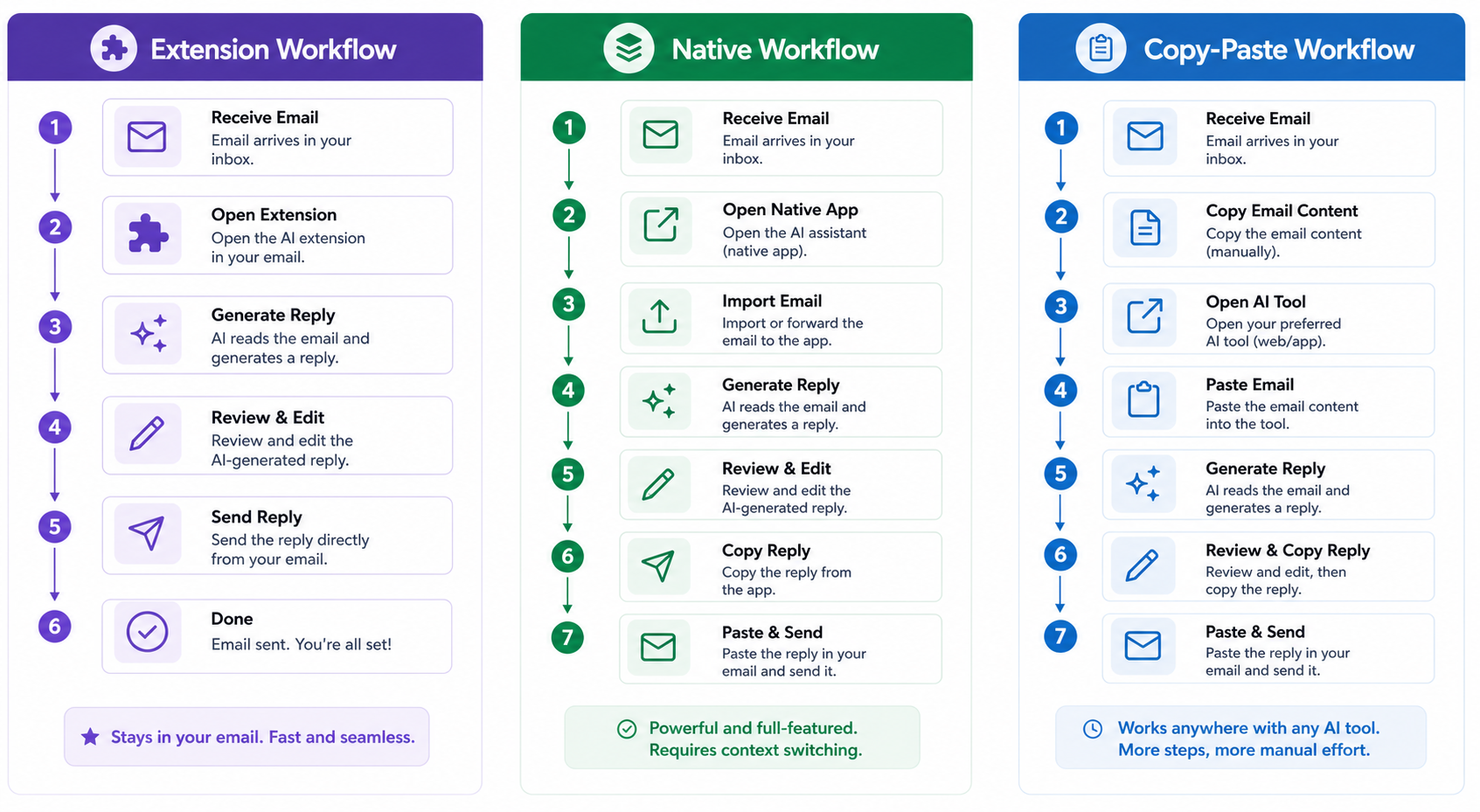
Understanding the difference is not just about feature lists. It is about how the experience of writing emails changes when the AI is inside Outlook versus outside it.
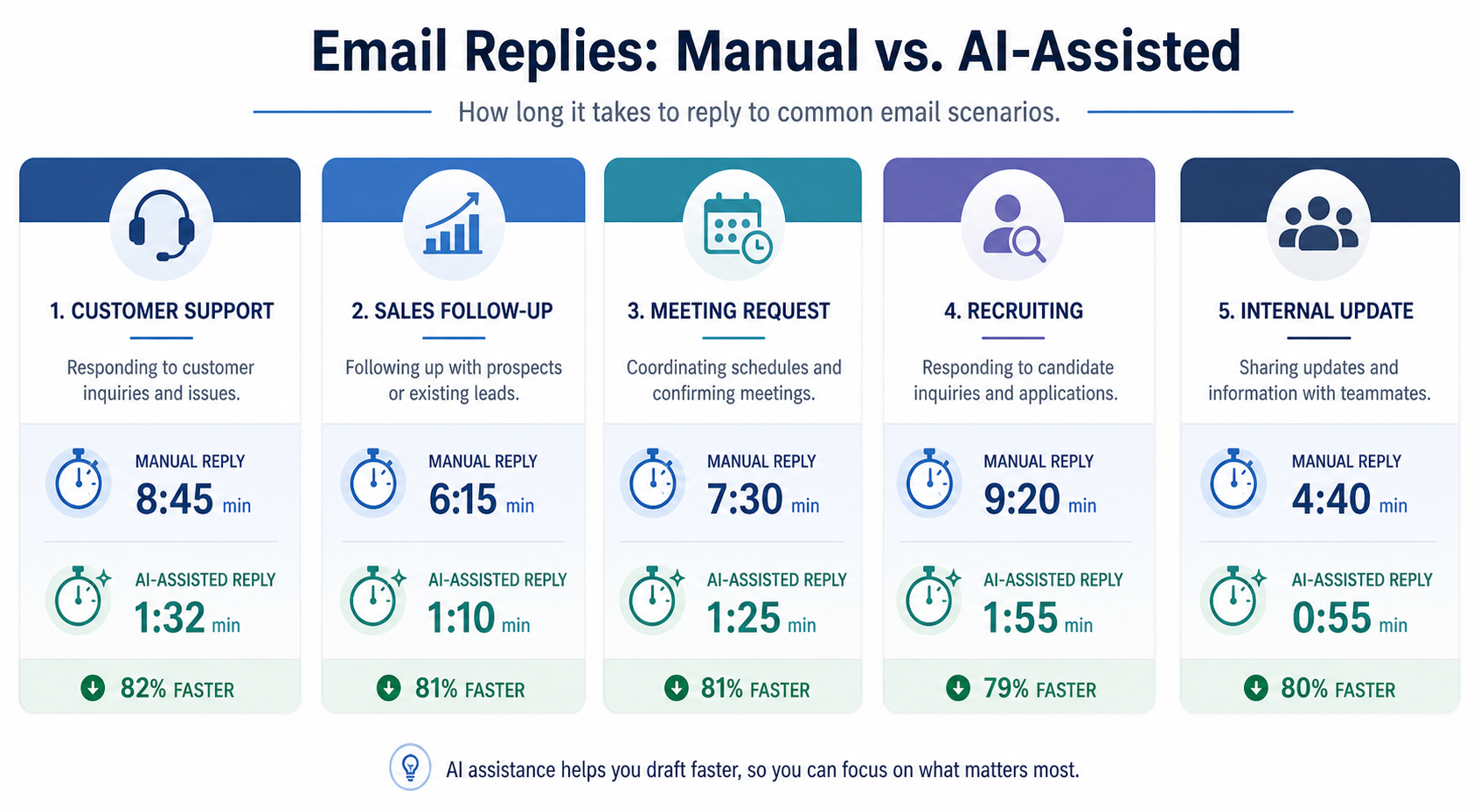
The Manual Outlook Email Workflow (Before AI)
Here is what most Outlook users do today without AI assistance:
- Open a new compose window in Outlook
- Read the email you are replying to one more time
- Think about what to say
- Start typing a rough draft
- Reread it, notice something sounds off
- Rewrite sections that need improvement
- Check for grammar issues manually
- Think of a subject line at the last second
- Send
For a simple internal update, this might take five minutes. For a nuanced client email, it can take twenty. Multiply that across ten to fifteen emails a day, and you understand why people are looking for a better approach.
The AI-Assisted Outlook Workflow (After AI)
With a native AI email assistant for Outlook in place, the same workflow looks like this:
- Open compose in Outlook - AI assistant is already there
- Type a short prompt or speak it: "Client update. Project on track. Delivery confirmed for Friday."
- Review the generated draft - usually ready in seconds
- Make any personal edits that add your specific context
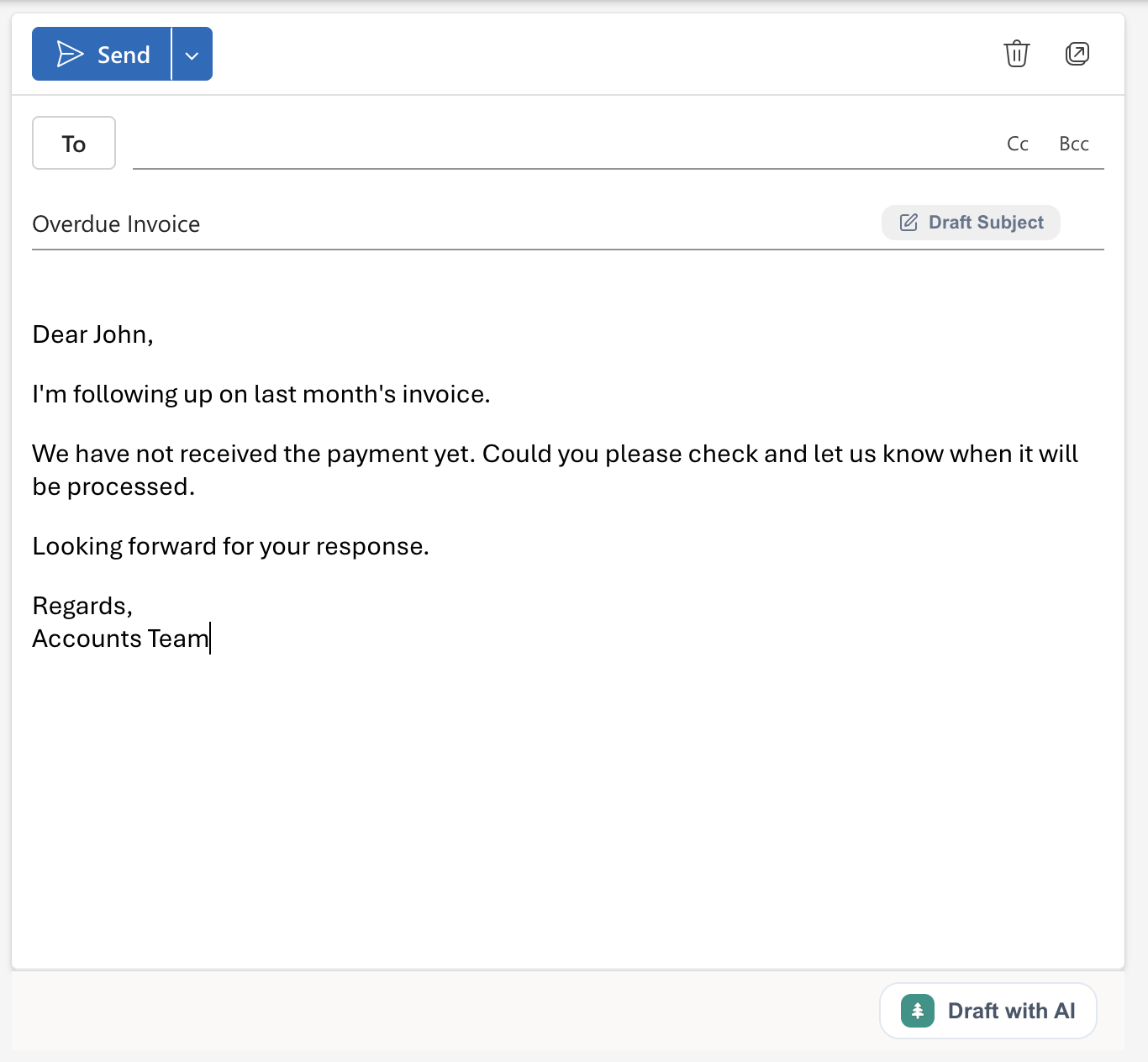
- Click "Draft Subject" - pick from three generated options
- Send
The difference is not just speed - it is mental load. You moved from building an email from scratch to reviewing and refining a starting point. That shift compounds significantly over a full working day.
Real Example - Drafting a Client Update Email in Outlook With AI
Scenario: A project manager needs to send a weekly status update to a client. The project is on track, one minor delay on a deliverable, and a team call is scheduled for next Thursday.
Prompt given: "Weekly project status update to client. Project is on track overall. One small delay on the design deliverable - will be ready by Wednesday instead of Monday. Team call is confirmed for Thursday at 2 PM. Tone: professional and confident."
Subject: Weekly Project Update - Week of [Date]
Hi [Name],
A quick update on where we stand this week. The project is progressing well and remains on track overall.
One small note: the design deliverable will be ready by Wednesday rather than Monday as originally planned. We want to make sure it's fully polished before it reaches you - we appreciate your patience on this.
As a reminder, our team call is confirmed for Thursday at 2 PM. Looking forward to walking you through progress live.
Best regards,
[Your name]
That is a ready-to-send email produced in under thirty seconds. The project manager reviews it, confirms the details are right, and sends. Total effort: about one minute.
Real Example - Replying to an Internal Escalation Email in Outlook
Incoming email:
Generated reply:
Hi [Name],
Thanks for flagging this - three escalations in a week is a clear signal we need to step in directly.
I'll review the ticket history today and reach out to the customer personally before end of day. I'll also schedule a quick sync with the support team to understand what's blocking resolution and make sure we have a path forward.
I'll keep you updated.
That reply is professional, shows ownership, and has a clear action plan. Written from scratch under pressure, it would take much longer - and might not be as clear.
Which AI Email Assistant Is Right for Your Outlook Use Case
Different Outlook users have different needs. Here is a clear breakdown by use case.
If You Write a High Volume of Client Emails
Client-facing emails need to be professional, specific, and on-tone every time. You do not have time to craft each one slowly, but you also cannot send something generic.
Best choice: Foresty. The combination of voice/text prompting, context-aware drafts, and the Bubble Menu for inline adjustments gives you a complete workflow for polished client communication without slowing down. The Outlook Writing Assistant page covers the full feature set.
If You Manage Internal Communications Across Teams
Internal emails are high in volume and need to be clear, but they often get less attention because they feel lower-stakes. The result is miscommunication, vague instructions, or missed context.
Best choice: Foresty or MailMaestro. Foresty handles individual internal writing efficiently. MailMaestro is worth considering if you manage a team and want the thread summarization feature to stay on top of long conversations.
If You Are a Recruiter Sending Candidate Emails Through Outlook
Recruiters write very similar email types at high volume - application confirmations, interview invitations, scheduling updates, rejections - these messages follow similar patterns but need to feel human and thoughtful rather than obviously templated.
Best choice: Foresty. The prompt-based drafting handles recruiter email types well, and the autocomplete feature helps with the shorter, more routine messages. The AI email reply generator is particularly useful for candidate follow-ups.
If You Are on an Enterprise Microsoft 365 Plan
Enterprise users often have additional requirements: compliance, security certifications, team management, and native desktop app integration.
Best choice: MailMaestro. It holds SOC 2 Type II and GDPR compliance certifications, offers enterprise pricing with admin controls, and installs as a native Outlook desktop add-in. It is the strongest option for organizations with security and compliance requirements.
If You Are an Individual User on a Tight Budget
You want a meaningful improvement to your Outlook email writing without paying enterprise prices.
Best choice: Foresty. The free plan includes 500 words per month with access to all features - enough to test everything properly. The Basic plan at $8.08/month (billed annually) provides 15,000 words per month, which covers most individual professional usage. No other tool on this list offers a comparable feature set at that price point.
Frequently Asked Questions
What is the best AI email assistant for Outlook?
Does an AI email assistant work with Outlook 365 and Outlook Web?
Is it safe to use an AI email assistant with a business Outlook account?
Can AI write emails that sound professional in Outlook?
What is the difference between Foresty and MailMaestro for Outlook?
Do I need to install anything extra to use an AI email assistant in Outlook?
Can an AI assistant reply to emails in Outlook, not just compose new ones?
Is there a free AI email assistant for Outlook?
The Right Tool Depends on What You Actually Need
If you have read this far, you have a clear picture of the landscape. Here is the practical summary.
For most individual Outlook users - professionals, sales executives, recruiters, consultants - Foresty is the strongest option in 2026. It covers the full email writing workflow inside Outlook at the most accessible price point, has a free plan that lets you test everything before paying, and handles the full spectrum from quick autocomplete to complex draft generation.
For enterprise teams with compliance requirements, MailMaestro is the right choice. The SOC 2 certification, native desktop Outlook add-in, and team management features justify the higher price for organizations where those things matter.
For users who primarily need grammar polish, Grammarly is worth adding - ideally alongside a drafting tool like Foresty, since Grammarly does not replace the drafting workflow.
For occasional use, ChatGPT remains a capable free option. But if you are writing more than a handful of emails a day in Outlook, the tab-switching workflow will cost you more time than the subscription to a native tool saves.
The clearest next step is to start with Foresty's free plan - no credit card, full feature access - and see how much time it saves in your actual Outlook workflow. You can explore the Foresty Outlook Writing Assistant to see exactly what is included before you install.
Related reading:
- AI Email Reply Generator - Generate context-aware replies directly inside Outlook
- AI Email Rewriter - Fix tone, shorten, and improve drafts without leaving your inbox
- AI Email Autocomplete - Finish sentences faster with smart inline predictions while you type
- AI Subject Line Generator - Generate better subject lines from your email body in seconds
- Foresty vs ChatGPT - Full workflow comparison for email users