
If you want to spend less time writing emails, you are not alone - and the problem is more fixable than most people realize.
Most professionals do not have an email volume problem. They have an email process problem. The way most people write emails - starting from scratch every time, juggling multiple tools, agonizing over tone - is genuinely inefficient. And the fixes available right now, particularly through AI, are practical and immediate.
This guide is for anyone who writes a meaningful number of professional emails each day: sales professionals, recruiters, consultants, customer support teams, founders, or anyone who has ever looked at their inbox and felt the weight of it. We will cover why email writing takes so long, the habits that make it worse, a step-by-step better workflow, how AI specifically cuts the time down, real before-and-after examples, and the tools that actually make a difference.
Why Email Takes So Much Time - And Why It Is Not Your Fault
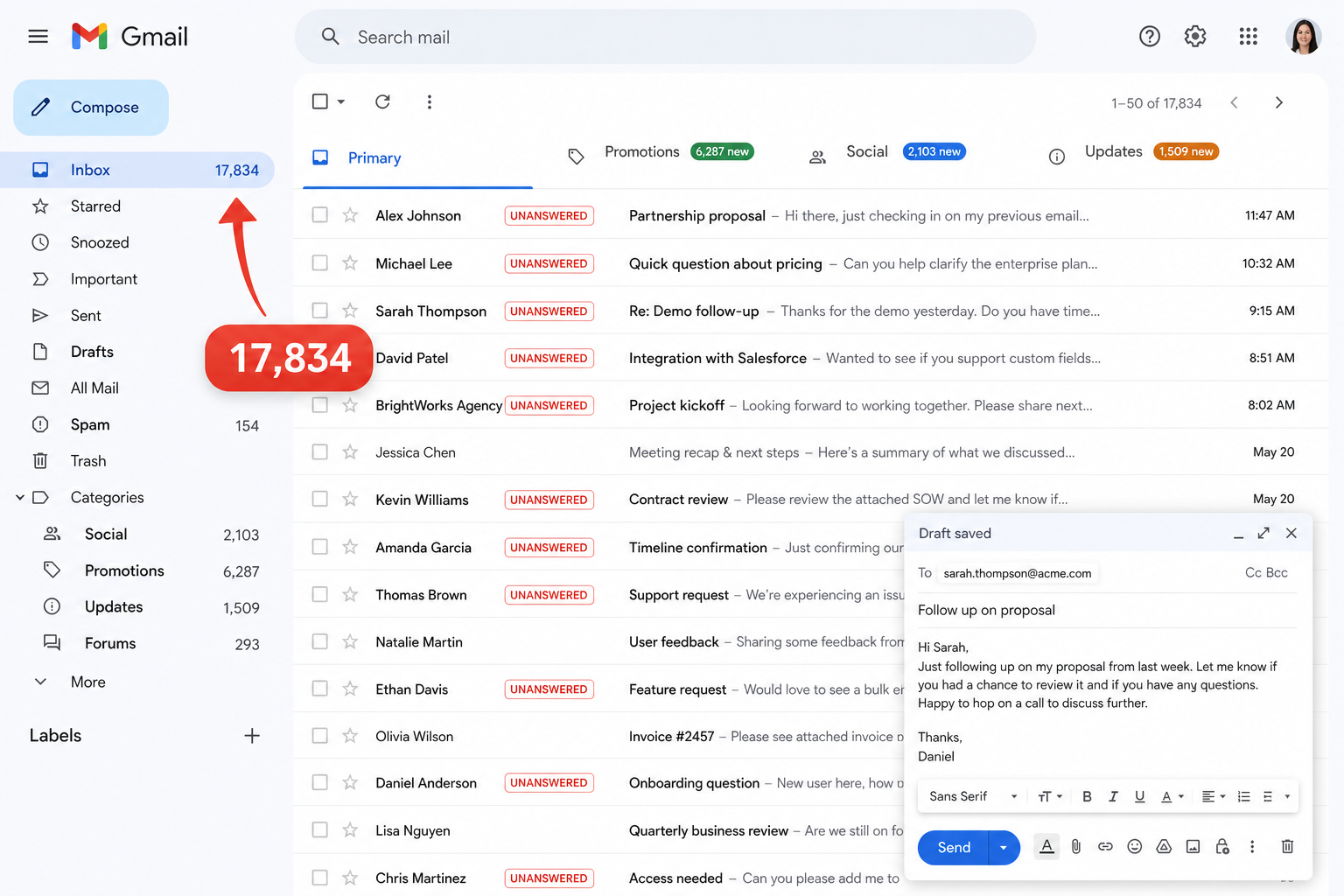
Writing emails feels like it should be quick. You know what you need to say. You have done it hundreds of times. So why does it consistently take longer than it should?
The honest answer is that the process most people use for email writing is not designed for efficiency. It is designed for flexibility - which is exactly why it is slow. Every email starts from zero, every decision gets made in real time, and every message gets more attention than it needs.
The Blank Page Problem - You Know What to Say but Not How to Start
Opening a blank compose window is the most consistent bottleneck in email writing. You know the point of the email. You understand the recipient and the context. But translating all of that into a clear, structured, professional message takes active mental effort - even when the content is simple.
This is not a reflection of your writing ability. It is a structural problem. Starting from nothing requires more cognitive energy than editing from a starting point. That difference is small per email, but it compounds significantly when you are writing ten or fifteen messages a day.
The Perfectionism Trap - Spending Too Long on Emails That Do Not Need It
Not every email deserves the same level of care. A quick internal update to a colleague is not the same as a detailed client proposal. But many professionals apply the same slow, careful process to every email regardless of its actual importance.
The result is a flat, slow approach to an inbox that requires tiered effort. Some emails need 30 seconds. Others need 5 minutes. Very few need 20 minutes. But when you treat them all the same, you spend 20 minutes on emails that deserved 30 seconds.
Repetitive Emails Are the Biggest Hidden Time Sink
There is a category of emails that almost every professional writes regularly: follow-ups, meeting requests, project status updates, application responses, rejection emails, onboarding messages. These are structurally similar every time - the context changes, but the shape of the message does not.
Most people write each one fresh anyway. There is no system that captures what worked last time and applies it next time. You rebuild the same mental scaffolding over and over for messages that have been written in essentially the same way before.
This is where the largest time savings are available - not in writing complex, high-stakes emails faster, but in removing the repeated effort from emails that are actually predictable.
Context Switching Kills Your Momentum - The ChatGPT Tab Problem
Many professionals have added ChatGPT to their email workflow as a way to write faster. And it helps - up to a point. The problem is the workflow it requires.
To use ChatGPT for email, you open a new tab, type a detailed prompt explaining the context, copy the output, switch back to Gmail or Outlook, paste it, and edit. That is a workflow interruption, not a workflow improvement. Every tab switch breaks your momentum, and the cost of context switching accumulates across a full day of work.
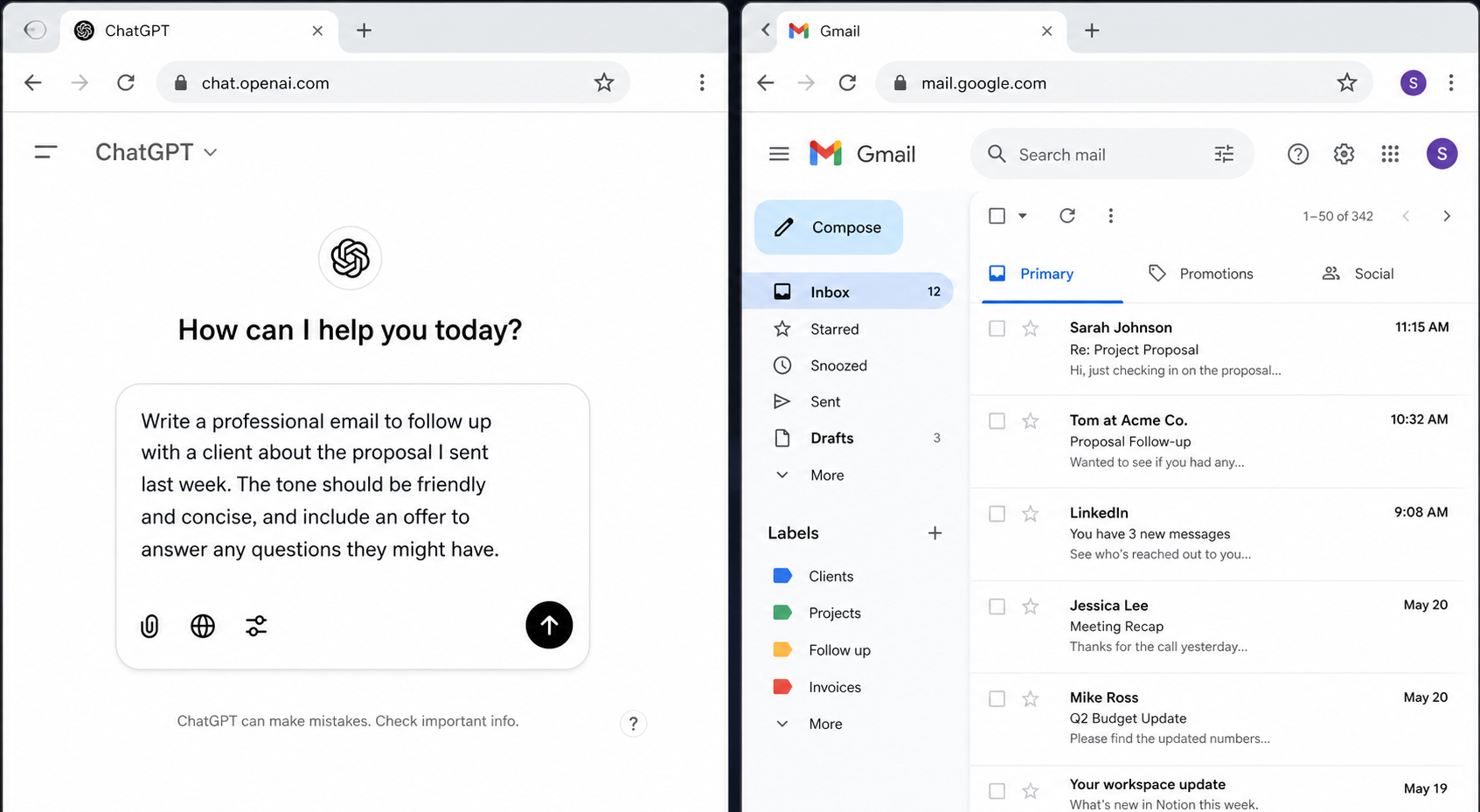
The deeper problem is that ChatGPT has no visibility into your inbox. Every time you want to draft an email, you have to re-explain the conversation context in your prompt. For replies especially, this doubles the work.
How Much Time Are You Actually Spending on Email?
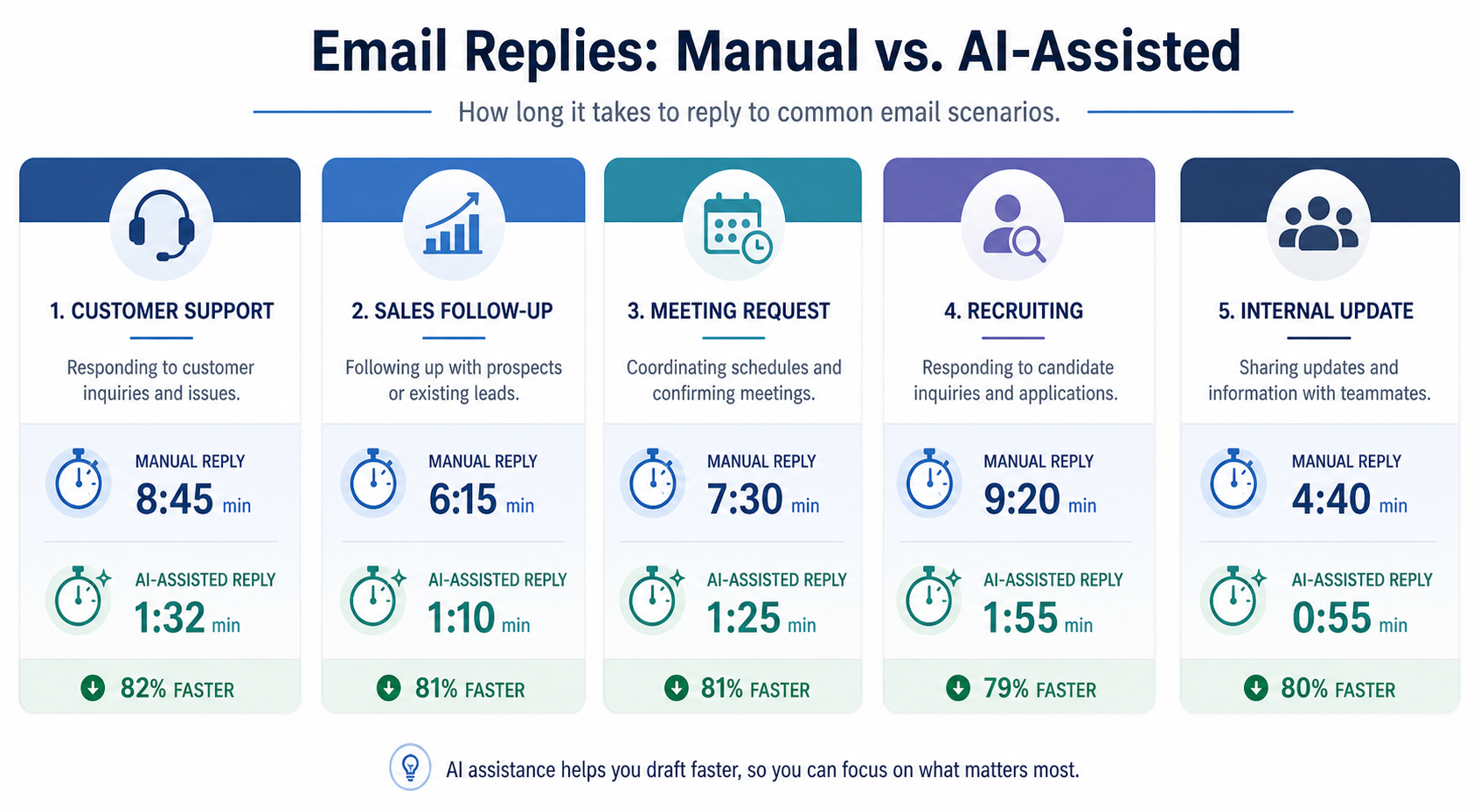
Most people significantly underestimate how much time they spend writing emails - because each individual email feels small. The cost only becomes visible when you add it up.
The Real Numbers - Manual Writing vs AI-Assisted Writing
Here is what the data actually shows when comparing manual email writing against AI-assisted approaches:
| Metric | Manual Writing | ChatGPT (Tab Switching) | Native AI Email Tool |
|---|---|---|---|
| Time per email | 20-30 minutes | 10-15 minutes | 2-3 minutes |
| Email quality | Inconsistent | Medium | Polished and ready |
| Effort required | Very high | Medium | Minimal |
| Editing speed | Slow | Slow (tab switching) | Fast inline |
The difference between 20 minutes and 2 minutes sounds dramatic - but it is realistic for emails where you have a clear prompt and a tool that works directly in your inbox. The time savings come primarily from replacing generation with review.
What That Time Costs You Across a Working Week
If you write ten emails per day at an average of 15 minutes each, that is 150 minutes - two and a half hours - on email writing alone. Over a five-day working week, that is over twelve hours.
Even being conservative - say, five emails a day at ten minutes each - that is still four hours a week on email. That is time that could go toward actual work, better thinking, or simply having a less exhausting day.
The goal of a better email workflow is not to rush your communication. It is to stop spending unnecessary time on emails that do not need it.
The Types of Emails That Eat the Most Time
Not all email types are equal when it comes to time consumption. The worst offenders are typically:
- Cold outreach and sales follow-ups: high stakes, high volume, require personalization every time
- Client status updates: structurally similar every week but written fresh each time
- Recruiting emails: repetitive by nature but need to feel human and specific
- Customer complaint responses: emotionally charged, require careful tone, often rewritten multiple times
- Meeting requests and scheduling: simple but surprisingly time-consuming in aggregate
These are also the email types where AI assistance provides the most consistent benefit - because they are structured, predictable, and high-volume.
The Four Habits That Keep People Slow at Email Writing
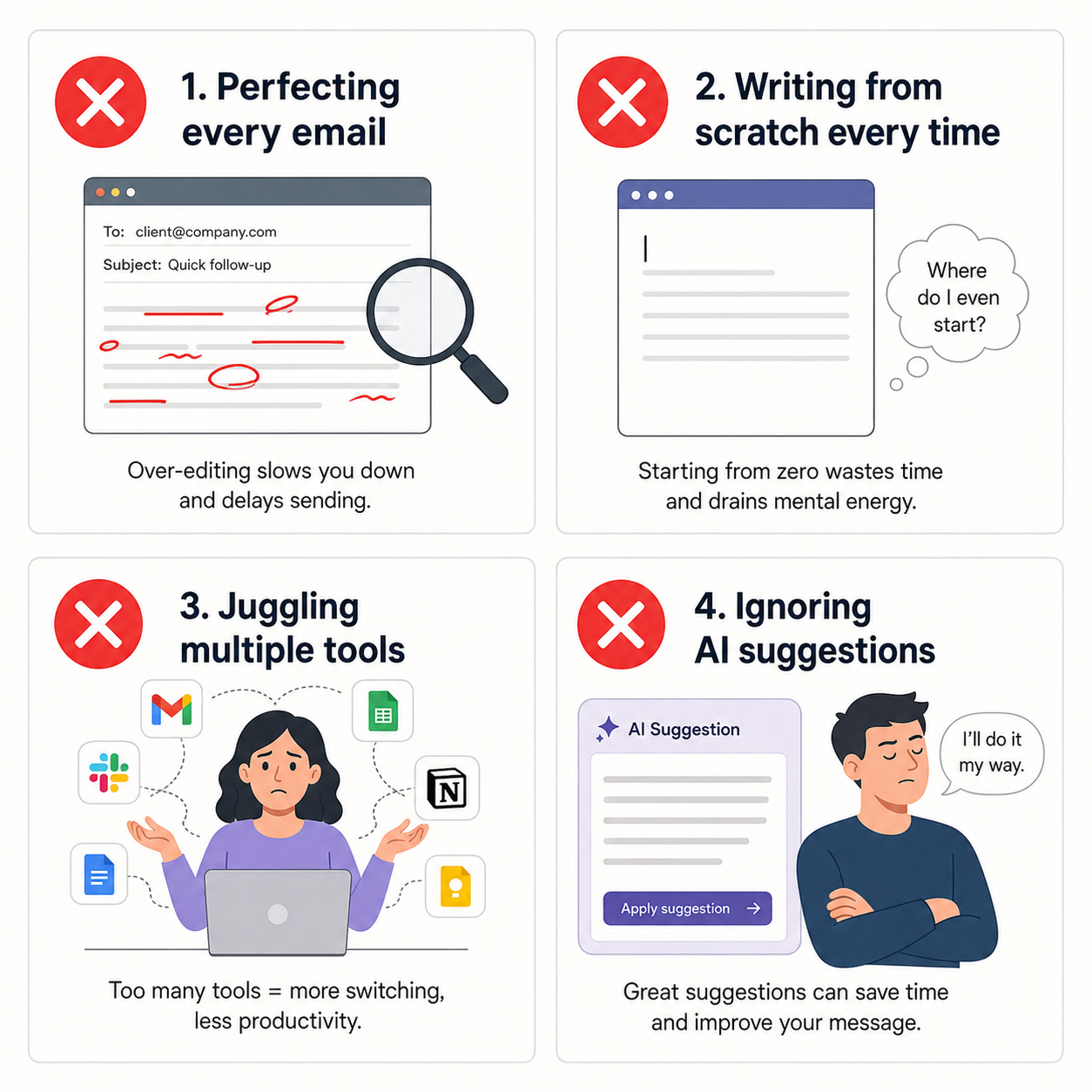
Before fixing the workflow, it is worth understanding exactly what is making it slow. Most email writing inefficiency comes from four specific habits, not from any fundamental limitation.
Writing Everything From Scratch Every Time
The single most time-consuming email habit is starting every message from zero. No starting point, no template, no context carried forward from similar emails - just a blank page and a timer running.
This is particularly expensive for the repetitive email types described above. If you have written a dozen follow-up emails this month, you have already solved the problem of how to structure one effectively. But without a system to capture and reuse that knowledge, you start over every time.
The fix is not rigid templates - those feel robotic and require maintenance. The fix is a system that generates a fresh starting point from a short prompt, so you are always editing rather than building.
Rewriting Instead of Editing - The Difference Matters
There is a meaningful difference between rewriting and editing. Editing means you have something in front of you and you are improving it. Rewriting means you are building something new from scratch, even if a version already exists.
Most slow email writers are actually rewriters. They draft something, read it back, decide it is not quite right, and start again. This cycle repeats two or three times before they are happy with a message.
The fix is to shift your process so that you always start from a draft that is already mostly right. Then your effort goes entirely into editing - which is faster, less cognitively demanding, and produces better results.
Treating Every Email as Equally Important
The biggest quality-of-life improvement available to most heavy email users is triage - the deliberate decision to apply different levels of effort to different emails.
A quick reply to an internal question deserves thirty seconds, not five minutes. A project update to a familiar client deserves three minutes, not fifteen. Reserving your full attention and effort for the emails that genuinely need it - a sensitive client complaint, a critical negotiation, an investor update - makes everything faster and better at the same time.
Treating every email as equally important is a recipe for exhaustion, not quality.
Juggling Too Many Tools and Switching Context Constantly
Every tool switch has a cost. When your writing assistant lives in a separate browser tab, every email requires you to context switch: close what you are doing, open a new tool, write a prompt, copy output, switch back, paste, edit. That cycle is a tax on your time and your focus.
The professionals who write email most efficiently are the ones who have reduced their tool count and eliminated unnecessary switches. The goal is to have everything you need inside the same interface where you manage email. Not adjacent to it - inside it.
A Better Email Writing Workflow - Step by Step
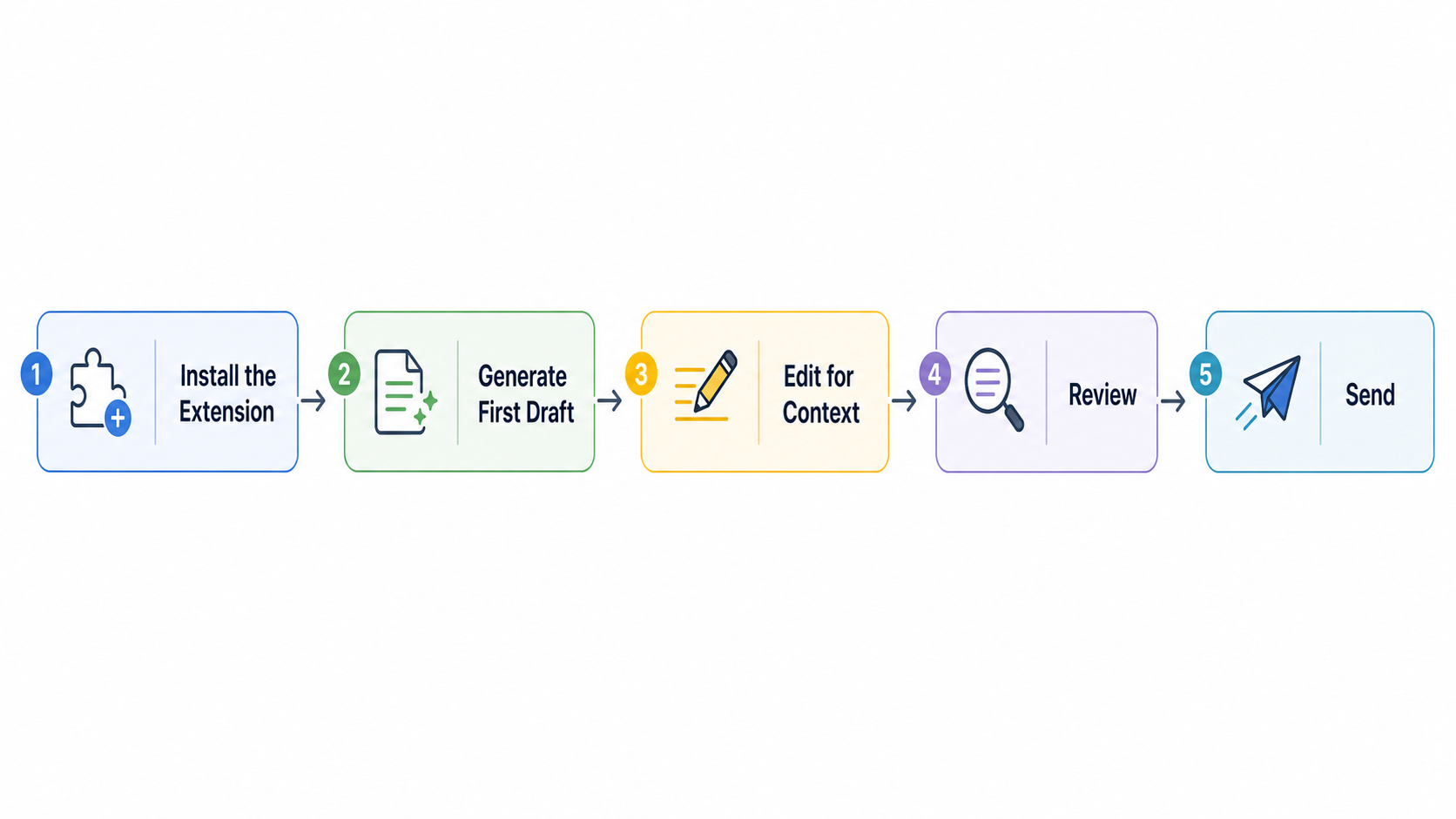
Here is a concrete, step-by-step workflow that consistently reduces time spent on email without reducing quality. Each step is designed to eliminate a specific source of friction from the standard process.
Step One - Decide Before You Type (Know the Point Before You Open Compose)
The biggest cause of blank-page paralysis is opening a compose window before you have clarity on what the email actually needs to accomplish.
Before you open compose, answer two questions: What do I want the recipient to know or do? and What tone fits this message? Once you have those answers - which takes about ten seconds - the rest of the process is mechanical.
This sounds obvious but it is the most commonly skipped step. Most people open compose and then figure out what they want to say. Reversing the order eliminates most of the staring-at-a-blank-page problem before it starts.
Step Two - Use a Prompt, Not a Blank Page
Once you know what the email needs to do, write a short prompt that captures the key information - even if you are writing the email manually. This could be as simple as:
- "Follow-up to a prospect. Sent proposal two weeks ago. No reply. Friendly and low-pressure. Ask if they have questions."
- "Client update. Project is on track. Minor delay on one deliverable - ready Wednesday instead of Monday. Professional tone."
Writing a prompt first crystallizes your thinking and gives you a structured starting point. If you are using an AI tool, that prompt becomes your input. If you are writing manually, it becomes your outline. Either way, you are not starting from nothing.
Step Three - Edit a Draft, Not Build One
Whether the draft came from an AI tool or from your own rough first pass, your goal at this stage is editing, not writing. Read the draft, identify what is wrong or missing, and fix those specific things.
Do not rewrite from scratch unless the draft is fundamentally wrong in direction. Most of the time, a well-generated draft needs small adjustments - a sentence reworded, a detail added, a tone tweak. Those changes take one or two minutes.
The shift from writer to editor is where most of the time savings happen. You are still responsible for the email - you are just not doing the construction work.
Step Four - Fix Tone and Length Inline, Not Manually
If a section of your draft sounds off in tone or runs too long, fix it inline rather than rewriting. Highlight the section, identify what is wrong, and make a targeted change.
With an AI writing tool, this becomes very fast: highlight the section, tell the tool what you want - "make this more concise" or "make this sound warmer" - and it rewrites that specific part. You do not touch the rest of the email.
Without an AI tool, the principle still applies: be surgical about edits rather than redoing whole sections.
Step Five - Handle the Subject Line Last With One Click
Write the email body first, always. Then handle the subject line at the end when you have full visibility into what the email actually says.
A good subject line should take ten seconds to write if the email is clear - you are just summarizing the main point. If it is taking longer, it usually means the email itself needs to be clearer, not that the subject line is hard.
With an AI email assistant, subject line generation is literal one-click. The tool reads your email body and generates several options. You pick the one that fits and move on.
Step Six - Reply With Context, Not From Memory
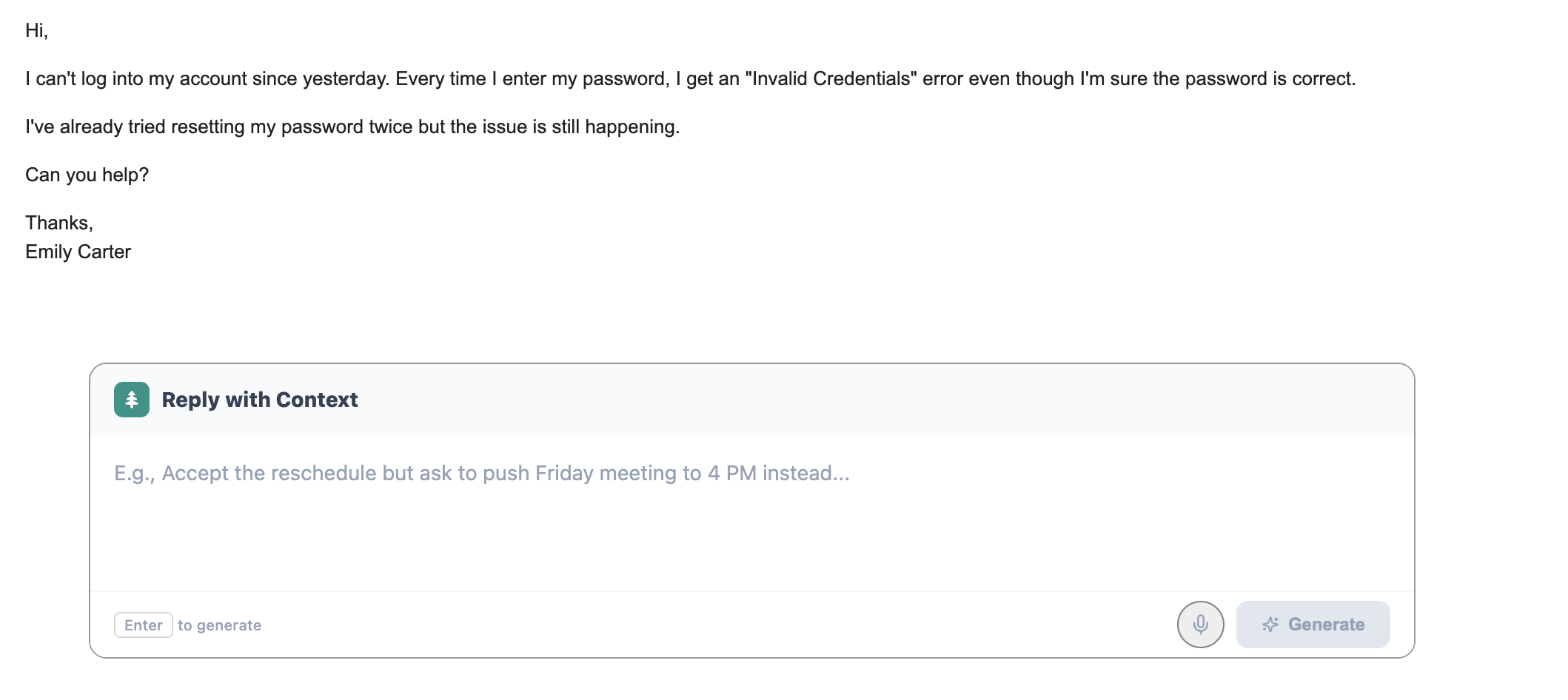
For replies, the most time-consuming part is often re-reading the incoming message to remind yourself of what was said before you can respond. A context-aware AI email reply generator eliminates this by reading the thread for you and generating a reply that directly addresses the content - without you needing to re-explain the conversation.
This is where the time savings on replies come from. Not from generating a generic reply faster, but from eliminating the re-reading and re-processing cycle entirely.
How AI Specifically Reduces Email Writing Time
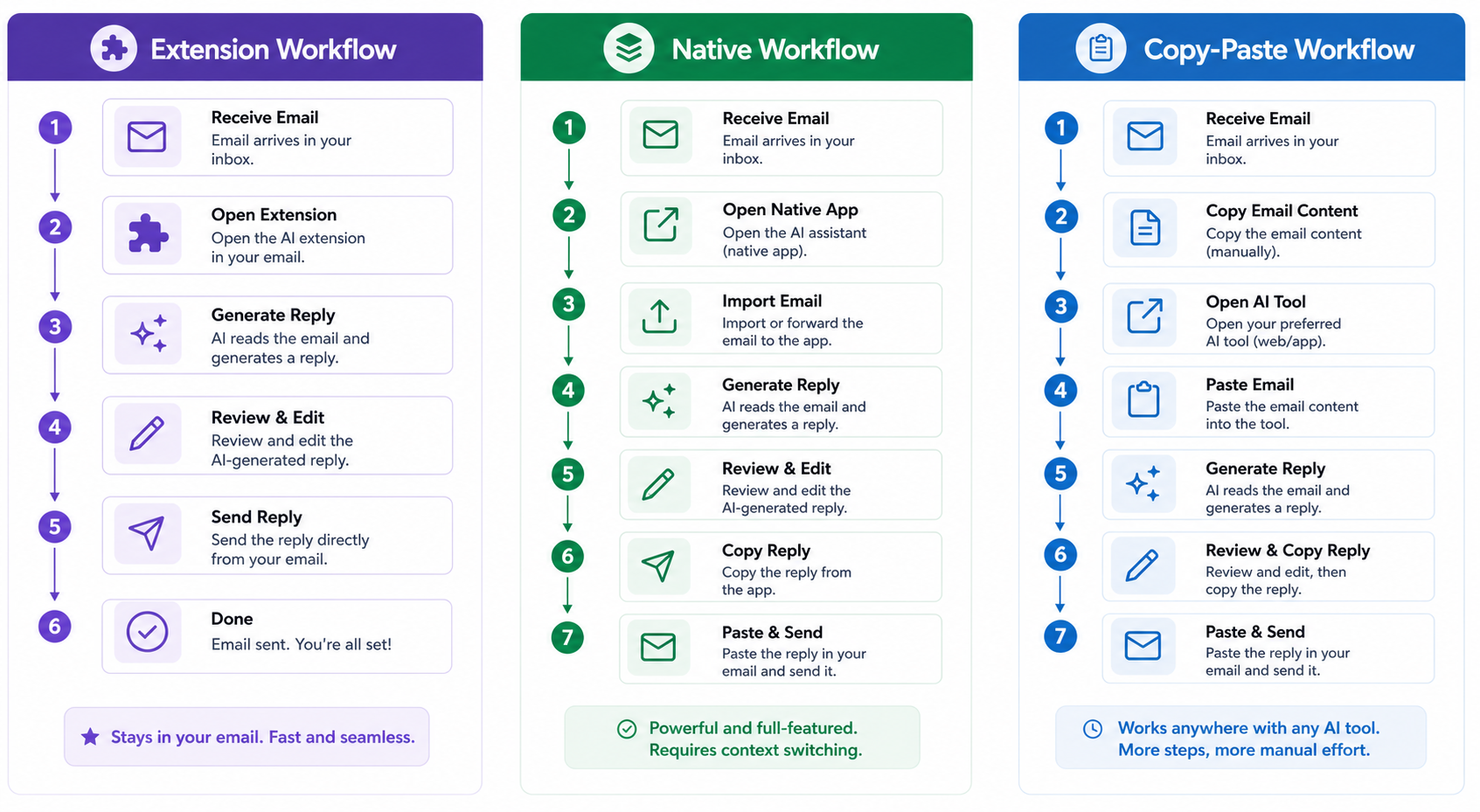
AI writing tools save email time in six distinct ways. Each one addresses a specific friction point in the standard workflow. Understanding each one helps you use AI correctly - rather than just hoping it will speed things up.
Draft Generation - From Idea to Full Email in Under a Minute
The most direct time saving comes from draft generation. You describe what the email needs to say in a short prompt, and the tool returns a full, structured draft in seconds.
The key word is draft - not a finished email. You still read it, adjust the specific details that only you know, and make it yours before sending. But you spent your time on reviewing rather than building, which is dramatically faster.
This approach works for any email type: sales outreach, client updates, recruiting messages, meeting requests, follow-ups. The prompt tells the tool what you need; the tool gives you a starting point that is already mostly right.
Inline Rewriting - Fix What Is Wrong Without Regenerating Everything
Inline rewriting is the feature that turns editing from a slow process into a fast one. You highlight the specific section of your draft that needs work, give the tool an instruction - "shorten this", "make this more direct", "fix the grammar" - and it rewrites that section in place.
The rest of your email is untouched. You are not regenerating the whole thing or copying and pasting anything. You are making a targeted fix to a specific problem.
This is also covered in detail on the AI email rewriter page if you want to see what inline rewriting looks like in practice.
Context-Aware Replies - No More Re-Explaining the Thread
For replies, context-aware AI reads the email you received and generates a response that is relevant to what was actually said. You do not need to paste the incoming email into a separate tool, summarize it in a prompt, or re-explain the conversation history.
The AI reads the thread - just as you would - and its reply reflects that understanding. This is particularly valuable for complex or long threads where understanding the context before replying takes significant time.
Smart Autocomplete - Finish Sentences Without Stopping to Think
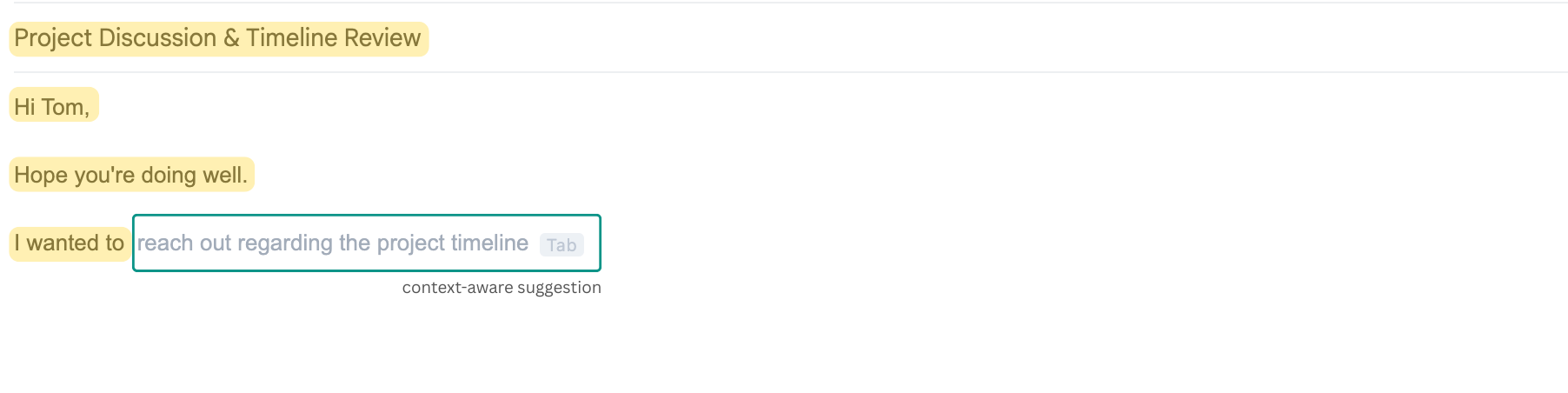
Autocomplete is the lightest form of AI email assistance - and for many email types, it is the most frictionless. As you type, the tool predicts how your sentence will end and shows a gray-text suggestion. Press Tab to accept, or keep typing to ignore it.
There is no prompt required. No button click. No workflow change. You write exactly as you normally would, and the suggestions appear when they are relevant.
This is particularly useful for shorter internal emails, replies to quick questions, and any email where you know what you want to say but keep pausing to find the right phrasing. You can read more about this on the AI email autocomplete page.
Voice-to-Email - For When You Think Faster Than You Type
For anyone who thinks faster than they type - which is most people - dictating a prompt rather than typing it saves additional time. You speak your instructions naturally: "Draft a follow-up to Marcus about the project proposal we sent last week. Keep it friendly and brief. Ask if he has any questions."
The tool transcribes the prompt and generates the draft. This is particularly useful when you are moving quickly between tasks, when you want to capture your thoughts before they disappear, or when typing out a detailed context prompt feels slower than just saying it.
Subject Line Generation - One Click Beats Five Minutes of Thinking
Subject lines are the last thing most people write - and they rarely get the attention they deserve. A subject line generator reads your email body and returns three to five options that directly reflect the content and intent of what you wrote.
You pick the best one. The entire process takes about ten seconds.
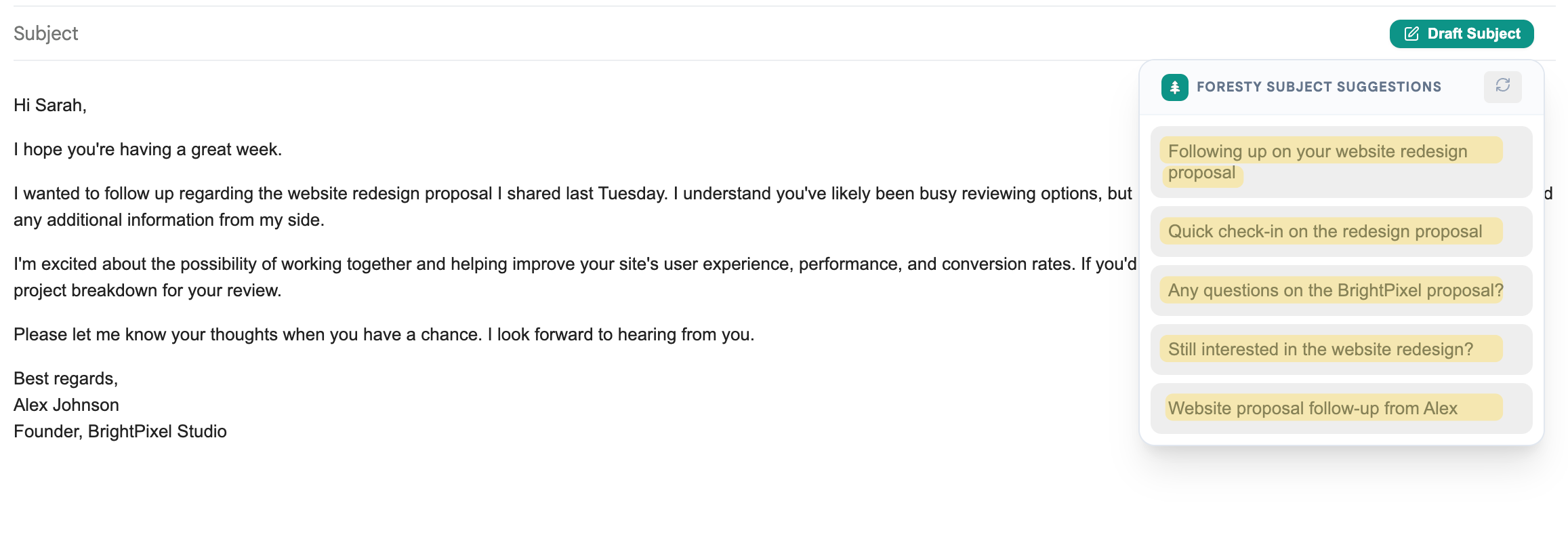
This saves time and consistently produces better subject lines than ones written quickly at the end of a composing session. You can see how it works on the AI subject line generator feature page.
Real Email Examples - Before and After AI
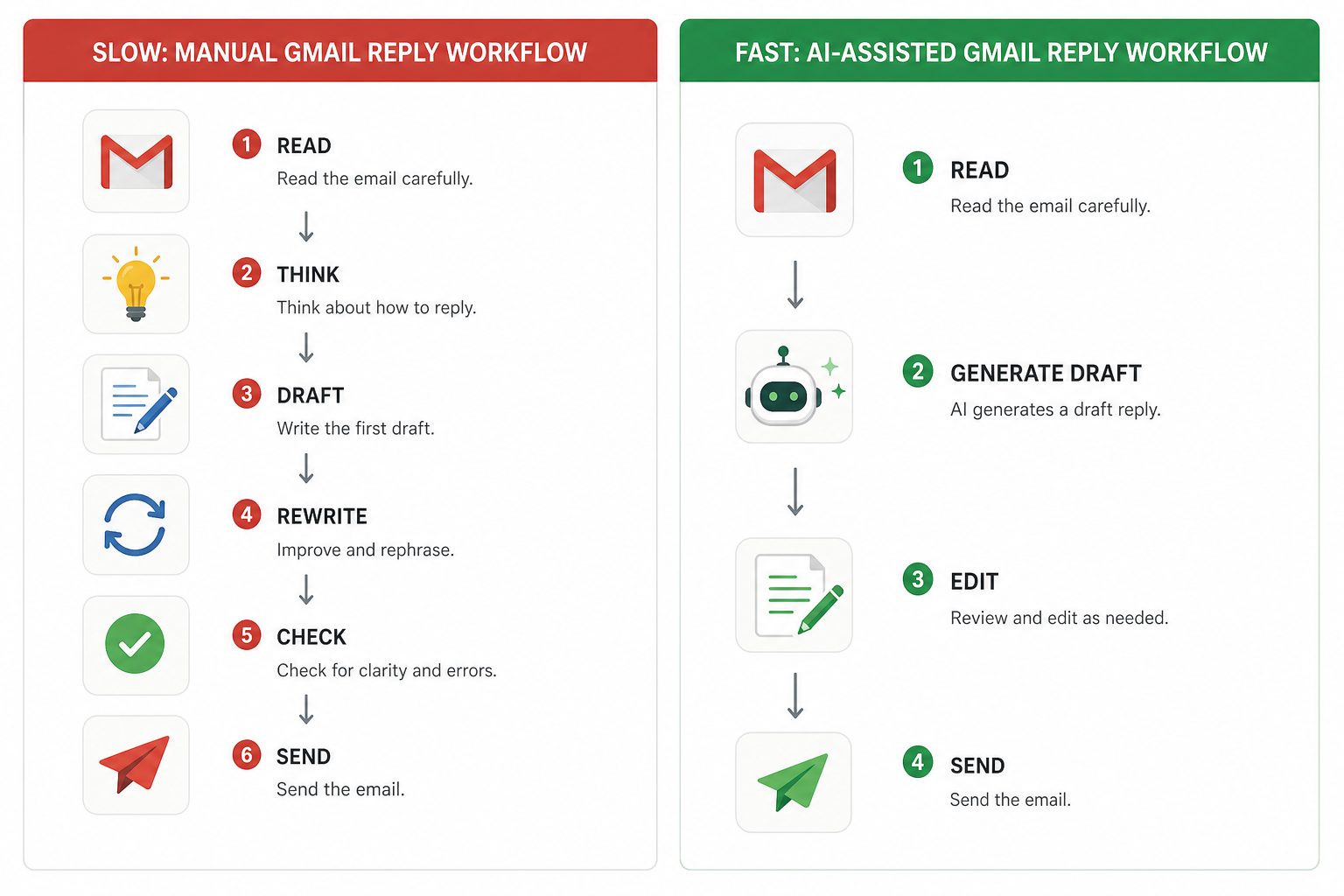
Abstract explanations only go so far. Here are four realistic email scenarios showing what the time savings look like in practice.
Example One - A Sales Follow-Up That Used to Take 20 Minutes
The old process: You received no reply to a proposal sent two weeks ago. You open compose, think about how to phrase the follow-up without sounding pushy, write a few sentences, decide the tone is off, rewrite, check the grammar, decide the subject line is too generic, change it, send. Total time: 15-20 minutes.
The new process: You open your AI email assistant, speak or type: "Follow-up to a prospect. No reply in two weeks after sending a proposal. Friendly, low-pressure tone. Ask if they have any questions."
Subject: Checking in on the proposal
Hi [Name],
Just following up on the proposal I sent a couple of weeks ago - no pressure at all, just wanted to make sure it came through and see if anything came up that you'd like to talk through.
Happy to jump on a quick call or answer anything over email. Whatever works best for you.
Best,
[Your name]
You review it, confirm the tone is right, and send. Total time: under two minutes.
Example Two - A Client Update That Now Takes Under Two Minutes
Scenario: Weekly project status update. The project is on track. One deliverable is slightly delayed - ready Thursday instead of Tuesday. A team call is booked for Friday.
Prompt: "Weekly status update to client. Project on track. Design deliverable delayed to Thursday - was Tuesday. Team call confirmed for Friday at 3 PM. Professional and reassuring tone."
Subject: Weekly Update - Project Status
Hi [Name],
A quick update on where things stand this week. The project is progressing well and remains on track overall.
One small note: the design deliverable will now be ready Thursday rather than Tuesday. We want to make sure it's fully polished before it reaches you.
As a reminder, our team call is confirmed for Friday at 3 PM. Looking forward to walking you through progress live.
Best regards,
[Your name]
Ready to send in under two minutes, with no second-guessing the tone.
Example Three - A Customer Complaint Reply That Used to Require Three Drafts
Incoming email:
"I've been waiting three weeks for a response to my support ticket and still haven't heard anything. This is unacceptable and I'm considering cancelling my subscription."
Old process: Draft a response, decide it sounds defensive, rewrite. Second draft feels too apologetic, rewrite again. Third draft is acceptable. Total time: 10-15 minutes.
New process with context-aware reply: The AI reads the incoming email and generates:
Hi [Name],
I'm really sorry to hear this - three weeks without a response is completely unacceptable, and I completely understand your frustration.
I'm personally escalating your ticket right now and will make sure someone from the team reaches out to you within the next two hours with a proper resolution. I'll also be following up directly to confirm everything has been addressed.
Thank you for letting us know - and I'm sorry again for the experience.
Best regards,
[Your name]
Empathetic, accountable, and has a concrete next step. Ready to send after a thirty-second review.
Example Four - A Recruiter Outreach Email Written in Ninety Seconds
Prompt: "Cold outreach to a senior software engineer on LinkedIn. We're hiring for a backend role at a fintech startup. Friendly, professional, not too long. Ask if they'd be open to a conversation."
Subject: Backend Engineering Opportunity - Worth a Chat?
Hi [Name],
I came across your profile and was impressed by your background in distributed systems at [Current Company].
We're building out the engineering team at [Company Name], a fintech startup working on [brief description], and I think your experience could be a strong fit for a backend engineering role we're hiring for.
Would you be open to a quick conversation to hear more? No pressure - happy to share details and see if it's even worth your time.
Best,
[Your name]
Written, reviewed, and ready in about ninety seconds. Without AI, this type of personalized outreach takes significantly longer, especially when writing multiple per day.
Common Mistakes People Make When Using AI for Email
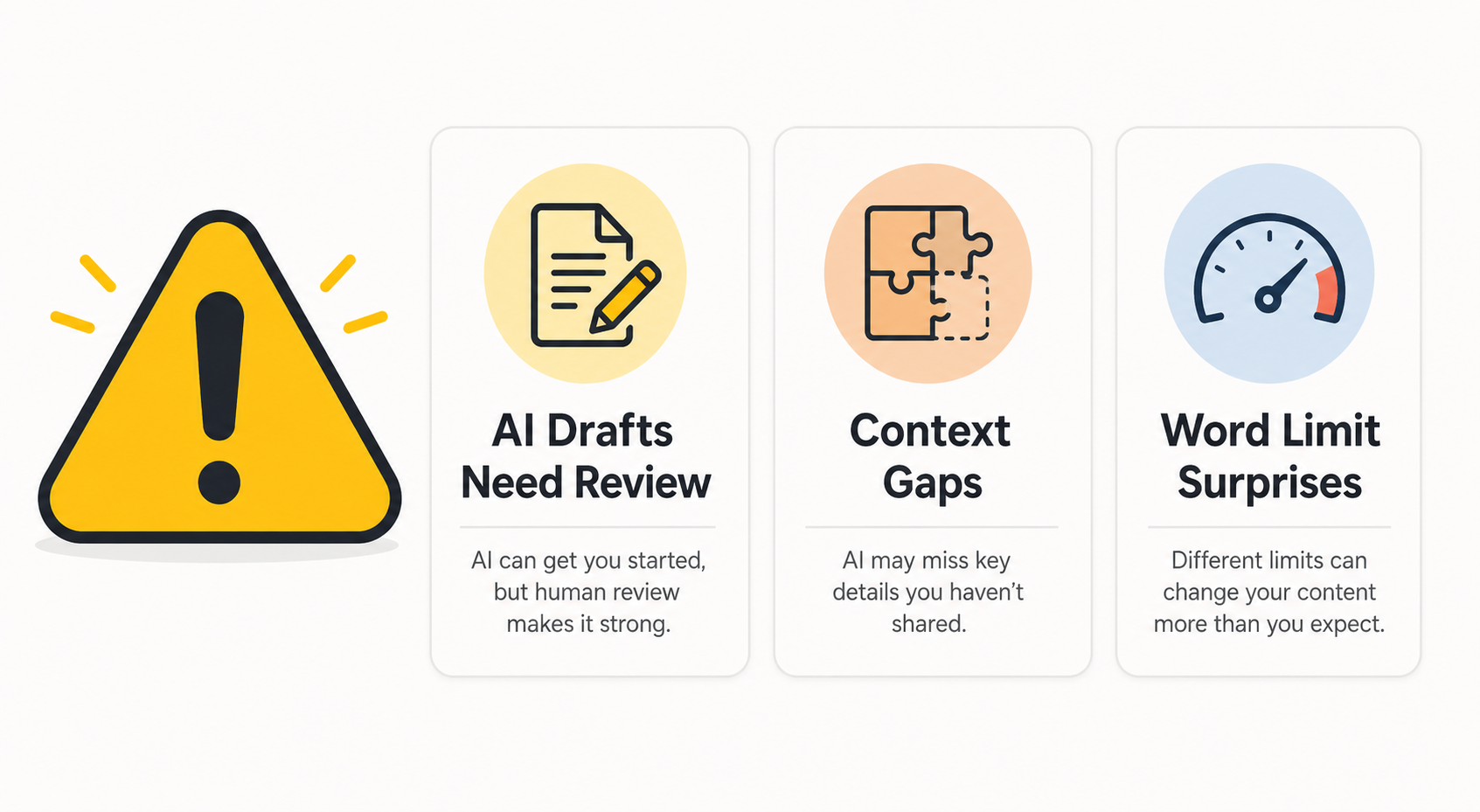
AI email tools save a significant amount of time when used well. They also have specific failure modes that are worth understanding so you can avoid them.
Being Too Vague in Your Prompt and Getting a Generic Draft
The most common reason AI drafts feel unhelpful is an under-specified prompt. If you give the tool "write a follow-up email", you will get a generic follow-up that does not reflect your specific situation.
The fix is simple: include the recipient context, the key point, and the desired tone in your prompt. These three things take fifteen seconds to add and dramatically improve the output quality.
Weak prompt: "Write a follow-up email to a client."
Strong prompt: "Follow-up to a client who attended a demo last Thursday. Has not responded. Keep it friendly and brief. Ask if they have questions about the pricing."
The second prompt produces a specific, usable draft. The first produces something generic you will need to rewrite anyway.
Sending AI Drafts Without Reviewing Them
AI-generated drafts should always be reviewed before sending. The tool does not know your specific history with the recipient, the internal context behind the message, or any sensitive nuance that requires human judgment.
This is not a reason to avoid AI email tools - it is a reminder that you are responsible for what you send. The AI gives you a strong starting point. You add the final layer of human judgment. Together, they produce better emails faster than either one could alone.
Using a Tab-Switching Tool Instead of a Native Inbox Tool
If your AI writing tool lives in a separate browser tab, you are solving one problem - blank page paralysis - but creating another: context switching. Every email still requires you to leave your inbox, write a prompt, copy output, switch back, paste, and edit.
A native inbox AI tool removes all of those steps. The tool is inside your compose window. You give it a prompt, the draft appears in the email, and you edit in place. This is not a minor convenience - it is the difference between a workflow that feels smooth and one that feels like adding extra work.
Expecting AI to Know Your Company Context Without Telling It
AI email tools do not have access to your CRM, your product documentation, your internal processes, or your email history. They know what you tell them in the prompt.
If you are writing a message that requires company-specific context - a pricing detail, a project milestone, a product feature - include it in your prompt. The tool will use it. If you do not include it, the draft will be generic and will need more editing.
This is the same principle as briefing a colleague to write an email on your behalf. You would not expect them to know everything without being told. Give the AI what it needs to do a good job.
Manual vs AI Email Writing - A Side-by-Side Comparison
| Email Type | Manual Time | AI-Assisted Time | Quality Difference | Effort Required |
|---|---|---|---|---|
| Sales follow-up | 15-20 mins | 1-2 mins | Equal or better | Manual: high / AI: minimal |
| Client status update | 10-15 mins | 2-3 mins | Equal | Manual: high / AI: low |
| Customer complaint reply | 10-15 mins | 1-2 mins | Equal or better | Manual: high / AI: minimal |
| Recruiter outreach | 10-20 mins | 1-3 mins | Equal | Manual: high / AI: low |
| Meeting request | 5-10 mins | Under 1 min | Equal | Manual: medium / AI: minimal |
| Internal update | 5-10 mins | 1-2 mins | Equal | Manual: medium / AI: minimal |
| Cold outreach | 20-30 mins | 2-3 mins | Equal or better | Manual: very high / AI: low |
The pattern is consistent: AI-assisted writing matches or exceeds manual writing quality in far less time, across every email type. The time savings are largest for high-volume, repetitive email categories - which is exactly where most email time gets lost.
The Tools That Actually Help You Spend Less Time Writing Emails
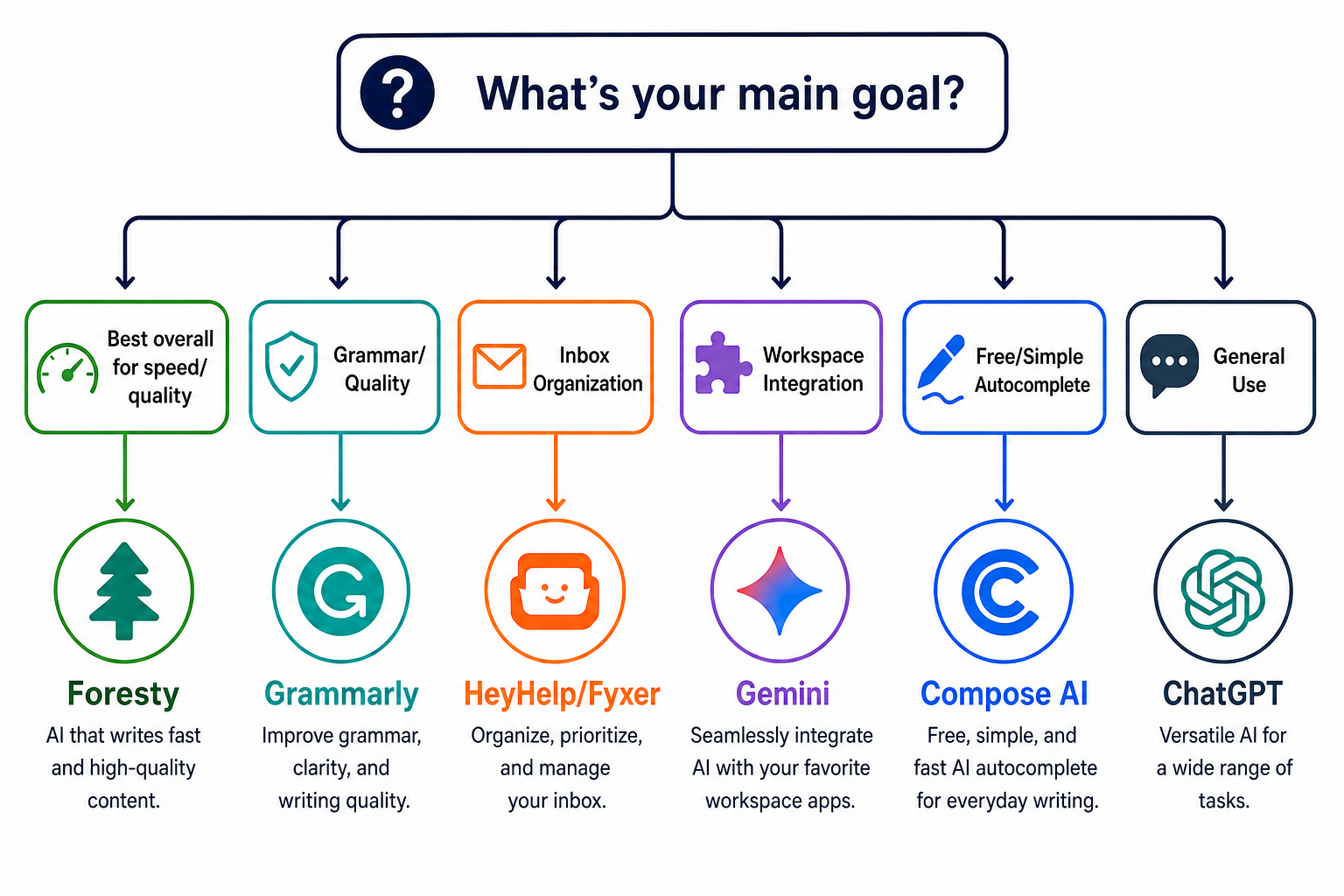
Not every tool that claims to help with email writing actually reduces time meaningfully. Here is an honest breakdown.
Dedicated AI Email Assistants That Work Inside Gmail and Outlook
These are the tools with the highest impact on email writing time because they eliminate context switching entirely. The AI lives inside your compose window - in Gmail or Outlook - and you never have to leave your inbox to use it.
The best ones cover the full workflow: draft generation from a prompt, inline rewriting, context-aware replies, smart autocomplete, and subject line generation. They read the thread context automatically so you do not have to re-explain it.
For Gmail users, the Gmail Writing Assistant category of tools is particularly well-developed. For Outlook users, the same capabilities are available through the Outlook Writing Assistant tools.
This category produces the most consistent, sustained time savings - not just for one email, but across the entire inbox every day.
General AI Tools Like ChatGPT - Where They Help and Where They Slow You Down
ChatGPT is a capable writing tool and many people use it effectively for email. It produces high-quality drafts when given a clear prompt, and it handles a wide variety of email types without difficulty.
The limitation is workflow friction. ChatGPT requires tab switching, manual copy-pasting, and re-explaining thread context for every single email. For occasional use - a complex email you want to think through carefully - that workflow is acceptable. For daily high-volume email writing, it adds enough friction that the time savings are significantly reduced.
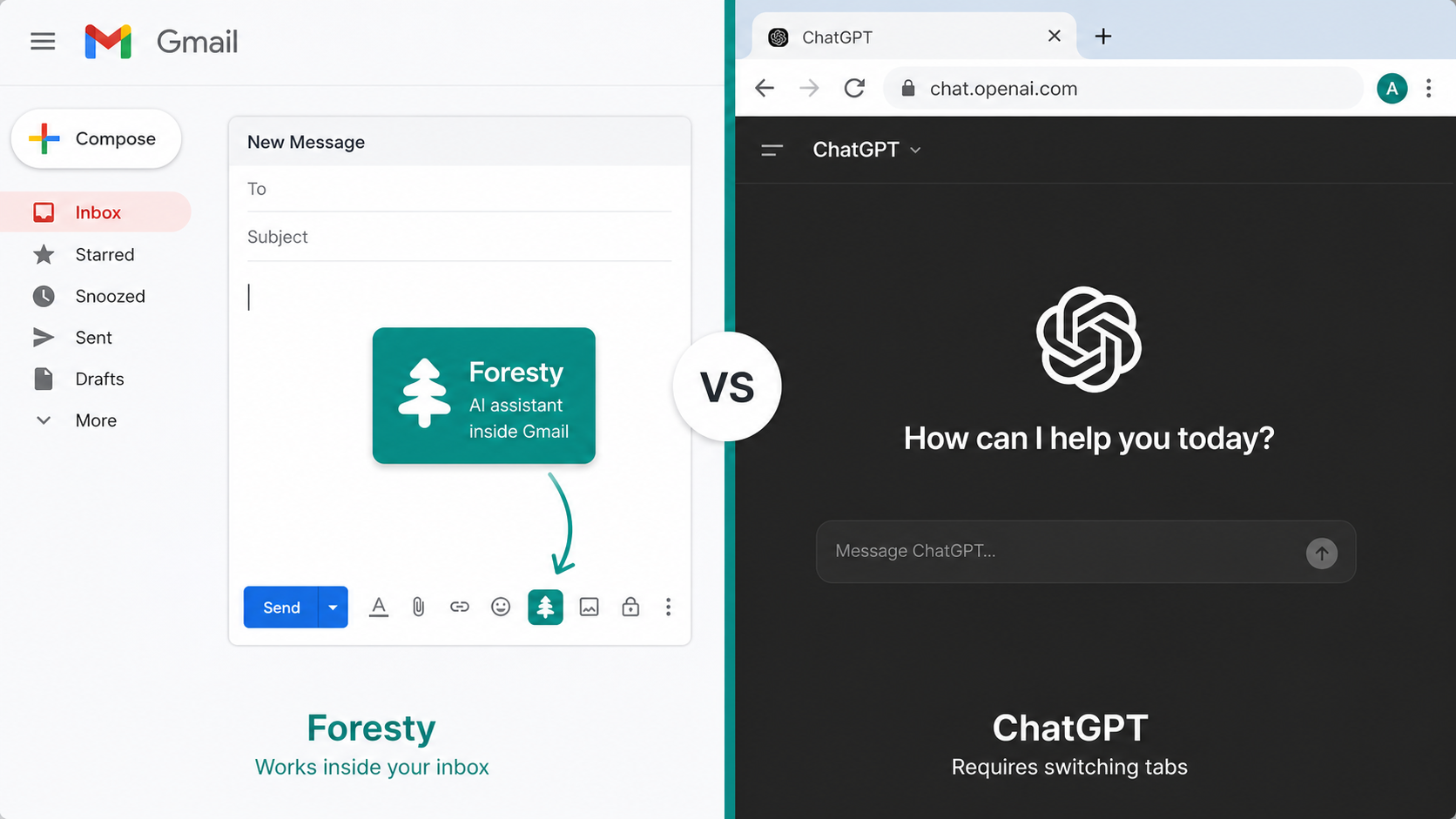
You can read a more detailed breakdown in the Foresty vs ChatGPT comparison.
Grammar and Polish Tools - Useful but Not a Time-Saving Solution Alone
Tools like Grammarly are genuinely useful for improving the quality of email drafts - catching grammar errors, flagging unclear phrasing, suggesting tone adjustments. But they are polishing tools, not drafting tools.
If you are still writing emails from scratch, adding Grammarly improves the output but does not reduce the time spent building the email in the first place. The biggest time savings come from draft generation and inline rewriting - which Grammarly does not provide.
That said, combining a dedicated AI email assistant for drafting with a grammar tool for final polish is a reasonable approach for people who care about writing quality.
What to Look for When Choosing a Tool for Your Workflow
When evaluating AI email tools for time savings, prioritize these five things:
- Works natively inside Gmail or Outlook: no tab switching required
- Reads thread context automatically: so replies are relevant without extra prompting
- Generates drafts from a short text or voice prompt: not just autocomplete
- Supports inline rewriting: so you can fix specific sections without regenerating the whole email
- Has a free plan: so you can test the full workflow before committing
How Foresty Fits Into a Faster Email Workflow
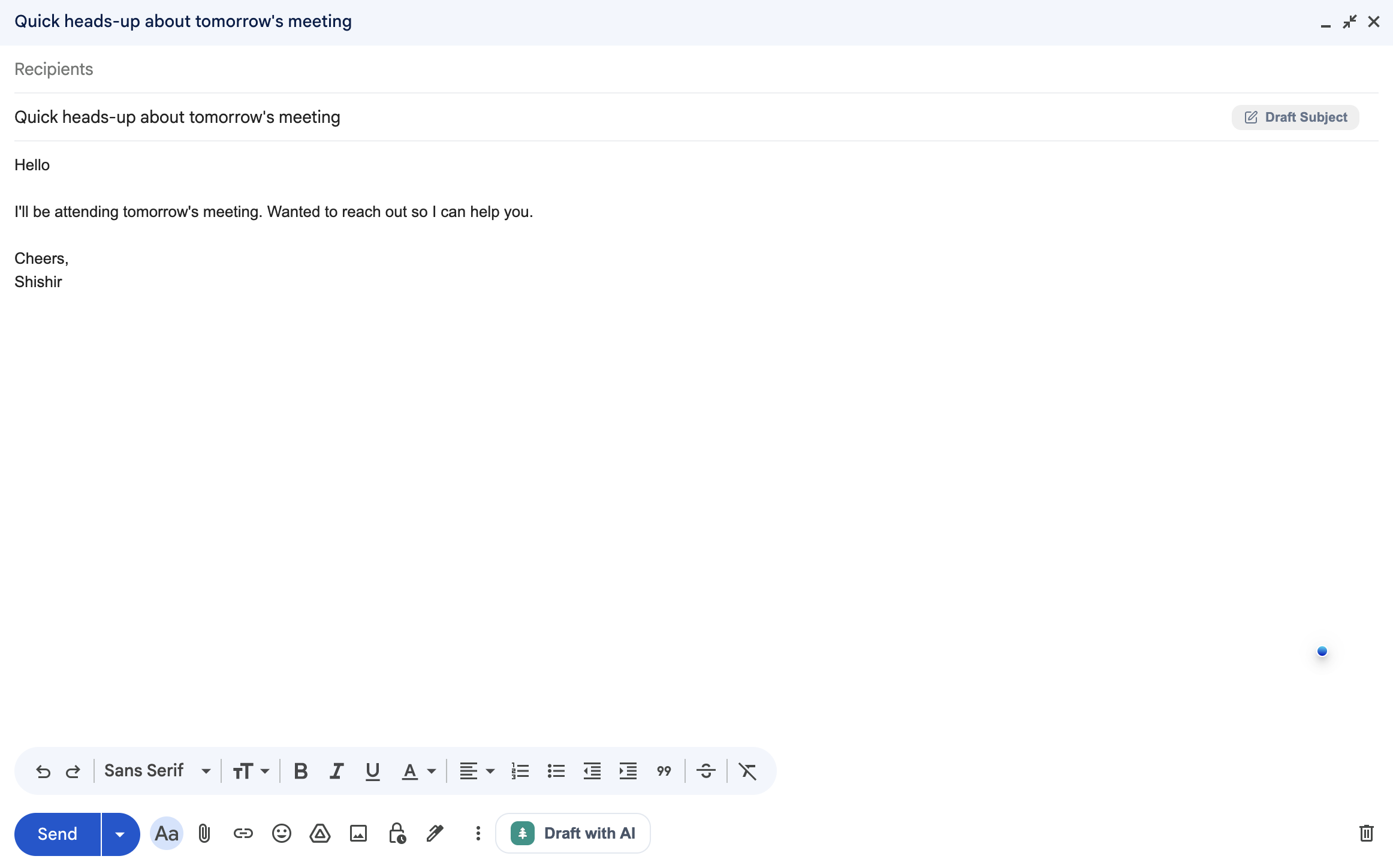
Foresty is a Chrome extension that works directly inside Gmail and Outlook. It covers every stage of the email writing workflow described in this guide - without requiring you to leave your inbox or switch tools.
Draft Generation Inside Gmail and Outlook With a Voice or Text Prompt
When you open a new compose window, the Foresty sidebar appears inside Gmail or Outlook. You type a short prompt or dictate it using the built-in voice assistant. Foresty generates multiple draft options to choose from. You pick the best one, insert it into the compose window, and edit from there.
The whole process - from opening compose to having a reviewable draft - takes under a minute for most email types.
The Bubble Menu - Inline Rewriting Without Leaving the Compose Window
Once you have text in your compose window, you can highlight any section to bring up the Bubble Menu - a small inline toolbar with four actions:
- Simplify: make the language easier to read
- Shorten: reduce word count while keeping the message
- Improve: general writing quality improvement
- Custom prompt: give the AI a specific instruction
Each action rewrites that specific section in place. Everything else in your email stays untouched. This is the fastest way to handle tone, length, and grammar fixes without disrupting your draft.
Context-Aware Replies - Generated in Seconds From the Thread
When you open a received email and click Reply, Foresty activates automatically and reads the thread. You can generate a reply directly from the thread context, or give it a brief voice or text prompt to direct the tone or content.
The generated reply appears inside the reply window, ready for review. You do not re-read the whole thread, re-explain the context, or start from scratch.
Smart Autocomplete While You Type
As you type in any compose window or reply field, Foresty's autocomplete runs passively in the background. When you pause, a gray-text suggestion appears. Press Tab to accept it, or keep typing to dismiss. No clicks, no prompts, no friction.
Subject Lines Generated From Your Email Body
While composing, clicking "Draft Subject" causes Foresty to read your email body and generate a set of relevant subject line options. You select the one that fits and it populates the subject field automatically.
Ten seconds. Better subject lines every time.
Getting Started - Free Plan, No Credit Card Required
Foresty's free plan includes 500 words per month with access to every feature - draft generation, inline rewriting, reply generation, autocomplete, voice prompting, and subject lines. No credit card is required.
The Basic plan at $8.08/month (billed annually) covers 15,000 words per month - enough for most individual professional usage. Full plan details are on the Foresty pricing page.
Frequently Asked Questions
How can I write emails faster without sacrificing quality?
The key shift is moving from writing to reviewing. Use a short prompt to generate a draft, then spend your time editing that draft rather than building from nothing. A draft that is already 80% right takes a fraction of the time to finalize compared to starting from scratch. AI email tools that work natively inside Gmail or Outlook make this process seamless.
Does using AI to write emails make them sound less personal?
Not if you use it correctly. The more specific context you provide in your prompt - the recipient, the relationship, the specific situation - the more the output reflects your actual circumstances. You also review and edit every draft before sending, which is where your personal voice and specific knowledge get added. The AI gives you a foundation; you make it yours.
What is the fastest way to reply to emails every day?
Use a context-aware AI email reply generator that reads the incoming thread automatically. This eliminates re-reading, re-processing, and re-explaining the conversation context. The tool generates a relevant reply in seconds, and you review and send. For high-volume reply situations, this single change saves the most time.
Is ChatGPT good for writing emails faster?
ChatGPT produces good email drafts - but the tab-switching workflow means it does not save as much time as a native email assistant. You still need to leave your inbox, write a detailed context prompt, copy the output, and paste it back. For occasional use on complex emails, it is a useful option. For daily high-volume email writing, a tool that lives inside Gmail or Outlook will save more time consistently.
What is the difference between using an AI email assistant and writing manually?
The primary difference is where your effort goes. Manual writing puts your effort into generating the email - building structure, finding the right words, making tone decisions. AI-assisted writing puts your effort into reviewing a draft - checking that it is accurate, adding specific details, and confirming the tone is right. The second process is faster and less mentally taxing.
How do I write better emails in less time?
Combine two things: write shorter emails and use AI for the drafting. Most professional emails are longer than they need to be. If you cut the length by using an AI tool's Shorten feature and generate your starting draft from a prompt, you will consistently write better, clearer, faster emails than you do manually.
Can AI help with repetitive emails like follow-ups and status updates?
Yes - and this is where AI provides the most consistent value. Repetitive email types have a predictable structure, which makes them easy to prompt accurately. A short prompt like "Weekly project status update, on track, minor delay on one item, call on Friday" generates a full, ready-to-edit email in seconds. Across ten similar emails per week, the cumulative time saving is significant.
Do I need a paid tool to write emails faster with AI?
No. Several tools offer free plans that are genuinely useful. Foresty's free plan, for example, includes 500 words per month with full feature access - enough to test the complete workflow including draft generation, inline rewriting, replies, autocomplete, and subject lines. No credit card is required to start.
The Shift That Makes Everything Faster
The biggest insight from everything in this guide is deceptively simple: the goal is to shift from generating emails to reviewing them.
When you write manually, you spend your energy on construction - finding the words, building the structure, making tone decisions in real time. When you use AI well, you spend your energy on review - confirming accuracy, adding specific context, checking that the tone is right. That shift alone accounts for most of the time savings.
The other key change is keeping AI inside your inbox. Every tool switch between your email client and an external tool adds friction that compounds across a full day. A native email assistant that lives inside Gmail or Outlook removes that friction entirely.
The practical next step is simple: install an AI email assistant that works in your inbox and use it on your next five emails. Note how long each one takes compared to your normal process. You do not need to commit to anything to understand whether the time savings are real for your specific workflow.
If you use Gmail or Outlook, Foresty is worth trying. The free plan requires no credit card and gives you full access to the complete workflow - drafting, rewriting, replies, autocomplete, voice prompting, and subject lines. Start with one email type that you write repeatedly, and see what the difference looks like in practice.
Related reading:
- AI Email Reply Generator - Generate context-aware replies in Gmail and Outlook in seconds
- AI Email Rewriter - Fix tone, shorten, and improve drafts inline without leaving your inbox
- AI Email Autocomplete - Finish sentences faster with smart inline predictions while you type
- AI Subject Line Generator - Generate better subject lines from your email body in seconds
- Gmail Writing Assistant - Full AI writing workflow built directly inside Gmail
- Outlook Writing Assistant - Full AI writing workflow built directly inside Outlook