
I spent several weeks using ProWritingAid's Chrome extension across Gmail, Google Docs, and other web platforms. This review covers exactly what I found: what it does well, where it consistently disappointed me, and which tools I switched to for specific use cases.
If you are trying to decide whether ProWritingAid is worth it for your writing workflow, especially for email, this will save you a lot of trial and error.
What ProWritingAid's Chrome Extension Actually Is
ProWritingAid is a comprehensive writing assistant originally built for novelists, bloggers, and long-form writers. Its web editor and desktop app have been around for years, and the Chrome extension extends those capabilities into websites like Gmail, Google Docs, LinkedIn, and Notion.
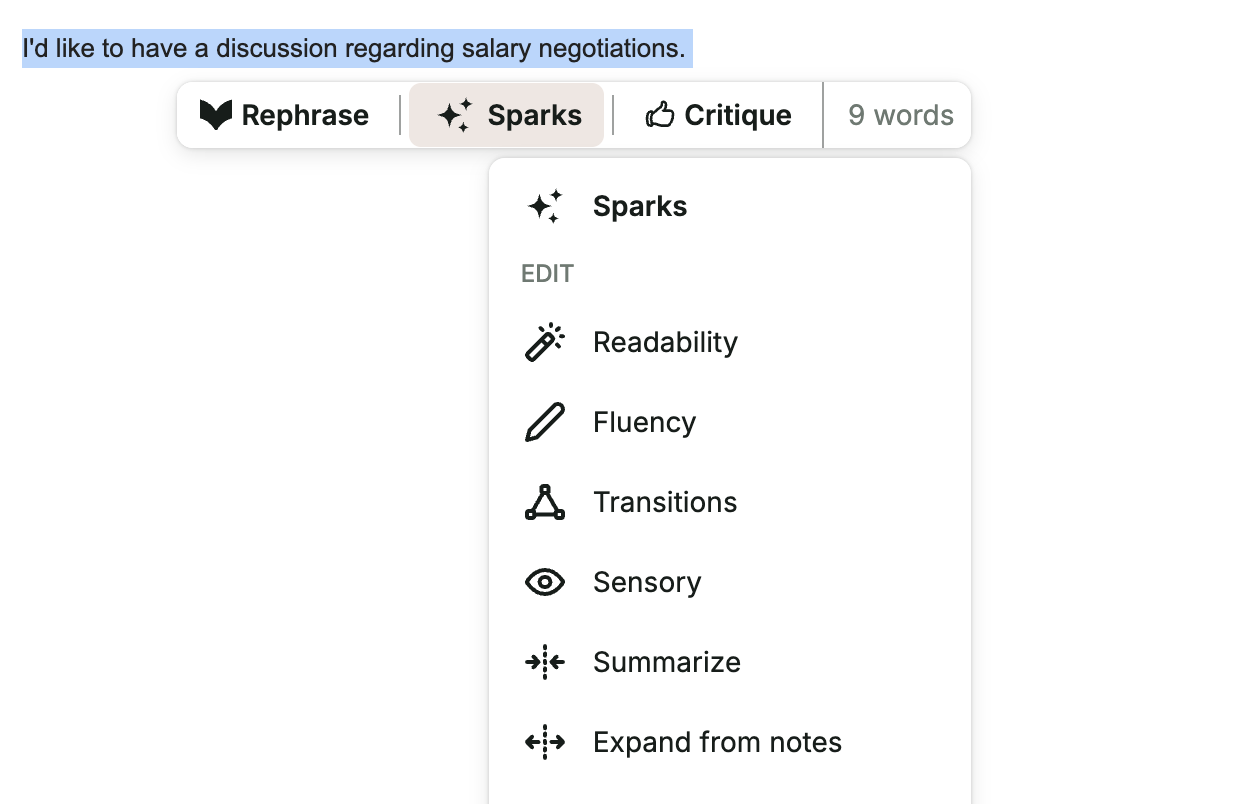
The extension works through two main interactions:
- The Sparks bubble menu: Highlight any text in the browser and a small bubble appears with quick-edit options including Readability, Fluency, Transitions, Sensory, Summarize, and Expand from notes.
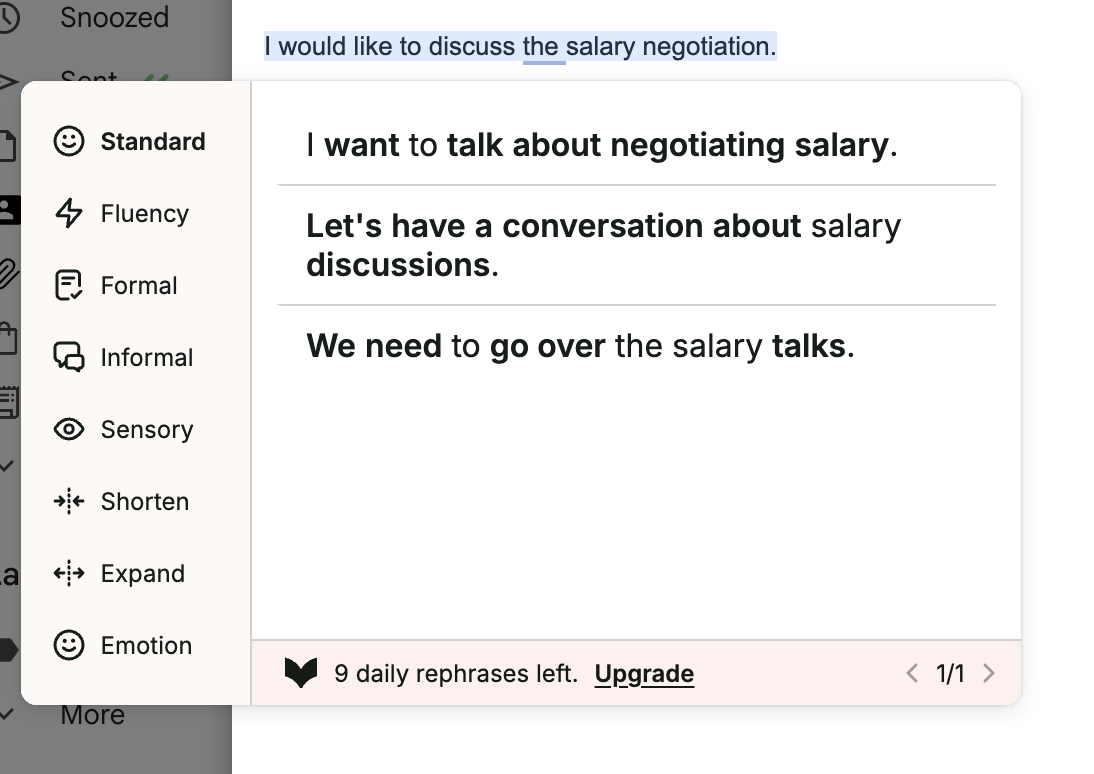
- Inline rephrasing panel: Highlight a sentence in Gmail and a popover appears offering styled rewrites in categories like Fluency, Formal, Shorten, Expand, and Emotion, each generating three alternative versions to choose from.
It is important to understand what ProWritingAid is designed for before evaluating it in any specific context. The tool was built to help writers improve the style and quality of long-form prose, not to serve as an email drafting assistant. That single fact explains most of what I observed during testing.
My Hands-On Experience: What I Tested and How
I tested ProWritingAid's Chrome extension across three main contexts:
- Gmail - for drafting new emails, editing existing drafts, and replying to threads.
- Google Docs - for polishing longer written documents.
- General web - for editing LinkedIn posts and longer browser-based content.
For email specifically, I ran through realistic scenarios: client follow-ups, project status updates, meeting requests, and responses to customer complaints. I recorded where the tool helped, where it slowed me down, and where it produced suggestions I would never actually use.
What my testing covered:
- Does the extension activate reliably inside Gmail?
- Do the Sparks suggestions make sense for short business emails?
- Can it generate a new email draft from scratch?
- Does it understand the thread context before suggesting a reply?
- Is the workflow fast enough for daily use?
Where ProWritingAid's Chrome Extension Is Genuinely Good
Fluency and Readability Improvements for Longer Text
The most consistent strength I noticed was with longer, denser text. When I pasted a 300-word project summary into a Google Doc and ran the Fluency Sparks option, the rewrites were genuinely cleaner and easier to read. The tool has a good eye for bloated sentence structure, passive voice, and redundant phrasing.
For anyone writing long reports, proposals, or documentation in the browser, this is a legitimate productivity gain. The suggestion quality at this level is meaningfully better than what you get from a basic grammar checker.
The Sparks Menu Works Well in Google Docs
Inside Google Docs specifically, the Sparks bubble menu felt natural and fast. Highlighting a sentence, clicking Sparks, and picking a quick edit option takes only a few seconds. The categories (Readability, Fluency, Transitions, Sensory, Expand) map well to what a writer working on a longer document would actually need.
I found the Transitions suggestion particularly useful. For anyone who writes multi-paragraph business documents, the suggestion to add or improve transition sentences between paragraphs is not something most writing tools offer inline.
Style Editing Across Multiple Platforms
ProWritingAid's Chrome extension activates on most web editors, including Notion, LinkedIn, and various CMS platforms. If you write across multiple surfaces and want a consistent style-editing layer, it covers that use case reasonably well.
The Emotion and Sensory Sparks categories are interesting for writers who work on blog content or longer editorial pieces. These prompt the AI to suggest additions that make writing more engaging and vivid. I would not use these for business emails, but for content writing they add a layer that most competing extensions do not offer.
A Decent Free Plan for Occasional Use
The free plan allows up to 500 words per check, which is enough for reviewing a paragraph or a short email draft. If you are an occasional user who only needs style help a few times per week, you may not need to upgrade.
Where ProWritingAid Fell Short: The Honest Observations
This is where I need to be specific, because the marketing for ProWritingAid does not clearly communicate its limitations for email users.
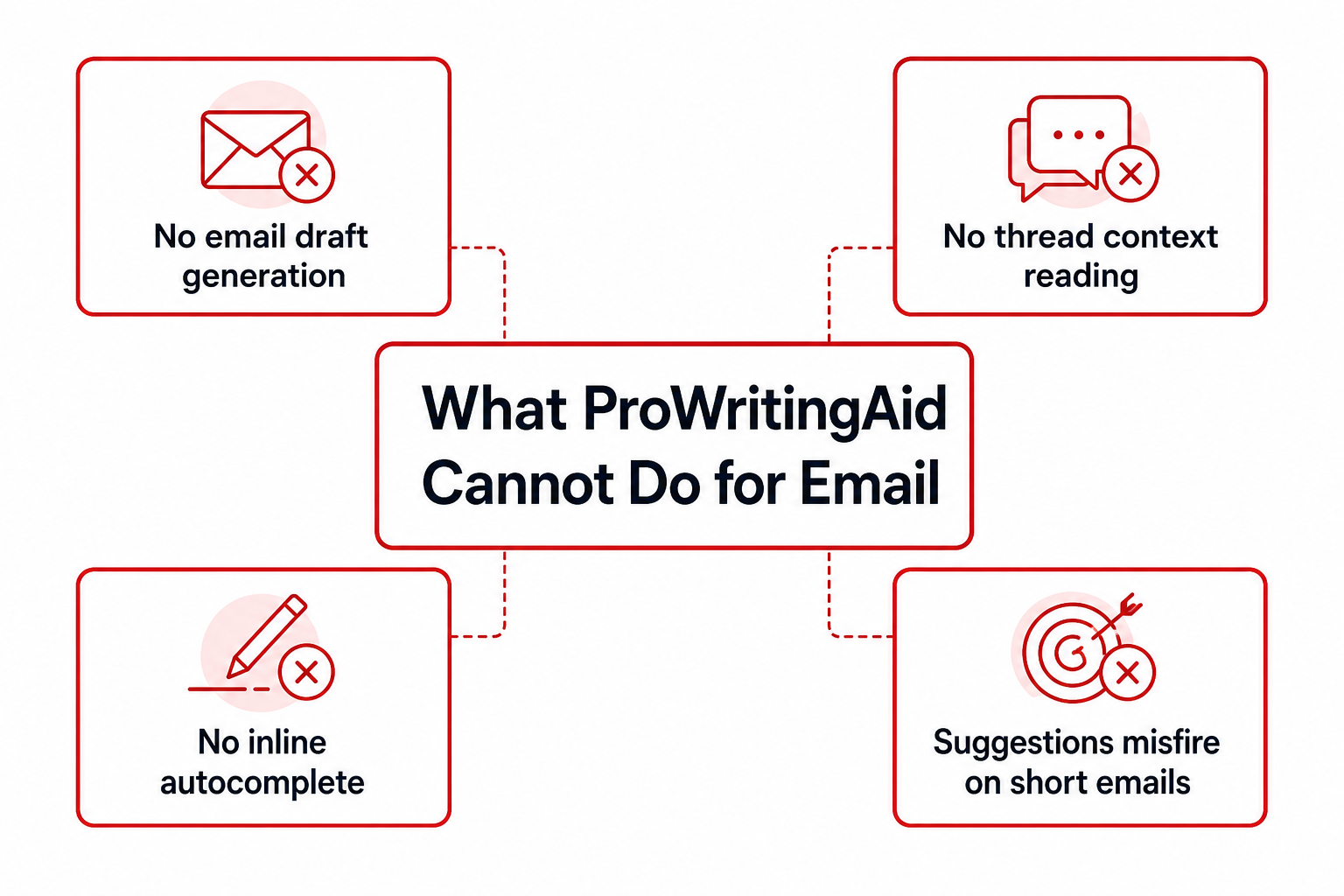
The Suggestions Often Miss for Short Business Emails
This was the most consistent frustration I encountered. ProWritingAid's suggestion engine is tuned for long-form writing, and that calibration creates real problems when you are editing a five-sentence email.
Here is a real example from my testing. I had written a brief client email:
"Hi Sarah, just following up on the proposal I sent last Friday. Let me know if you have any questions or need me to adjust anything before you share it with the team. Happy to jump on a quick call if that helps."
I highlighted the second sentence and ran the Fluency Sparks option. One of the three suggestions it returned was a longer, more literary rewrite that added phrases like "in the event that clarification is needed" and "prior to dissemination." That is the kind of output you would expect in a legal document, not a client follow-up.
What Most People Misunderstand About ProWritingAid for Email
Most reviews of ProWritingAid online describe its features without testing them specifically on email content. The assumption is that a good writing assistant should work on all writing. In practice, that is not how it plays out.
Short emails have different requirements: directness over elegance, conversational tone over readability scores, and speed over stylistic polish. ProWritingAid's suggestion engine optimizes for the opposite. When I ran the Readability Sparks option on a two-sentence meeting request, it suggested restructuring the sentence to score better on a readability index, making the email longer and more complex rather than shorter and clearer.
No Email Draft Generation from Scratch
ProWritingAid cannot generate an email from a prompt. If you open a blank Gmail compose window and want the extension to draft a new message based on a brief description, it cannot do that.
This is a significant gap for professionals who are not looking to edit their own writing but to start with an AI-generated draft that they then refine. Every email starts from a blank box, and ProWritingAid offers no help at that stage.
No Thread Context for Replies
When someone sends you an email and you click reply, ProWritingAid does not read the incoming thread. It has no awareness of what was asked, what the conversation history is, or what an appropriate reply would look like. You are still on your own for the drafting step.
I tested this with a client complaint email. The message had three distinct questions and a frustration about a delayed delivery. ProWritingAid could help me clean up whatever I wrote in reply, but it offered no assistance in figuring out what to write. That is the part that takes the most time.
I noticed this clearly when comparing a morning session with ProWritingAid active against a session using a dedicated Gmail AI Writing Assistant. With ProWritingAid, I was still writing every email myself and using the tool for light cleanup. With a native email assistant, I was generating a contextually relevant draft in under a minute and spending my time on final review only.
If you want to understand why this matters for daily email workflows, the article on why a simple email reply takes 20 minutes covers the context-switching problem that tools like ProWritingAid do not address.
No Inline Predictive Autocomplete
There is no sentence completion or predictive autocomplete as you type. ProWritingAid works on text you have already written, not text you are in the process of writing. This means you cannot use it to speed up the drafting process itself, only to polish the result after the fact.
The Free Plan Limit is Tight
The free plan caps at 500 words per check. That is a single reasonably long email. If you are testing the extension to see whether it fits your workflow, 500 words does not give you much room to evaluate it properly.
ProWritingAid in Gmail: A Realistic Workflow
Here is what using ProWritingAid for email actually looks like in a working session:
- Write your entire email draft manually.
- Highlight a sentence or paragraph that feels weak.
- Click the Sparks menu or wait for the inline rephraser to appear.
- Review the three alternative versions for your selected style.
- Click to insert the one you prefer, or dismiss all three.
- Move to the next sentence and repeat.
The process works. It is not broken. But it is fundamentally an editing workflow for text you have already written, not a tool that reduces how much you have to write in the first place.
For someone who sends ten emails a day and wants to be faster, ProWritingAid does not address the root problem. The bottleneck in email writing for most professionals is not the final polish on existing text. It is starting from nothing and deciding what to say. ProWritingAid has nothing to offer at that stage.
ProWritingAid Pricing: Is It Worth It for Email?
ProWritingAid's pricing structure:
| Plan | Word Limit | Sparks/Day | Monthly Price |
|---|---|---|---|
| Free | 500 words per check | Limited | $0 |
| Premium | Unlimited | 5 sparks/day | $18/month |
| Premium Pro | Unlimited | 50 sparks/month | $21/month |
The pricing is reasonable for what it offers. But for email users specifically, the value calculation does not hold up well.
At $18-21/month, you are paying for style analysis tools designed for long-form writers. The 5 sparks per day limit on the base Premium plan is also restrictive if you plan to use the Sparks menu heavily throughout your workday. If you use it for 10-15 email edits per day and hit the limit, you either stop getting AI assistance for the afternoon or upgrade to the Pro plan.
For context: Foresty's Basic plan at $12.95/month (or $8.08/month billed annually) includes email drafting from scratch, thread-context reply generation, inline autocomplete, voice assistant, and subject line generation, all inside Gmail and Outlook natively. That is a materially different value proposition for email-focused users.
ProWritingAid Pros and Cons: Complete Summary
What ProWritingAid Does Well
- •Strong fluency and readability editing for longer text
- •Sparks bubble menu works smoothly in Google Docs and most web editors
- •Wide platform support across Chrome, Safari, Firefox, and Edge
- •Extensive style categories (Transitions, Sensory, Emotion) not found in most competitors
- •Free plan available with 500-word checking
- •Cross-platform coverage including desktop apps for Windows and Mac
Where ProWritingAid Falls Short
- •Suggestion engine misfires on short emails, producing overly formal or unnecessarily complex rewrites
- •Cannot generate emails from scratch, even on paid plans
- •No thread context for replies, meaning you still write every reply yourself
- •No inline predictive autocomplete while typing
- •Free plan is severely limited at 500 words per check
- •Premium plan Sparks limit (5/day) is restrictive for daily use
- •Not built for email workflows, which shows consistently during testing
Better Alternatives to ProWritingAid for Email
If you are looking at ProWritingAid because you want to write better emails, or write them faster, the tools below will serve you better for different reasons.
Foresty: Best for Full Email Workflows
Foresty is the tool I switched to for email after testing ProWritingAid. The difference in workflow is immediate.
Foresty works natively inside Gmail and Outlook. When you receive an email and click reply, Foresty reads the thread and generates a contextually relevant draft without you having to write anything first. It takes about 30-60 seconds from incoming email to a draft ready for review.
Features ProWritingAid does not have that Foresty includes:
- Email draft generation from a short prompt, inside the Gmail compose window.
- Thread-aware reply generation that reads what was sent before generating a response. Try this in our AI Email Reply Generator feature guide.
- Inline smart autocomplete that predicts your next sentence as you type. Learn more in our Smart Autocomplete feature guide.
- Voice assistant for hands-free email composition.
- Subject line generator that reads your email body and suggests relevant subject lines.
- Grammar and tone improvement inline, without leaving Gmail.
I found Foresty particularly useful for client follow-ups and project updates, the exact emails where ProWritingAid's suggestions were misfiring. Because Foresty reads the thread, the generated draft already knows what the conversation is about. The result needs editing, not rewriting from scratch.
Grammarly: Best for Proofreading and Grammar
If your primary need is grammar accuracy and proofreading, Grammarly is the stronger choice over ProWritingAid. The inline corrections in Gmail are more polished, the tone detection is more relevant to professional communication, and the clarity suggestions are better calibrated for short business writing.
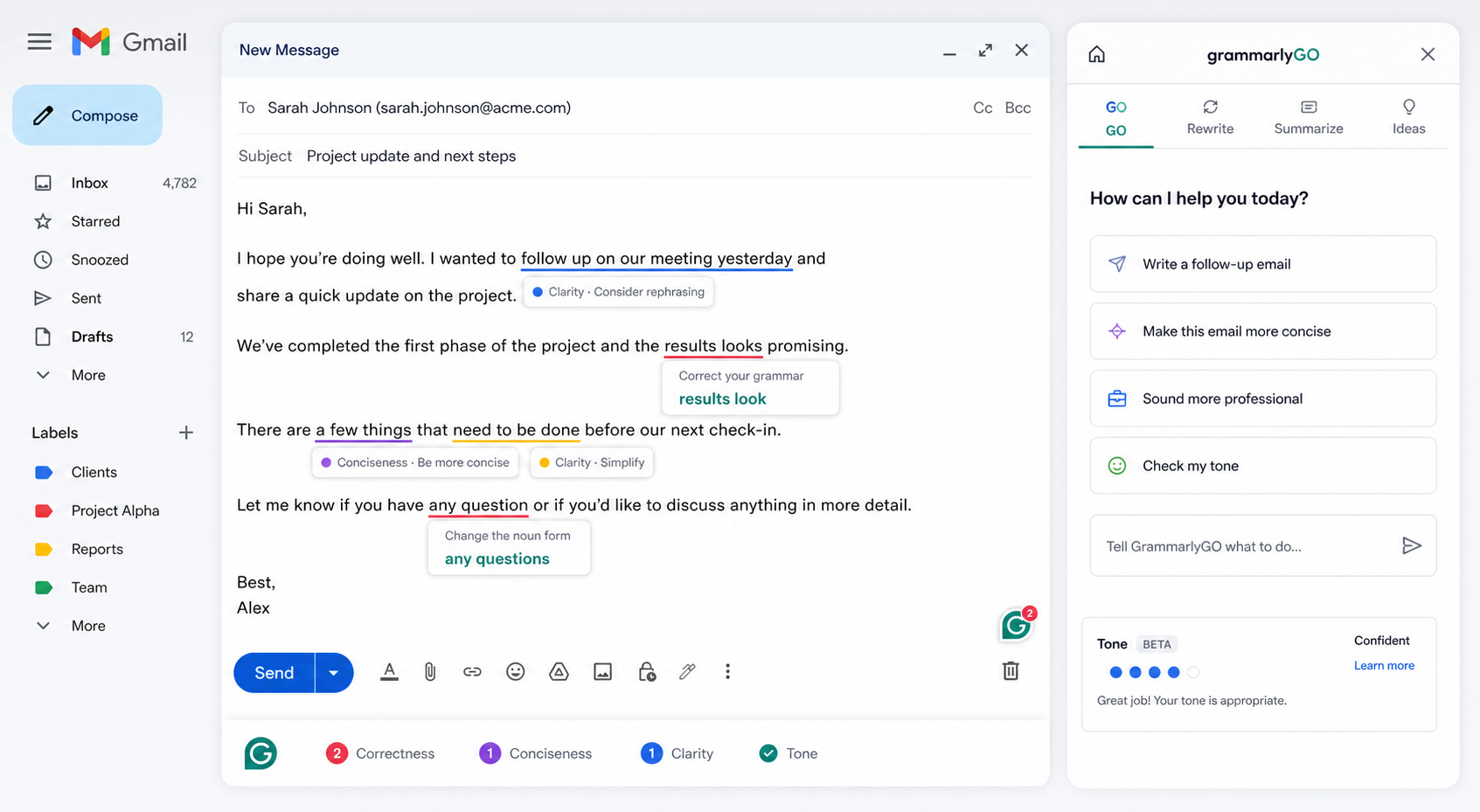
I found Grammarly's inline experience in Gmail noticeably smoother than ProWritingAid's. Corrections appear directly in the compose window as you write, rather than requiring you to highlight and trigger a menu action.
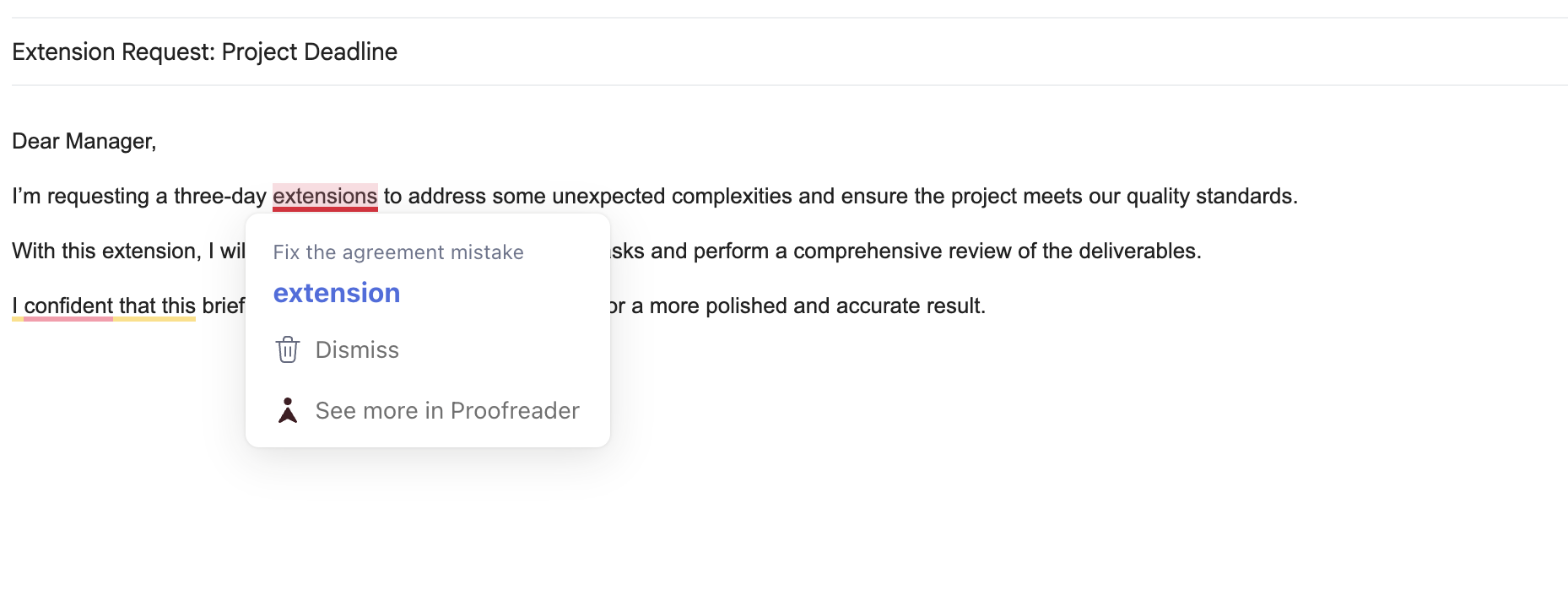
The downside is the same as ProWritingAid: Grammarly cannot draft emails from scratch, does not read email threads, and does not generate contextual replies. Its GrammarlyGO feature adds some generative capability, but it is limited compared to dedicated email assistants.
Wordtune: Best for Sentence-Level Rephrasing
Wordtune is a closer competitor to ProWritingAid in terms of use case. It focuses on rephrasing, shortening, expanding, and rewriting individual sentences, and it does this with generally good quality.
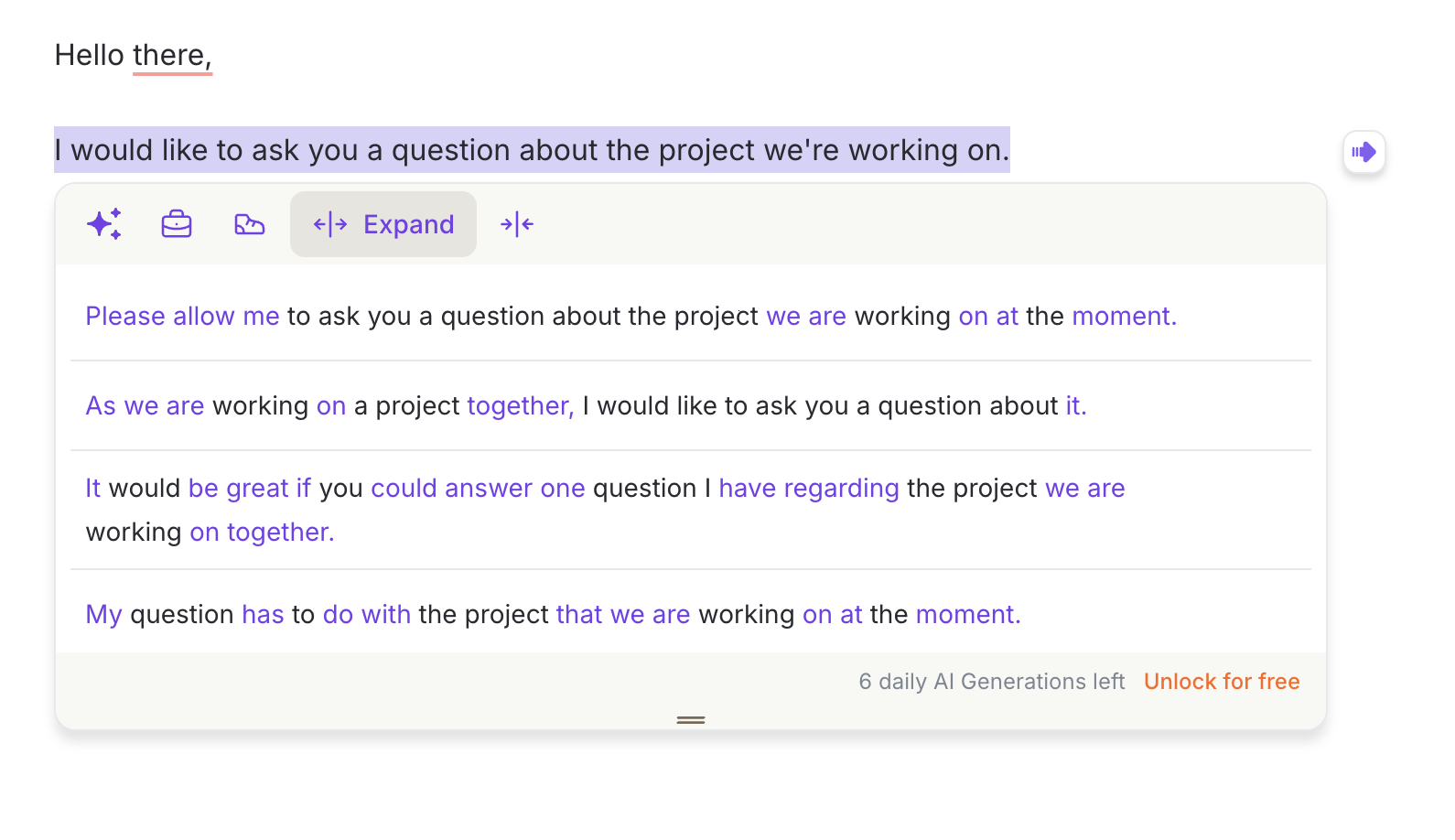
Where I found Wordtune more useful than ProWritingAid for email is that its suggestions are more consistently relevant for shorter text. Wordtune was designed with professional communication in mind alongside general writing, so the rephrasing options feel more appropriate for a five-sentence business email.
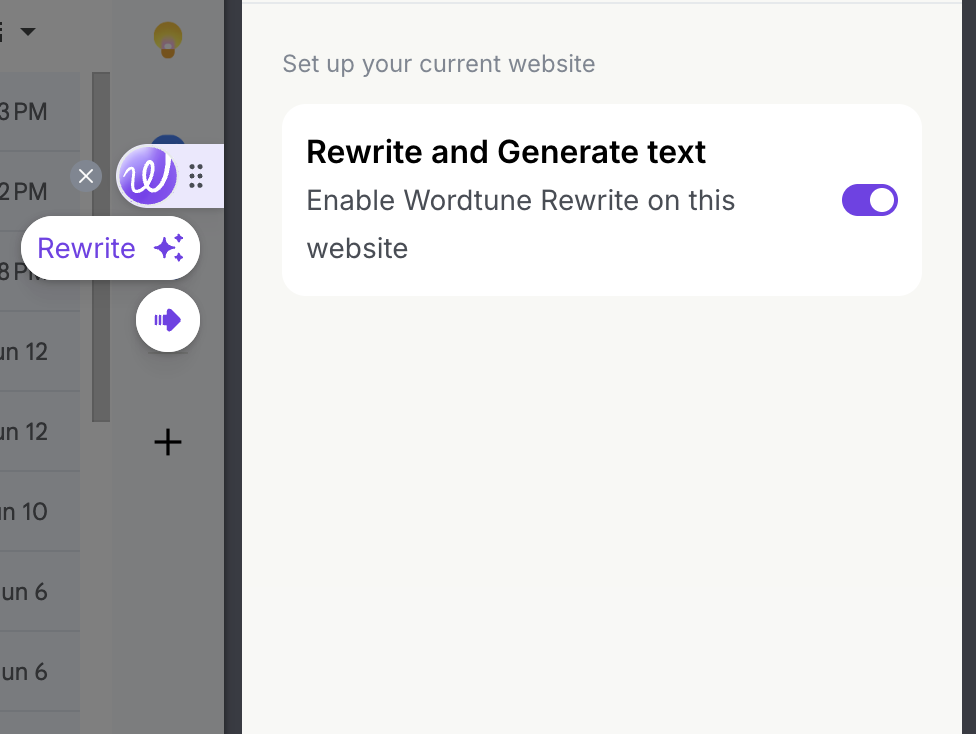
The downside: Wordtune has an extremely limited free tier (10 completions per day), and like ProWritingAid, it cannot draft emails, generate replies from thread context, or offer autocomplete while typing.
QuillBot: Best for Paraphrasing with a Humanizer
QuillBot is worth considering if you regularly work with AI-generated text that needs to sound more human before sending. Its Humanize feature is one of the more effective tools for taking a robotic-sounding AI draft and making it read naturally.
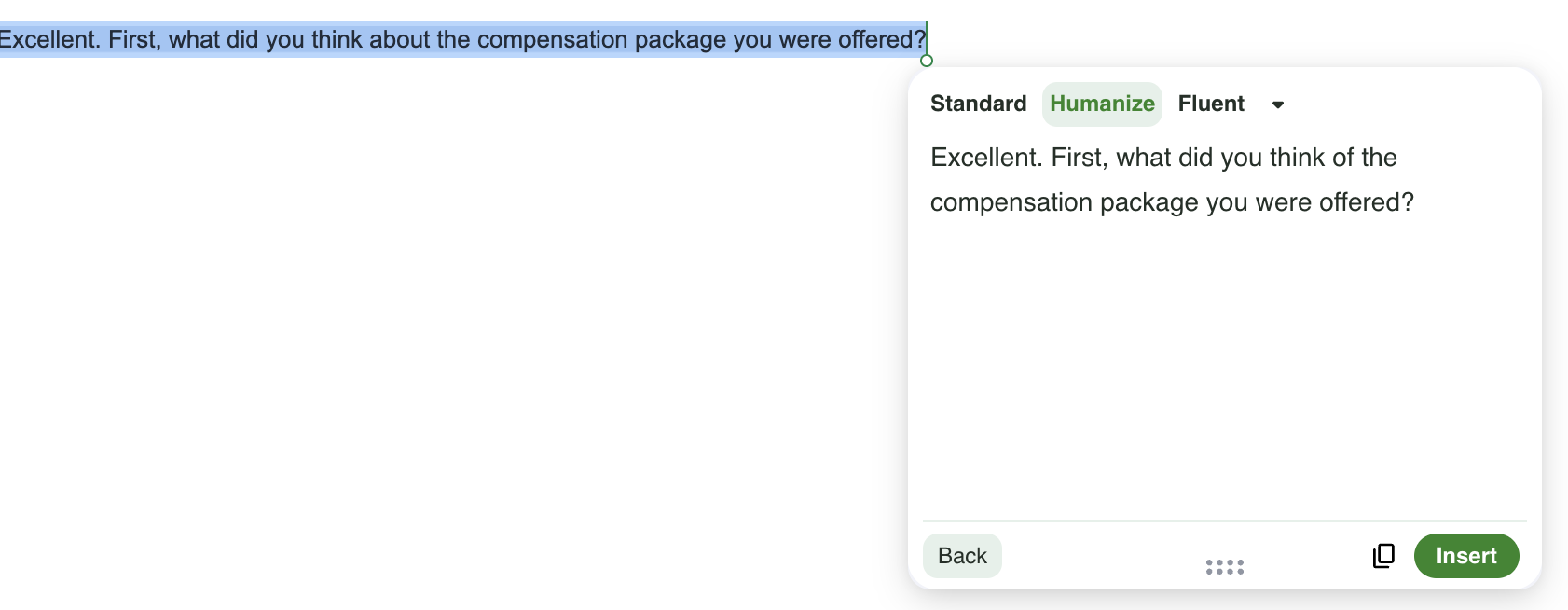
The paraphrasing modes (Standard, Fluency, Formal, Simple, Creative, Expand, Shorten) also give you more precise control over output style than ProWritingAid's Sparks categories.
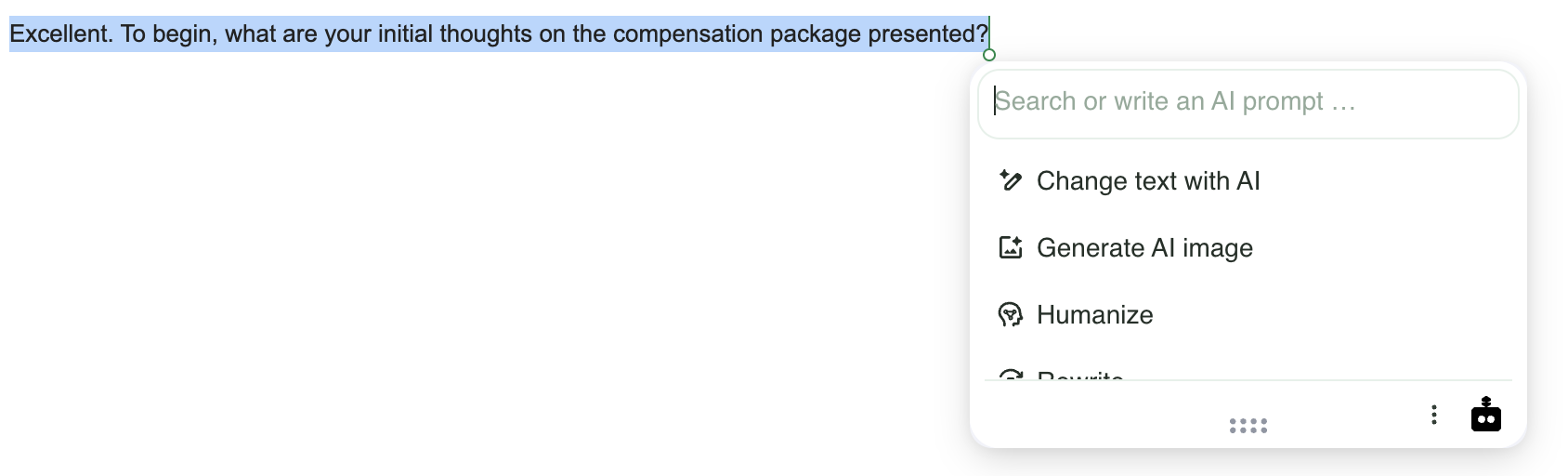
Where QuillBot falls short relative to ProWritingAid: it does not offer the style depth (Sensory, Transitions, Emotion) that ProWritingAid does for long-form content. For short email editing specifically, QuillBot's paraphrasing engine is more consistently useful than ProWritingAid's suggestion engine.
Compose AI: Broadest Autocomplete Coverage
Compose AI is a browser extension that attempts to offer autocomplete suggestions across all web platforms. Unlike ProWritingAid, it does provide some sentence completion while you type, which at least reduces the manual typing burden.
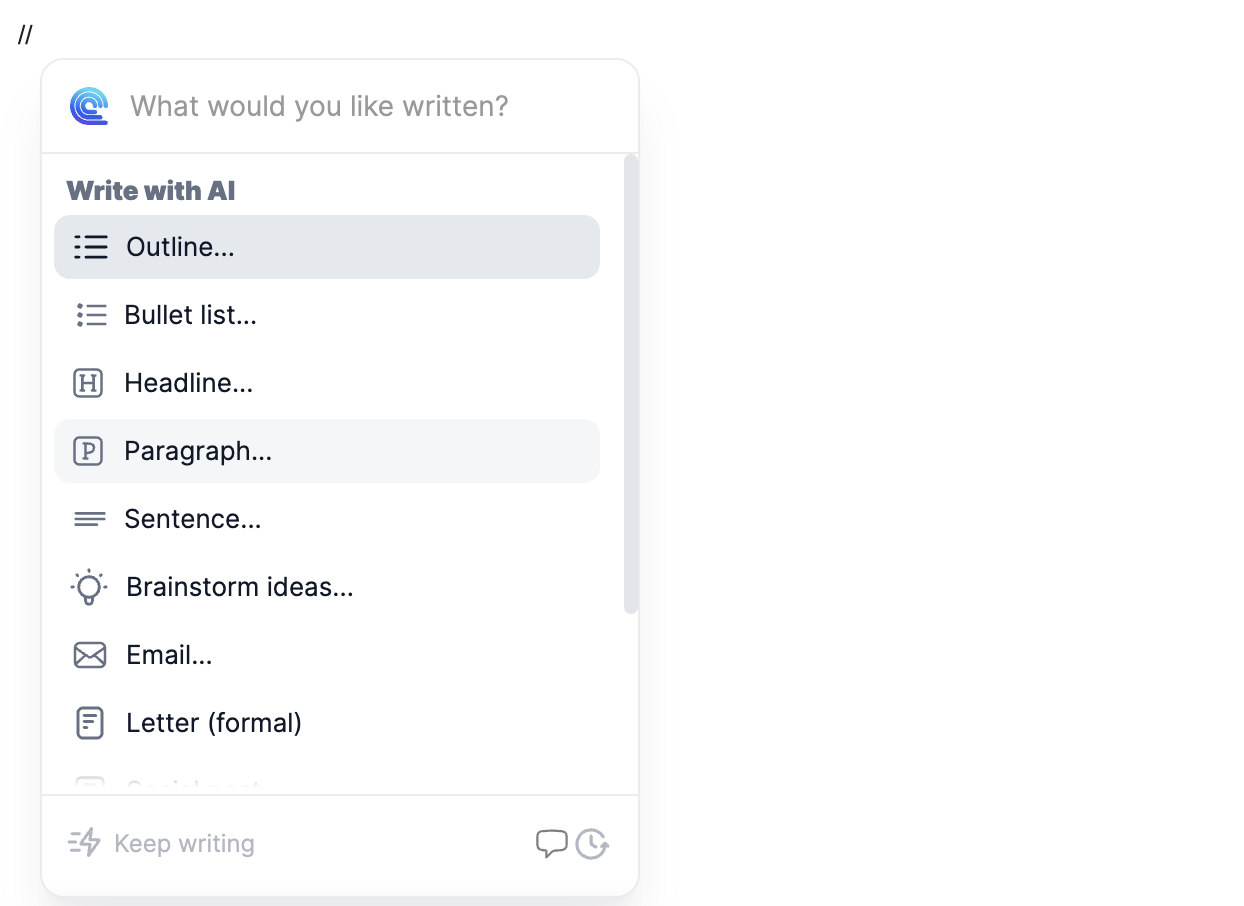
The significant downside: the email draft quality from Compose AI is noticeably poor. Generated emails tend to be long, jargon-heavy, and impersonal. If you are evaluating it as an alternative to ProWritingAid, the editing quality is weaker, and the drafting quality, while present, is not reliably good enough for professional email use.
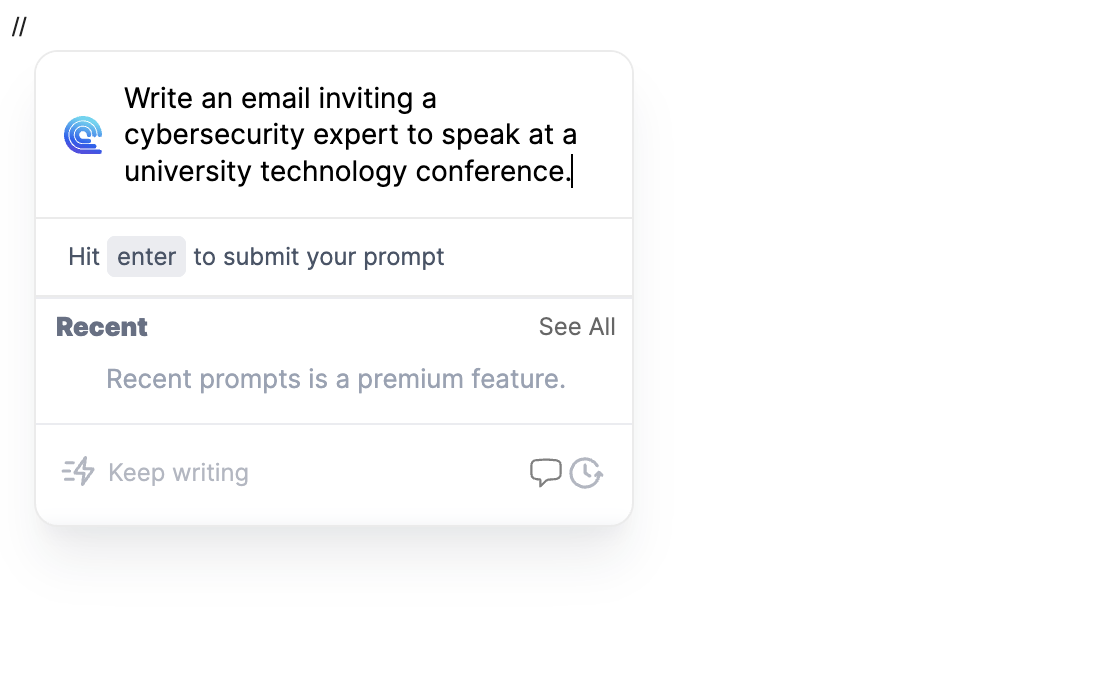
Side-by-Side Feature Comparison
| Feature | ProWritingAid | Foresty | Grammarly | Wordtune | QuillBot |
|---|---|---|---|---|---|
| Email Draft Generation | Partial | Partial | |||
| Thread Context for Replies | |||||
| Inline Autocomplete | |||||
| Voice Assistant | |||||
| Style/Fluency Editing | |||||
| Grammar Correction | Partial | ||||
| Humanize Feature | |||||
| Subject Line Generator | |||||
| Works Natively in Gmail | Partial | Partial | Partial | ||
| Outlook Support | |||||
| Free Plan | |||||
| Starting Price | $18/month | $12.95/month | $12/month | $14/month | $19.95/month |
Who Should Still Use ProWritingAid
Despite everything I found lacking for email workflows, ProWritingAid is genuinely good for the right person. Based on my testing, it is worth using if you are:
- A novelist or long-form writer who works in a web-based editor or Google Docs and wants rich style suggestions that go beyond grammar checks.
- A blogger or content writer who produces 1,000+ word articles and wants Readability, Transitions, and Sensory improvements inline.
- A professional editor reviewing documents who needs a consistent style-analysis layer across all browser-based editing surfaces.
- A cross-platform writer who works across Chrome, Safari, Firefox, and Edge and wants the same editing layer everywhere.

For anyone in those categories, ProWritingAid's Chrome extension adds real value that most competitors do not offer. The Transitions and Sensory Sparks in particular are genuinely useful for improving editorial quality in long-form work.
The challenge is that ProWritingAid's positioning does not always make this clear. It markets itself as a writing assistant broadly, which leads email professionals to test it, find it lacking, and move on. If its positioning were more specific, fewer people would be disappointed.
The Real Question: What Are You Trying to Fix?
The clearest way to think about tool selection in this category is to identify what you are actually trying to fix.
If your writing style is the problem, and you want suggestions that make your prose more elegant, readable, and engaging, ProWritingAid is the right choice. This is where it was designed to help.
If your email writing takes too long, and the bottleneck is drafting and replying rather than polishing, ProWritingAid will not help. The AI Email Writer for Gmail guide explains why the drafting step is where most time is lost, and why editing tools do not address it.
If grammar accuracy is your priority, Grammarly is the better pick. It is more consistently accurate for short professional communication.
If you want to rewrite awkward sentences without the long-form style depth, Wordtune gives you more relevant suggestions for email-length content.
The reason I moved away from ProWritingAid for email is not that it is a bad tool. It is that it was built for a different problem. When I realized I was still writing every email from scratch and only using ProWritingAid to clean up the last sentence, I understood that the real time cost was not in editing at all.
For anyone who spends too much time writing emails generally, the bottleneck is almost always at the drafting stage. A style polisher helps with the last 10% of the work. A drafting assistant handles the first 80%.
You can read more about why this division of effort matters in our guide on why email writing takes so long - it details how planning and drafting make up the bulk of inbox friction.
FAQ
Does ProWritingAid work inside Gmail?
Yes. The ProWritingAid Chrome extension activates inside Gmail's compose window. You can highlight text to trigger the inline rephraser or use the Sparks bubble menu to run style edits. It does not, however, generate new emails from scratch or read email threads for reply generation.
Is ProWritingAid better than Grammarly?
For long-form writing, yes. ProWritingAid offers deeper style analysis including Readability, Transitions, Sensory, and Emotion suggestions that Grammarly does not provide. For short business email writing and real-time grammar checking, Grammarly's inline corrections are smoother and more accurately calibrated.
Can ProWritingAid generate email drafts?
No. ProWritingAid cannot generate a new email from a prompt. It only works on text you have already written. If you need a tool that can draft a full email inside Gmail based on a short description, Foresty or Grammarly's GrammarlyGO are better options.
Is ProWritingAid Chrome extension free?
There is a free plan that allows up to 500 words per check. This is enough to test the tool but limiting for daily professional use. The paid Premium plan starts at $18/month for unlimited word count and 5 sparks per day.
What is the best ProWritingAid alternative for email writing?
For email specifically, Foresty is the most complete alternative. It handles the full email workflow natively inside Gmail and Outlook: drafting, replying with thread context, inline autocomplete, voice input, and subject line generation. Grammarly is the better choice if grammar checking and proofreading are your main needs.
Does ProWritingAid work with Outlook?
No. ProWritingAid's Chrome extension does not have native support for Microsoft Outlook. If you use Outlook regularly, tools like Foresty, Grammarly, or MailMaestro offer Outlook-specific capabilities. Foresty's Outlook Writing Assistant works directly inside Outlook's compose window.
Why do ProWritingAid's suggestions sometimes feel wrong for business emails?
The suggestion engine was trained on long-form literary and editorial writing. Short business emails have different requirements: directness, conversational tone, and brevity. When ProWritingAid evaluates a five-sentence email through the lens of long-form prose quality, it often recommends changes that make the email sound more formal and complex, not clearer. This is a fundamental design orientation issue, not a bug.
Final Verdict
ProWritingAid's Chrome extension is a solid tool for the wrong use case most people evaluate it for.
I came in expecting a capable all-around writing assistant that would make my Gmail workflow faster. What I found was a well-built style editor designed for long-form writing, with a calibration that consistently misfired on short business emails. The Sparks suggestions are genuinely good in Google Docs. They are frequently irrelevant in a five-sentence client email.
If you write long-form content in the browser and want deeper style analysis than Grammarly provides, ProWritingAid is worth trying. The free plan gives you enough to test whether the suggestions match your writing style.
If your goal is to write professional emails faster, the honest recommendation is to use a dedicated AI email assistant for Gmail that handles the full workflow: drafting, replying, and editing inside the compose window. ProWritingAid handles only the final editing step, and for email that step is rarely where the time goes.
You can start with Foresty's free plan at forestmail.me/foresty with no credit card required and see the difference in workflow immediately.